What are Templates?
Templates allow you to save and reuse project configurations, user task configurations, and chat configurations, making it easy to create new projects and automations with consistent settings. Templates help you standardize your workflows and quickly set up new projects with proven configurations. Get Started Faster: Access a library of public templates created by the community to jumpstart your projects with proven configurations, eliminating the need to build everything from scratch.Types of Templates
Project Templates
Save project configurations including outputs, datasets, and tasks.
User Task Templates
Save personal task configurations for reuse or sharing with others.
Chat Templates
Save chat configurations focused on specific use cases for reuse within a
project
Project Templates
Project templates save the configuration of a project, including its outputs, datasets, chat templates,and tasks, so you can create new projects with the same setup.What’s Included
- Output Configurations: All output definitions and settings
- Dataset Schemas: Custom dataset configurations
- Chat Templates: Chat template configurations
- Task Definitions: Automated project level task configurations
- Project Settings: Project settings and configuration
What’s Not Included
- Data Sources: Data sources are not included in the templates
- ** Dataset Data**: Dataset data built out in a project is not included in the templates
- User Information: Personal data and user-specific settings
- Historical Data: Past data and execution logs
- Chat history: Chat history is not included in the templates
- Calendar events: Calendar events are not included in the templates
Creating Project Templates
Learn how to create project templates in the Projects section.
Creating Project Templates
Using Project Templates
Learn how to use project templates when creating new projects.
User Task Templates
User task templates save personal task configurations that run at the private user level and can access all your projects and user account integrations.Creating User Task Templates
To create an entirely new user task template you’ll need to create a new task first to serve as the basis for it. Once you have one you can create a template from it.- Navigate to the tasks page from the main dashboard or navigation bar
- on mobile there is a task button in the bottom navigation bar
- on web there is a tasks tab in the left navigation bar
- Under the task templates section, click or tap the task tempalte that you want to create a template from
- Locate the “create template” button and press it, confirm, and wait a few seconds as Tucca builds a template from your task
Using User Task Templates
- Navigate to the templates page from the main dashboard or navigation bar
- on mobile there is a templates button above the projects list
- on web there is a templates tab in the left navigation bar
- Click or tap the user task template that you want to use
- Click or tap the “create task” button and wait a few seconds as Tucca builds a user task from your template
Chat Templates
Chat templates save specialized chat configurations for specific use cases within a project. They allow you to create focused AI assistants tailored to particular tasks, domains, or workflows.Creating Chat Templates
- Navigate to the project you want to create a chat template for
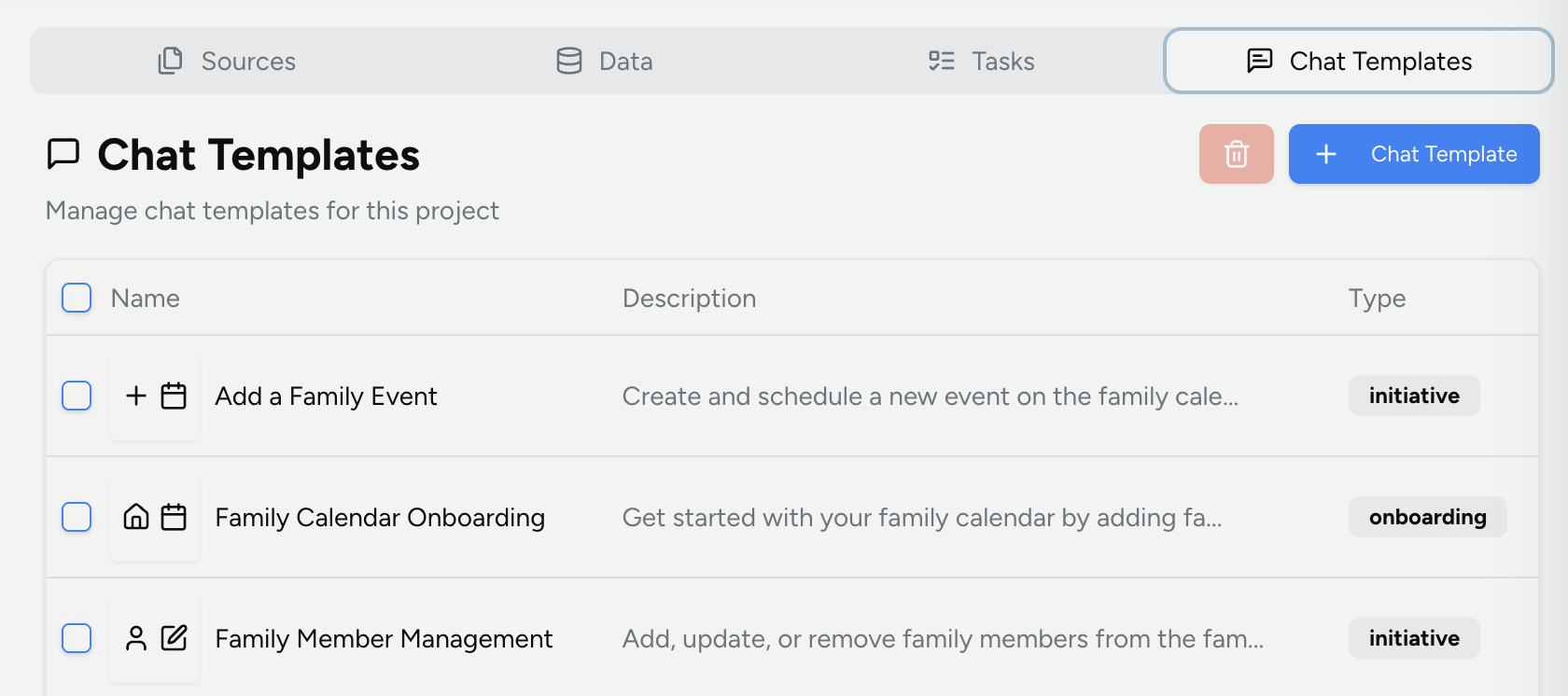
- Under the chat templates tab click the new chat template button
-
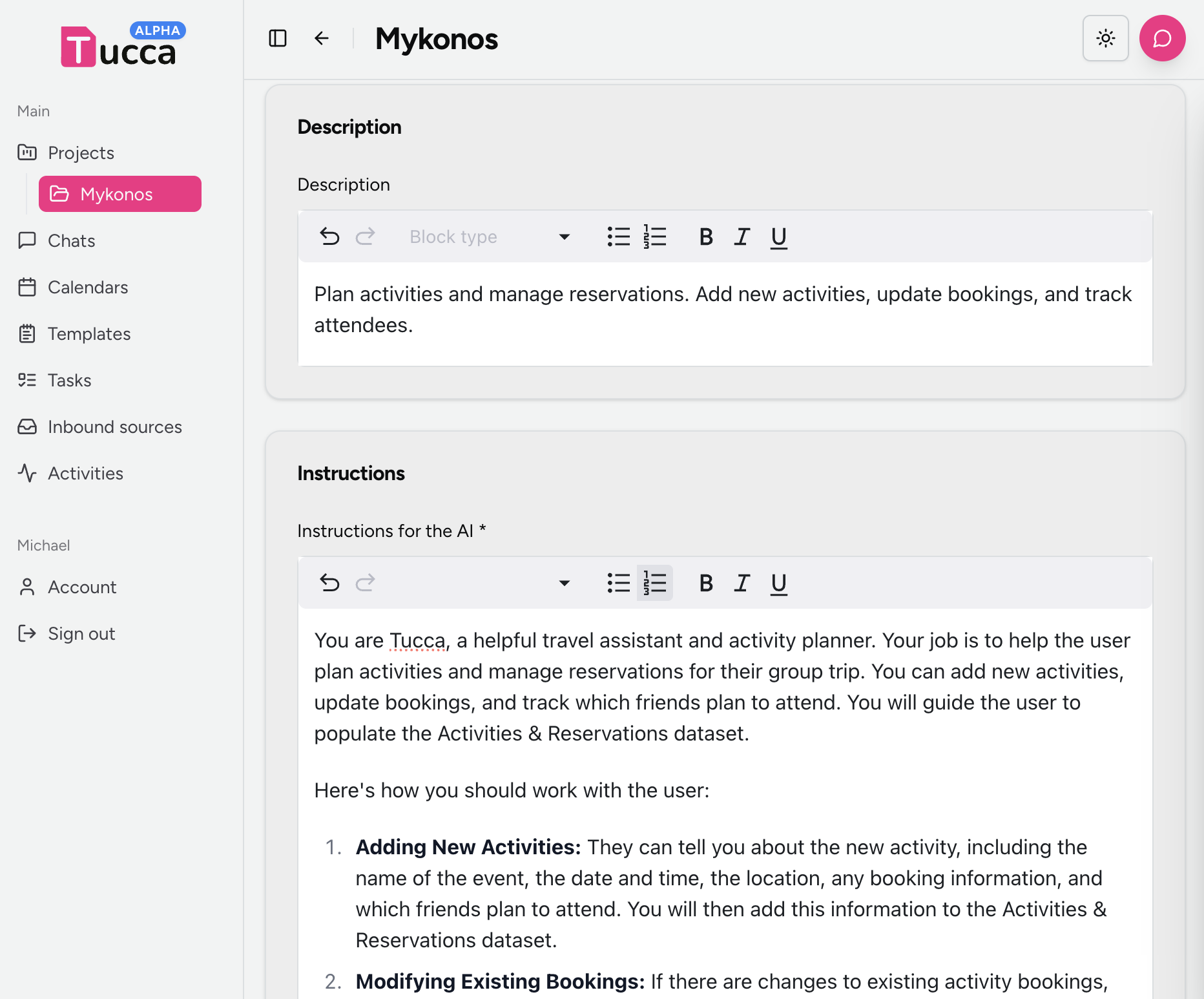
Fill out the form with the following information:
Basic Information
- Name: Give your chat template a descriptive name that clearly indicates its purpose (e.g., “Personal Finance Advisor”, “Fitness Coach”, “Meal Planning Helper”)
- Type: Select “Initiative/Themed Chat” for specialized AI assistants focused on specific use cases. Select “Onboarding” for a chat that helps users get started within the project (helpful for shared template building).
- Icons: Add relevant Lucide icons (comma-separated) that represent the template’s function (e.g., “Heart, Dumbbell, ChefHat”)
- Description: Provide a clear description of what this chat template does and when to use it
- The AI’s role and expertise area
- How it should behave and respond
- Specific guidelines for the domain or task
- Any constraints or limitations
- Examples of good responses
- When done, click the create button to save the chat template
- 💻 Web
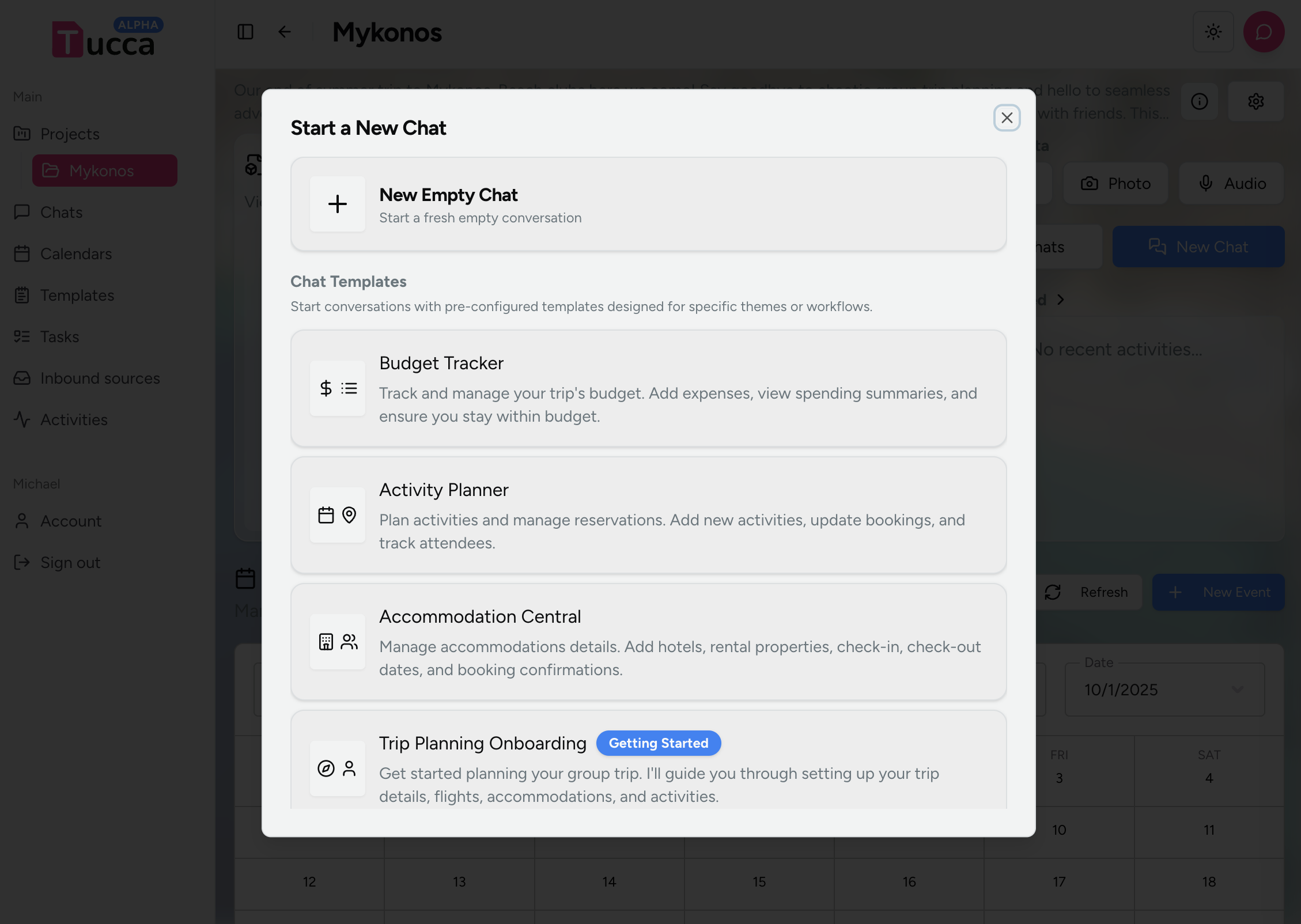
Using Chat Templates
Whenever you create a chat in a project you will be prompted to select a chat template.- Navigate to the project you want to create a chat in
- Click or tap the new chat button
- Select the chat template you want to use, a new chat will be created with the template settings
- Begin chatting with the specialized AI assistant
- 📱 Mobile
- 💻 Web
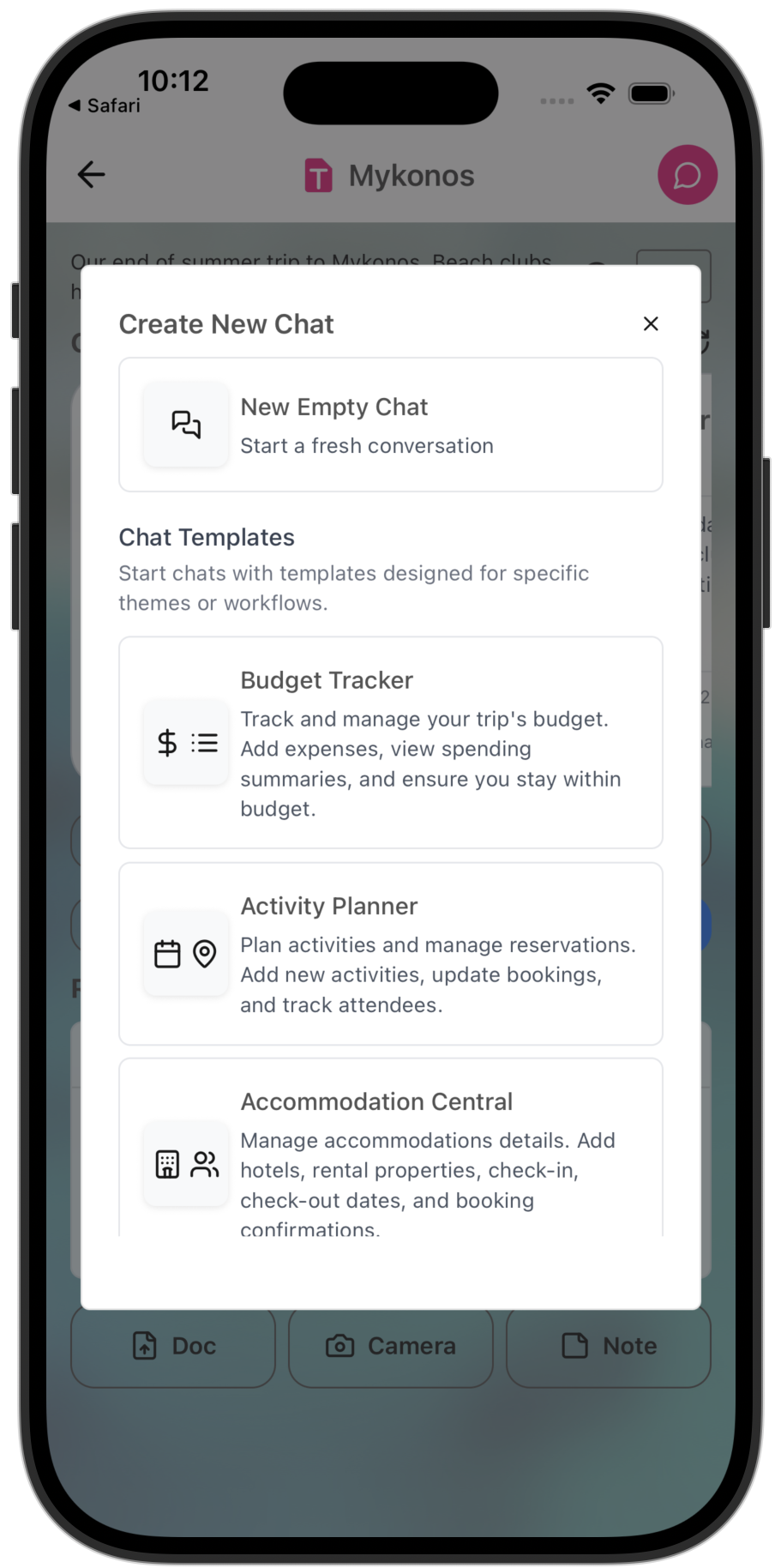
Select a chat template to use when creating a chat
← Home
Return to the main documentation homepage
← Concepts Overview
Browse all concept documentation