

What are Chats?
Chats allow you to have conversations at two different levels inside Tucca. There are global user chats and project specific chats. Both chats offer similar functionality but are scoped differently to fit your needs for collaboration or privacy.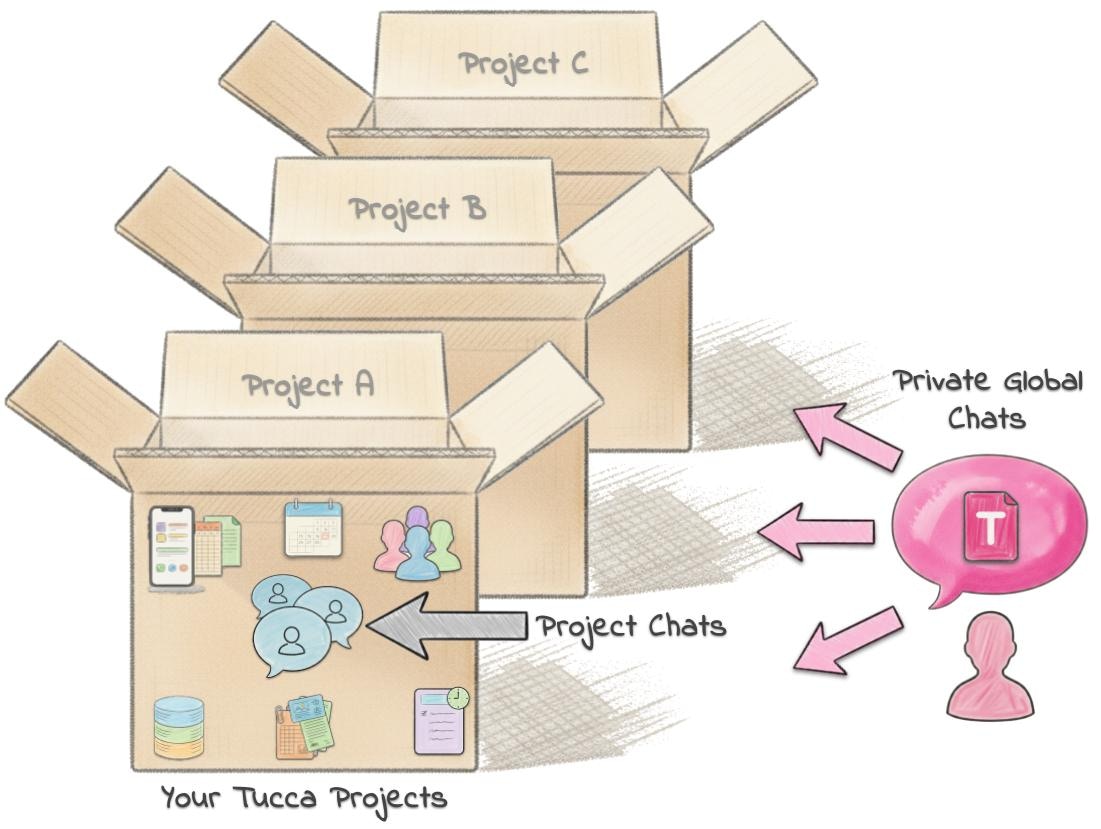
Types of Chats
Project Chats
Chats that exist within a specific project that only have access to the data
and tools within that project. Can be private or shared with others.
Global User Chats
Private user only chats that operate outside the confines of a specific
project. They can access all projects that the user has access to.
Project Chats
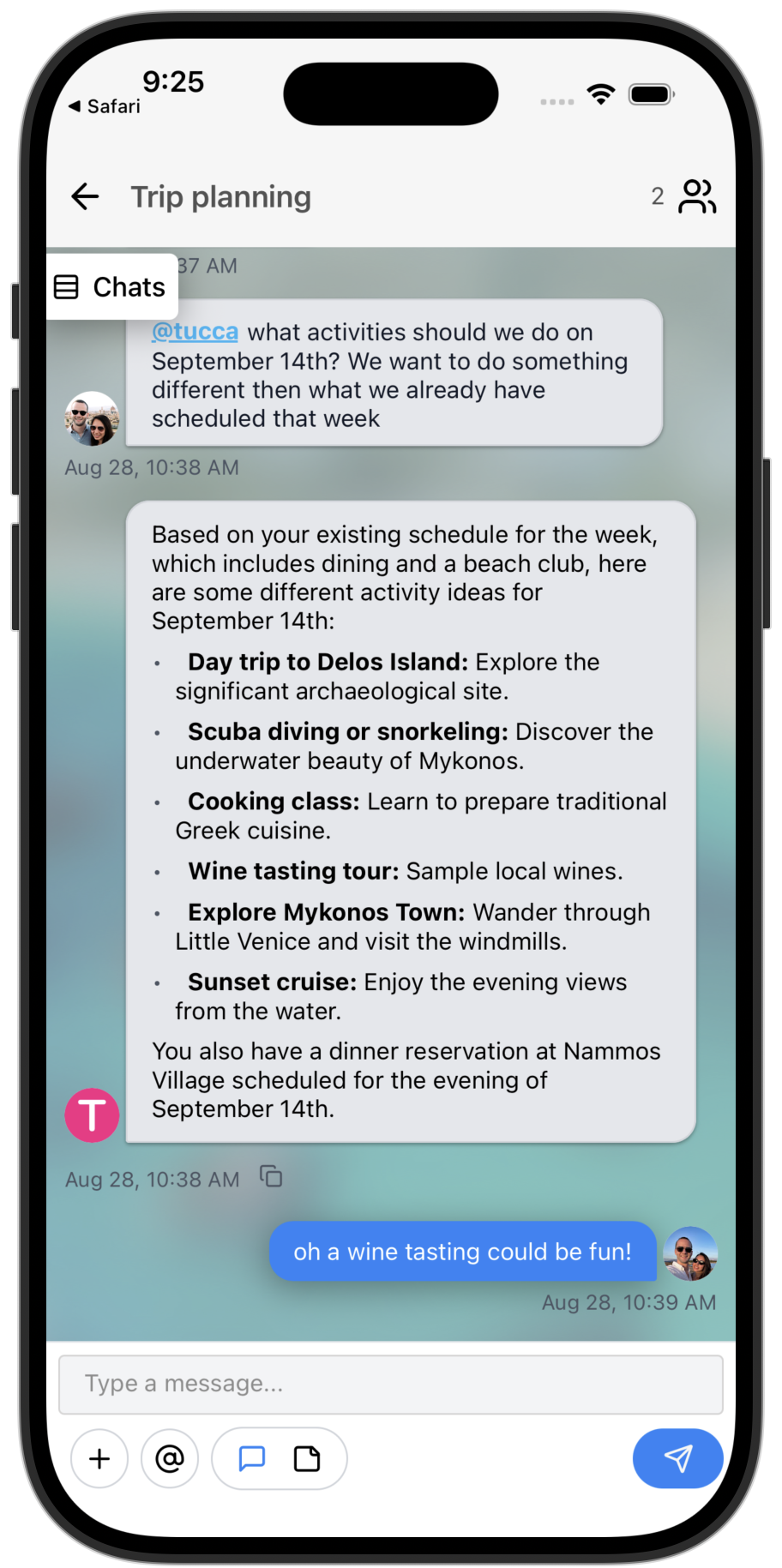
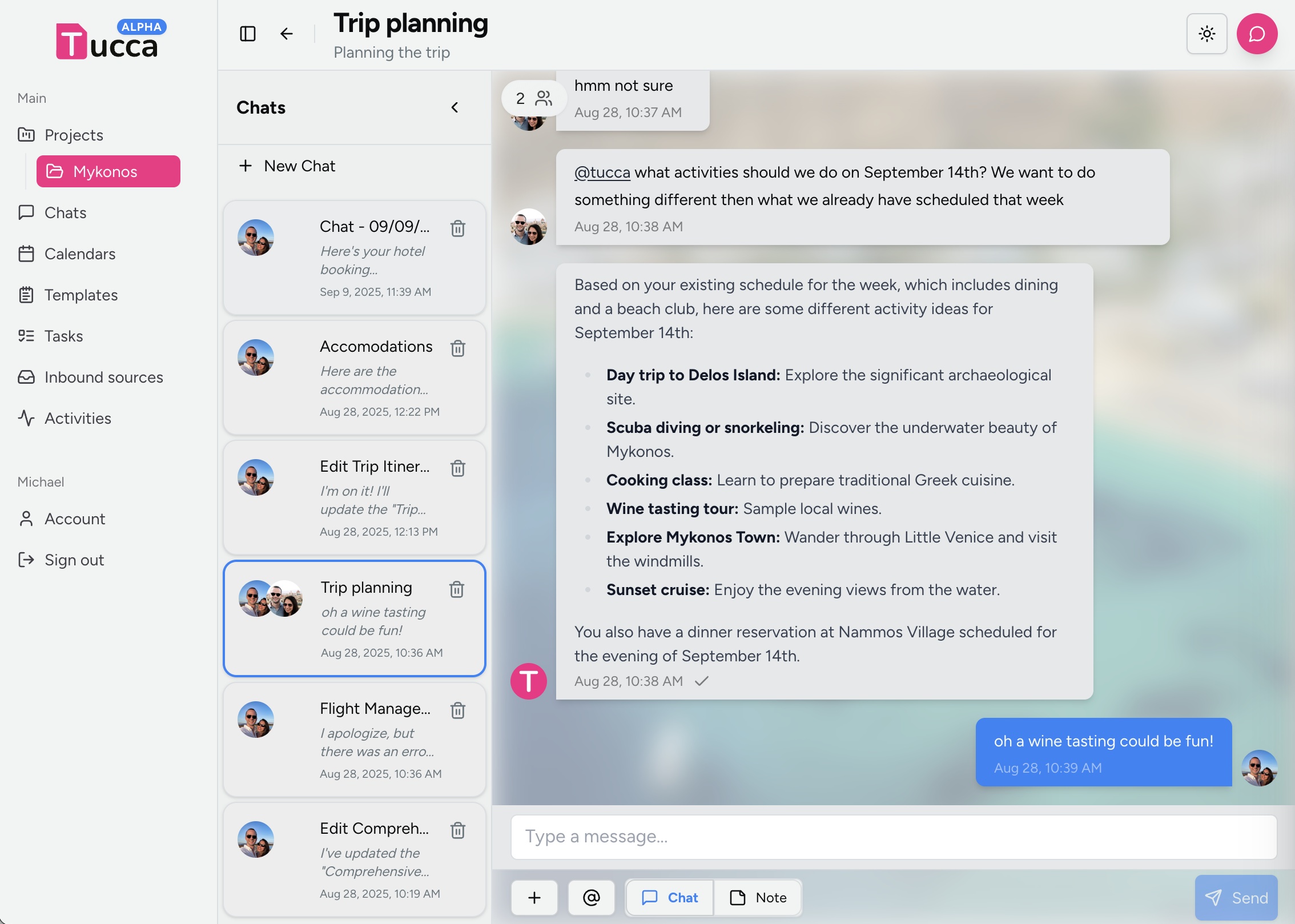
Project chats are focused on a specific project and have access to all the data sources, datasets, and outputs, tasks, calendar, and more within that project. They also have access to a project specific AI assistant that can perform actions for you or anyone else in the project.- 📱 Mobile
- 💻 Web
Features
- Project Context: AI understands the specific project’s purpose and data keeping it focused on the project purpose entirely
- Data Access: Can reference any data source, dataset, output, task, calendar event, and more in the project. Unable to access data from other projects.
- Tool Access: Can use project-specific tools and perform actions
- Multi-user: Multiple project members can participate in the same chat
- Mentions: Use
@tuccato specifically invoke the AI assistant or@usernameto ping another chat member - Automatic Responses: AI automatically responds when it’s the only other member. When multiple members are in the chat it will wait to be invoked
Starting a Project Chat
- Navigate to the project you want to chat in
- Click the new chat button
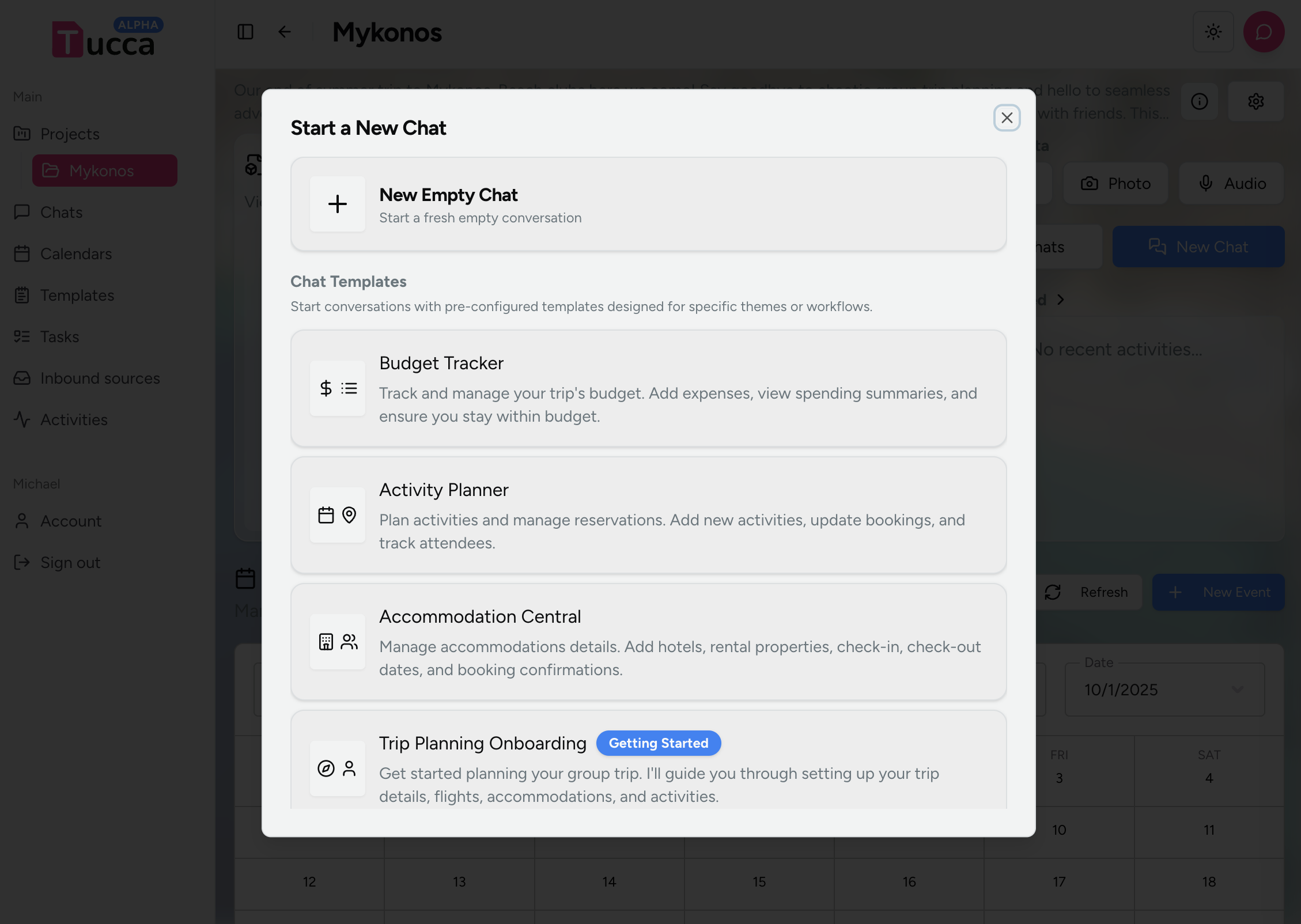
- Select a chat template to use
- If no template fits your use then select the empty chat option
- Begin typing your question or request and hit send
- Invite other project members to join the conversation if needed
- 📱 Mobile
- 💻 Web
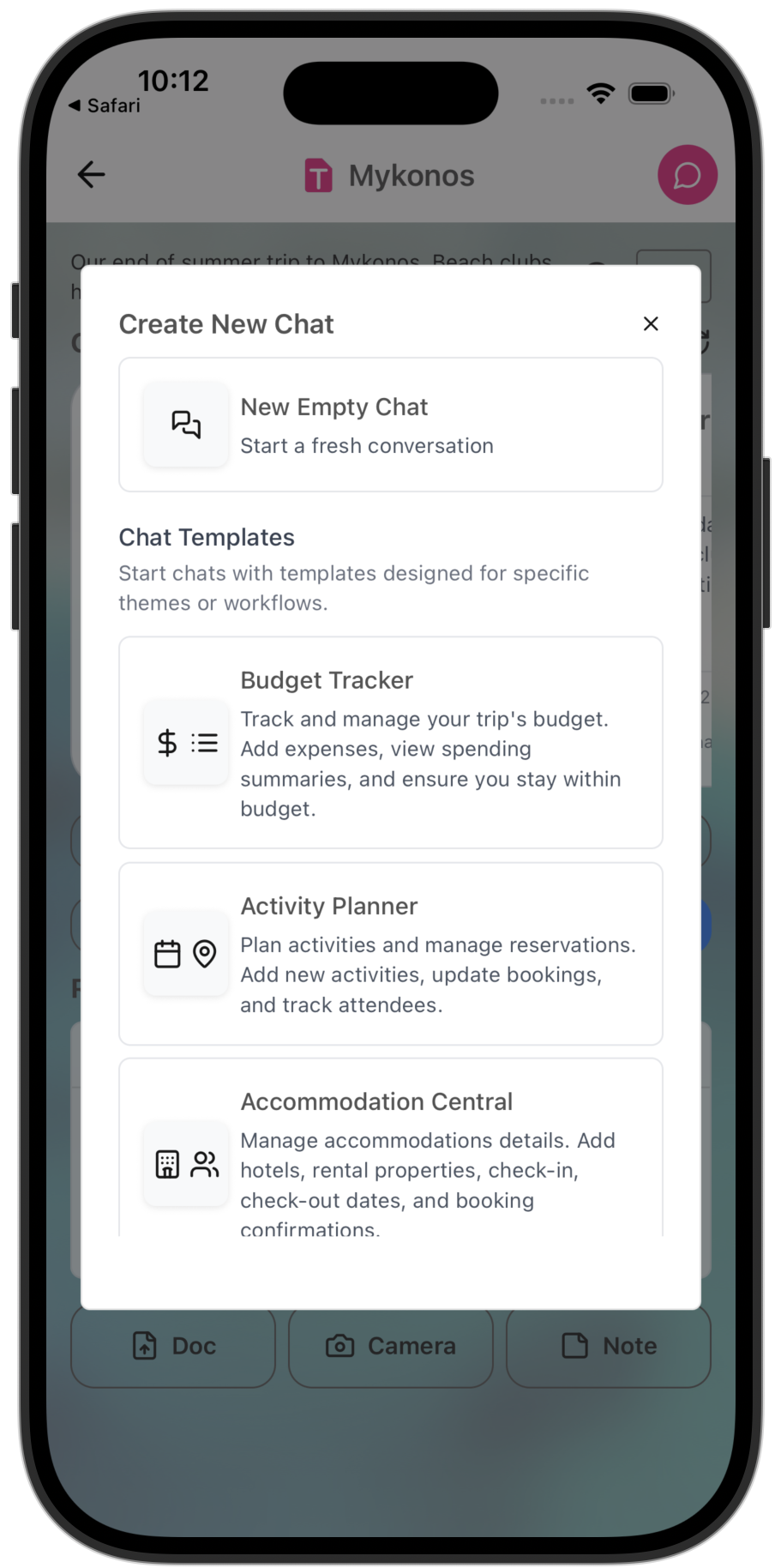
Select a chat template to use when creating a chat
Global Chats
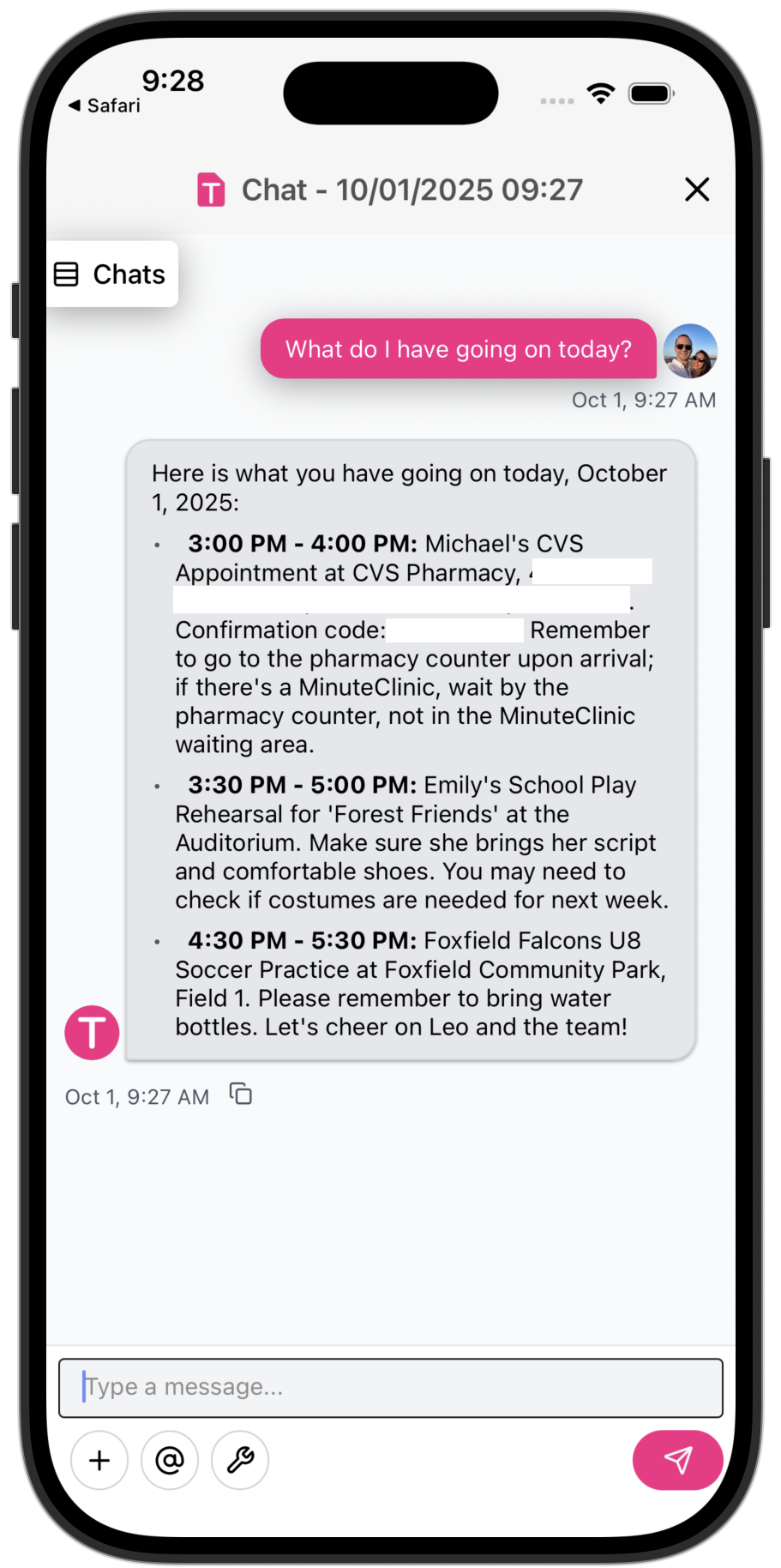
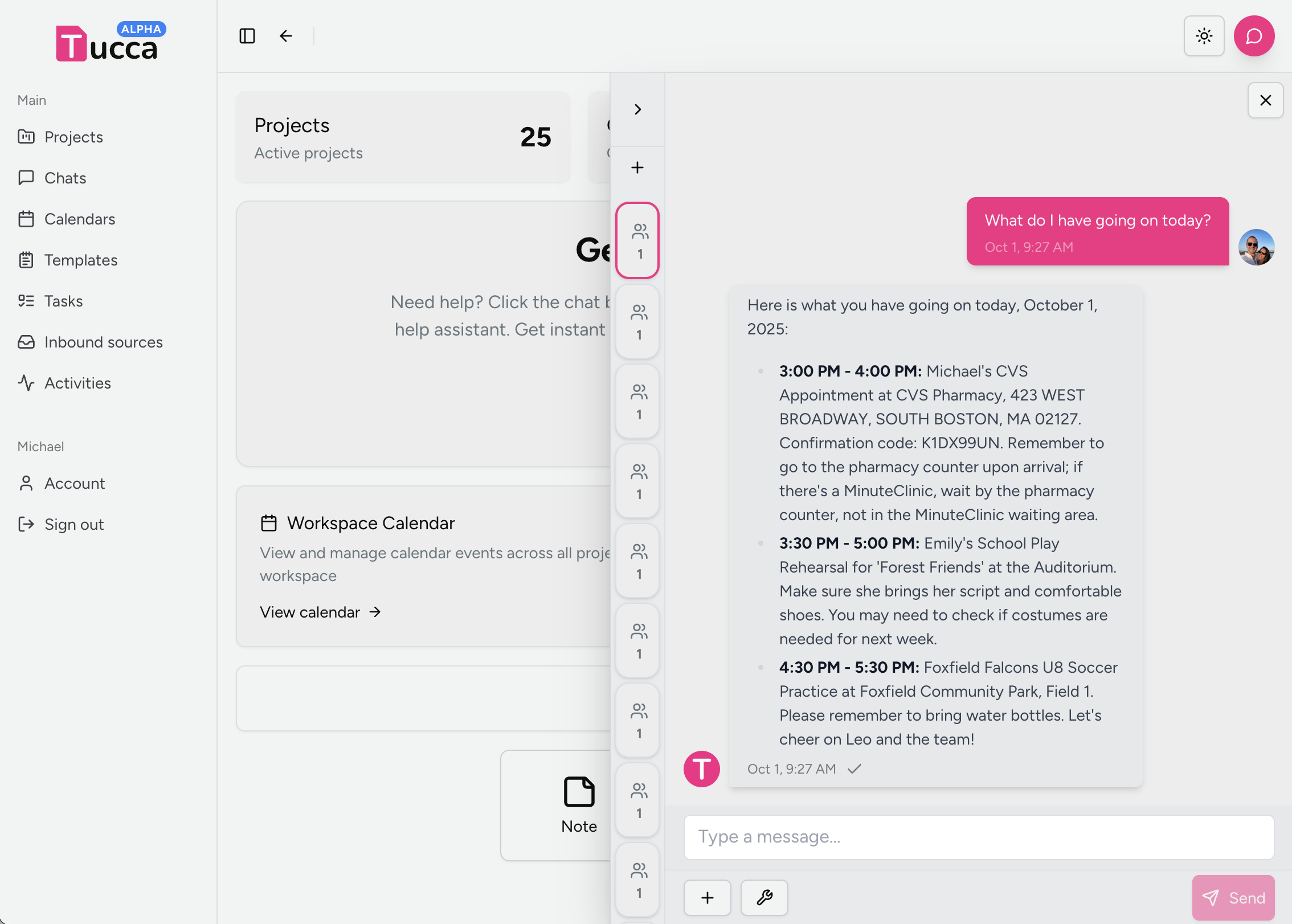
Global chats are always private to you and have access to all the projects you have access to, making them perfect for general guidance and cross-project work. These chats can be accessed from most parts of the app on web and mobile using the pink chat button in the top right corner.
- 📱 Mobile
- 💻 Web
Features
- Cross-project Access: Can work with data from all your projects allowing you to ask questions and perform actions across all your projects from one place.
- Personal Tools: Access to your personal OAuth accounts and resources configured for your user account.
- Private: Only you can access these chats.
- General Guidance: Help with Tucca platform usage and best practices. Use the global chat assistant to get help with Tucca
OAuth Integration
Global chats can access any personal OAuth accounts configured for your user account:- Email Accounts: Access your personal email for analysis and processing
- Calendar Integration: Work with your personal calendar data
- Other Services: Connect with various third-party services
OAuth accounts configured for your user account can only be accessed via your
private global chats or private global tasks. Projects and project members
cannot access them.
Starting a Global Chat
- Locate the pink chat button in the top right corner (see pic above for reference)
- on mobile this is only visible in the main view and project dashboards. You may need to navigate back to see it
- A global chat will open over the current view
- Begin typing your question or request and hit send
Chat Features
Natural Language Processing
- Context Understanding: AI remembers the conversation context
- Intent Recognition: Understands what you’re trying to accomplish
- Follow-up Questions: Can ask clarifying questions when needed
- Multi-turn Conversations: Maintains context across multiple exchanges
Data Interaction
- Data Queries: Ask specific questions about your data
- Data Analysis: Get insights and patterns from your information
- Data Manipulation: Request changes to your data and outputs
- Data Creation: Generate new content based on your data
Advanced Features
Note Taking
Project chats have note taking readily available. Switch to note mode to create a note inside the current project directly from the chat. The note will then be available to all outputs, tasks, chats, and more inside the project.Create Project Entities
The assistant can help you create outputs, tasks, and more just by asking it to.- Task Creation: Create automated tasks and workflows
- Dataset Creation: Create new datasets and configure them
- Output Creation & Updates: Create new outputs and trigger output updates
- Create Projects: (Global Chat Only) Create new projects and configure them
Tool Integration
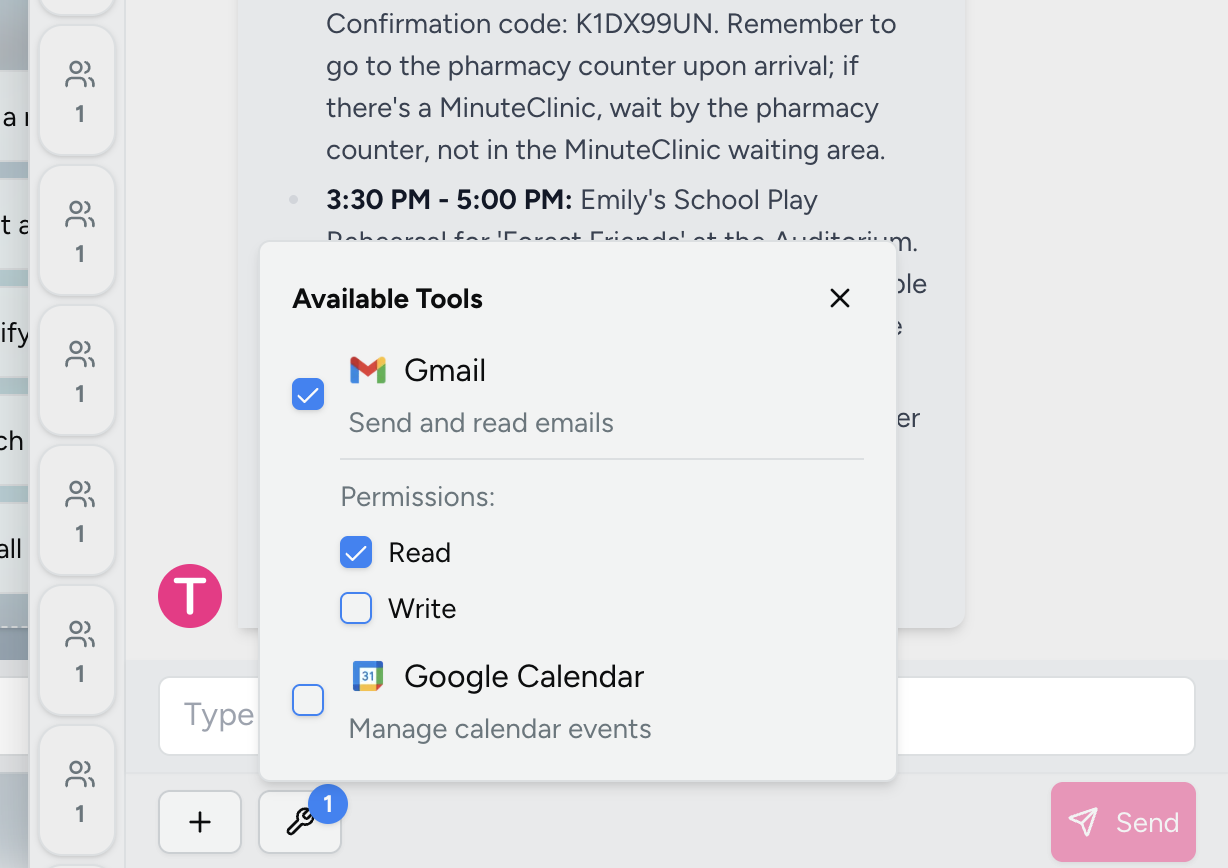
Global chats have access to tools that can be used to perform actions on your behalf. These tools utilize any OAuth accounts configured for your user account.- Gmail: Check your inbox, draft emails, ingest relevant information, and more
- Google Calendar: Check calendar events, create new events, and more
- Coming Soon: Slack, Trello, and more integrations coming soon
Using Tools
Tools are accessed via the wrench icon in a global chat. They can be activated when needed and then deavtivated when no longer needed. Users have the ability to configure what level of access the tool will have during use (read/write).- 📱 Mobile
- 💻 Web
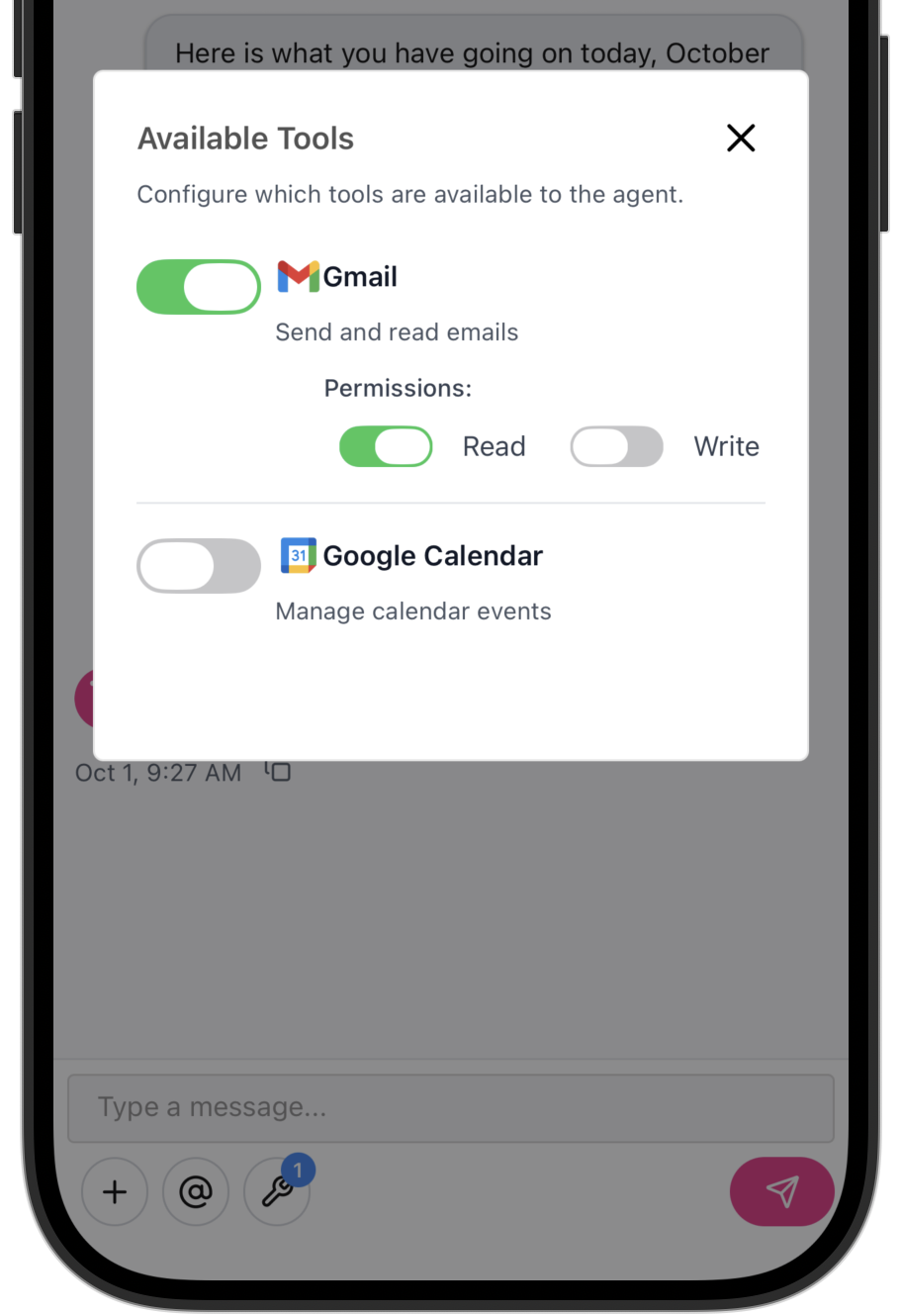
Mobile Global User Tools
Troubleshooting
Common Issues
AI Not Understanding- Provide more context and background information
- Use more specific language and examples
- Break complex requests into smaller parts
- Ask clarifying questions to help the AI understand
- Request the latest version of the data
- e.g. “Can you get the calendar entry on thursday?”
- Identify what is wrong to the agent and ask them to repair it
- e.g. “The end time is actually 5:00pm instead of 4:30pm”
- Ask the agent to double check the action was completed
- Ask it to confirm with a query
- Try asking it again to perform the action
- Try a clean chat if all else fails
- reach out to support if the issue persists help@tucca.ai
← Home
Return to the main documentation homepage
← Concepts Overview
Browse all concept documentation