

What are Outputs?
Outputs are intelligent, auto-updating documents and applications that Tucca creates from your project data. Using plain text instructions, you can generate living documents, spreadsheets, web applications, and calendar events that automatically update as you add new information to your project.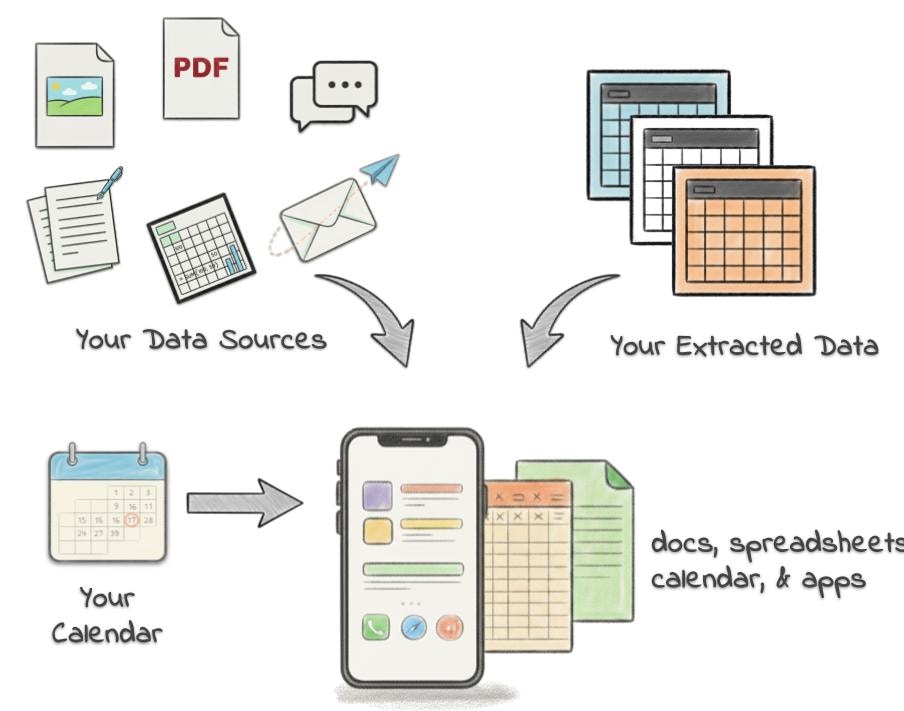
Types of Outputs
Text Outputs
Auto-updating documents, summaries, and reports that stay current with your
data.
Spreadsheet Outputs
Dynamic spreadsheets that automatically populate and update with your
project information.
Visual Outputs
Custom web applications that both present and interact with your data
intelligently.
Creating Outputs
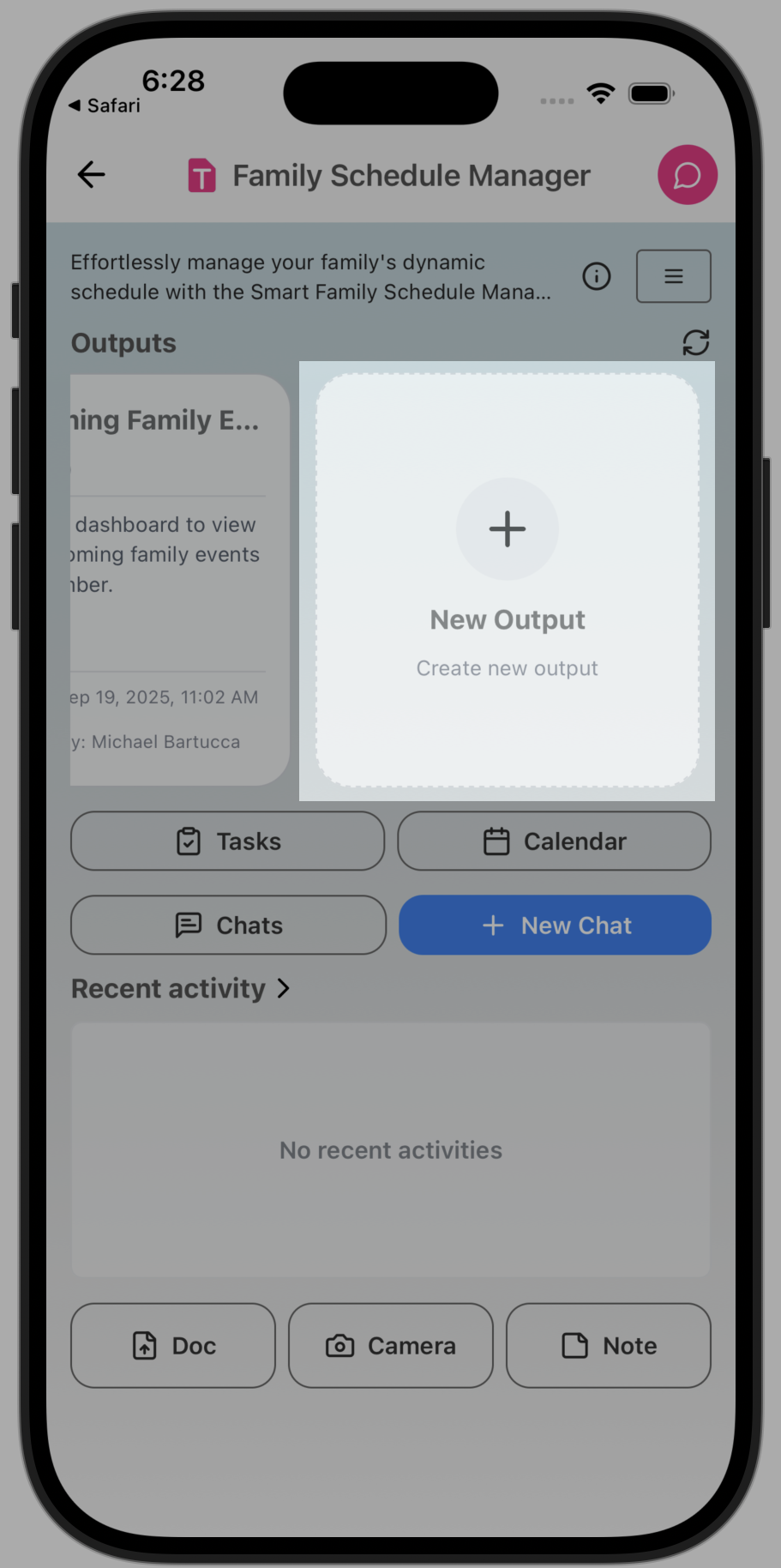
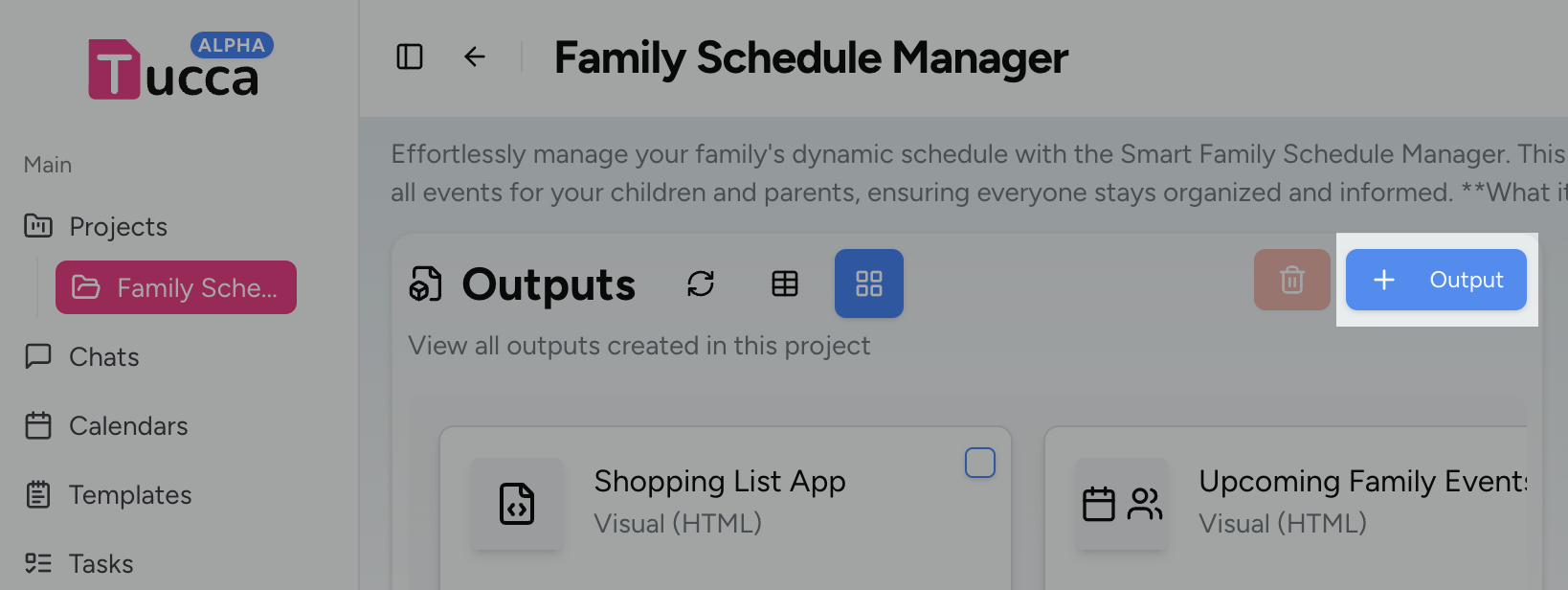
- Navigate to the project dashboard
- Click or tap the new output button
- on mobile you may need to scroll the outputs view horizontally to the left
- 📱 Mobile
- 💻 Web
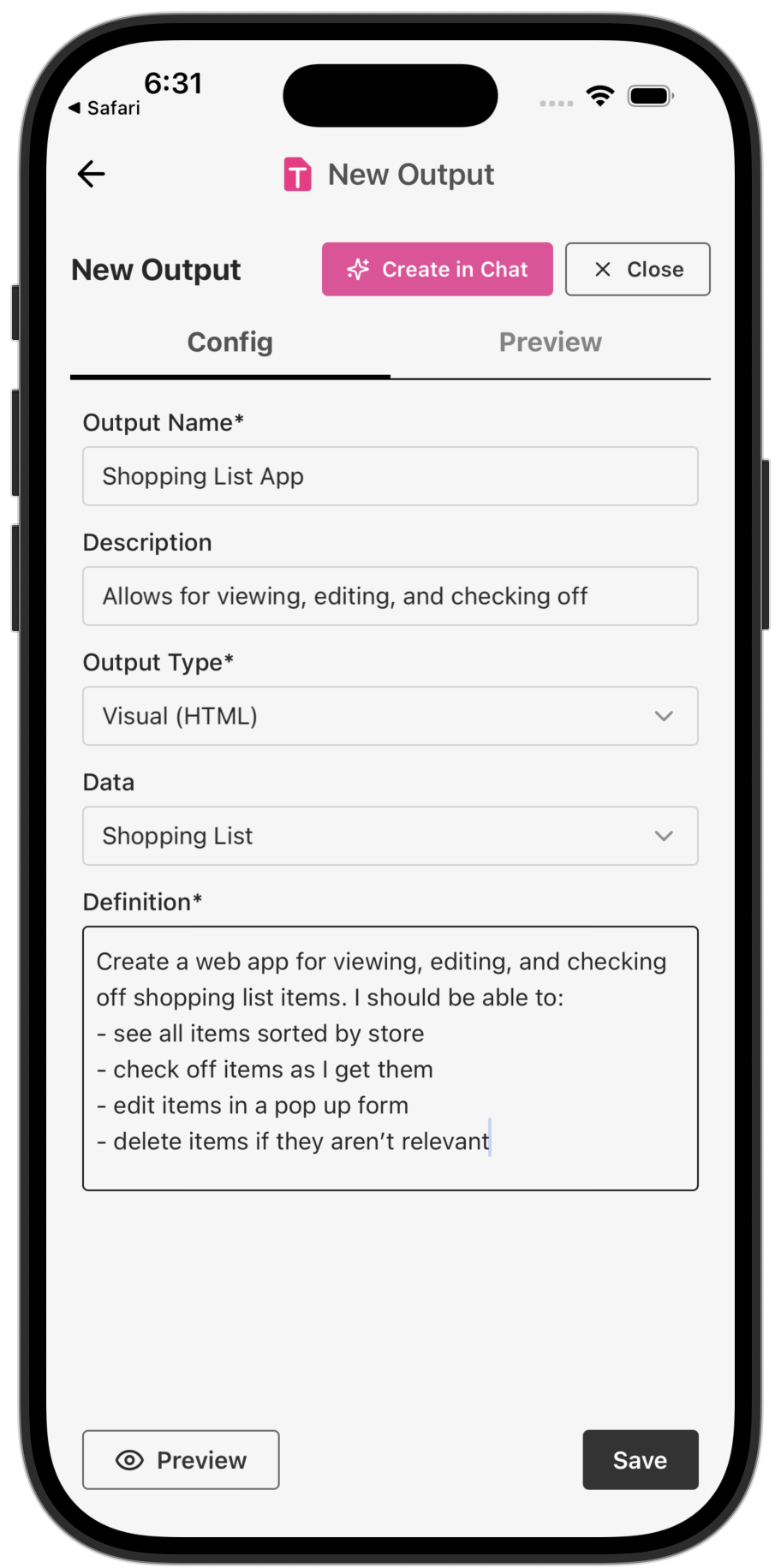
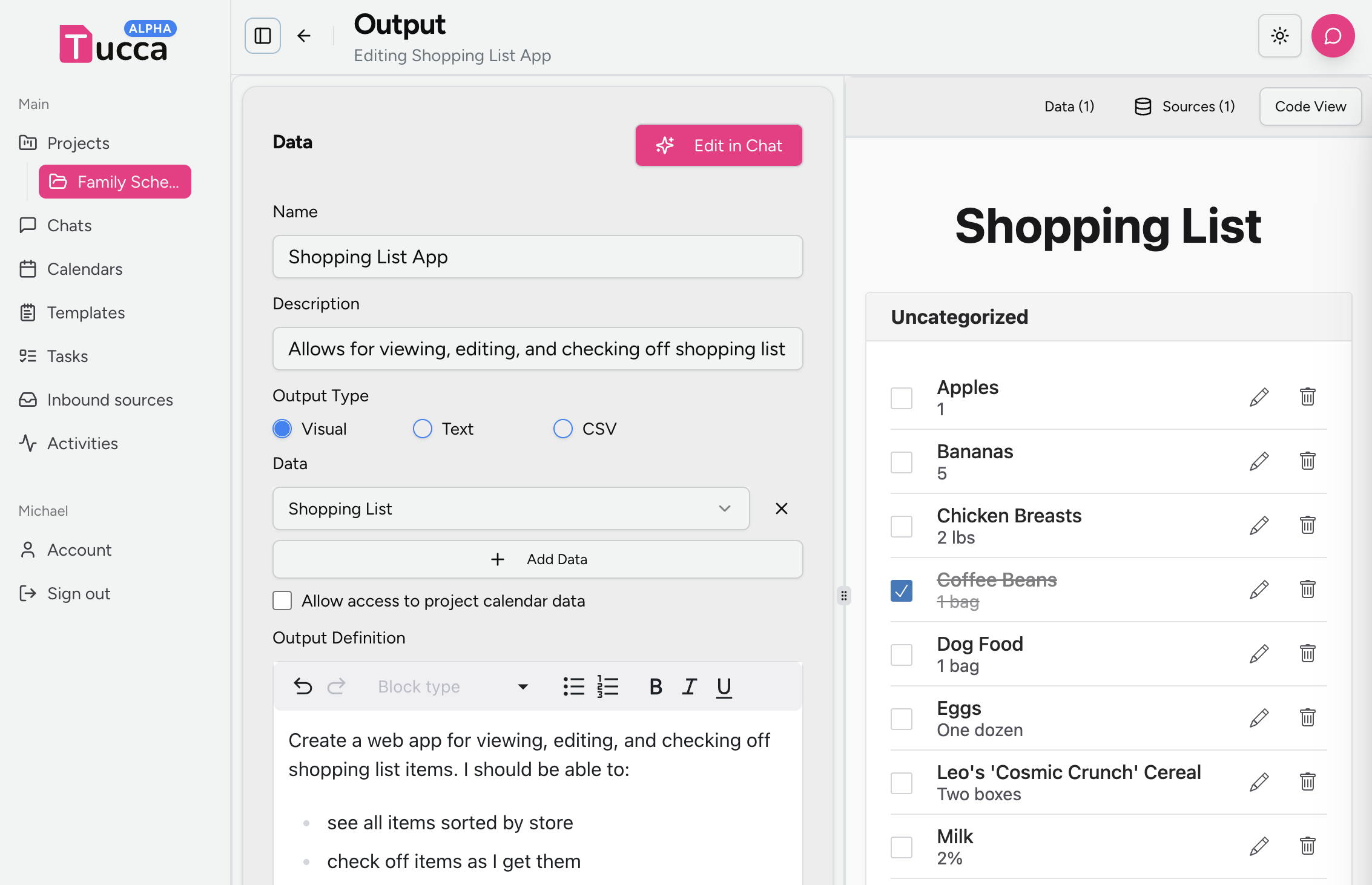
- Fill out the form
- Select the type of output desired
- Be sure to select any datasets that you want the output to have access to when creating/updating itself
- If you want the output to use calendar data then be sure to check the box
- Be descriptive in the definition. These are the instructions that Tucca will use to create the app from. Include all features you want to see.
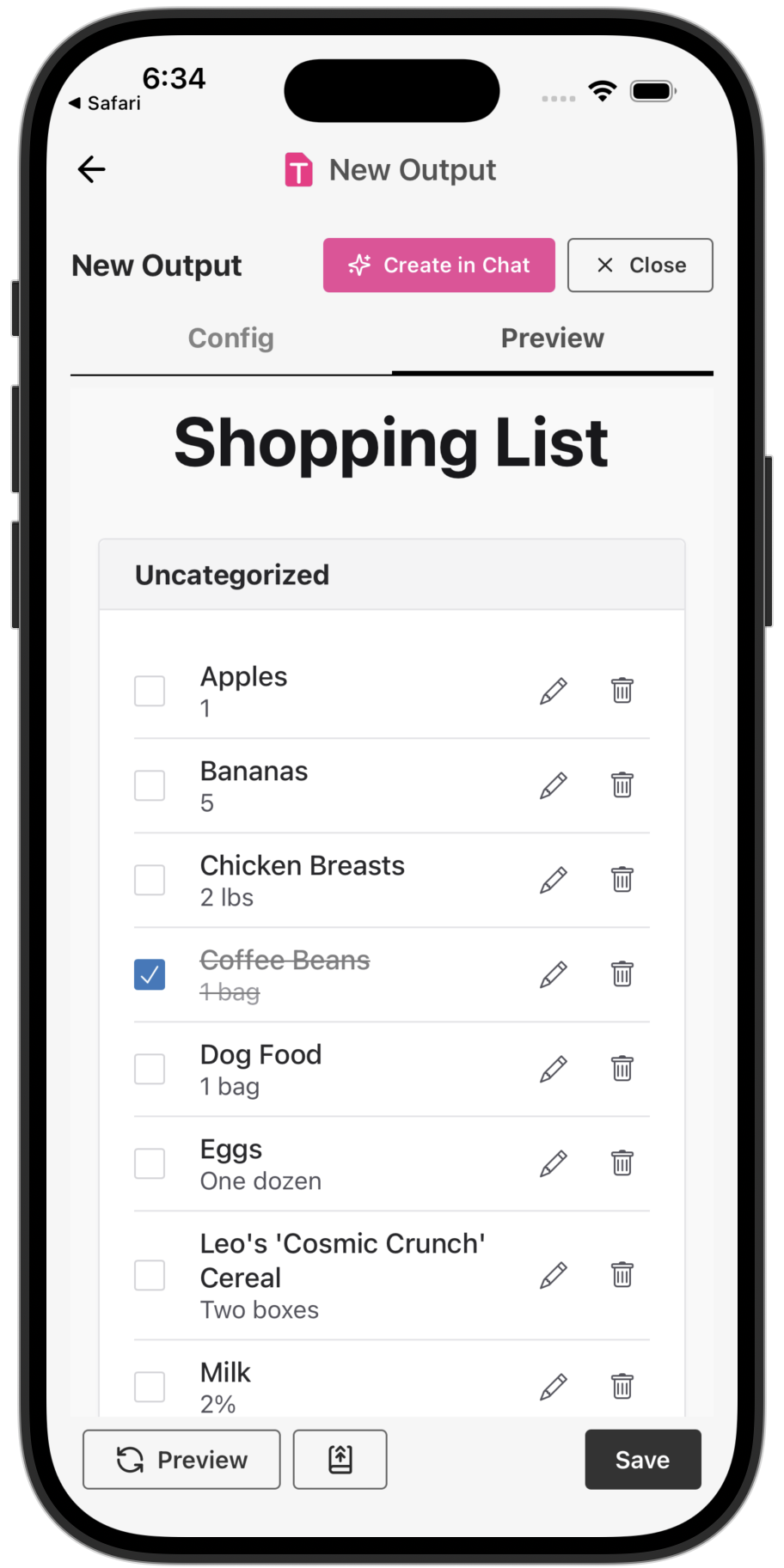
- Press “Preview” to generate a preview version of the app. This may take some time depending on the app complexity.
- Review the preview output
- If things don’t work as expected or things are missing then update the defintion and press preview to generate a new version
- If you want to generate a fully fresh app then use the button next to the preview button to generate fresh
- When ready press create to formally add the output to your project
- 📱 Mobile
- 💻 Web
Editing Outputs
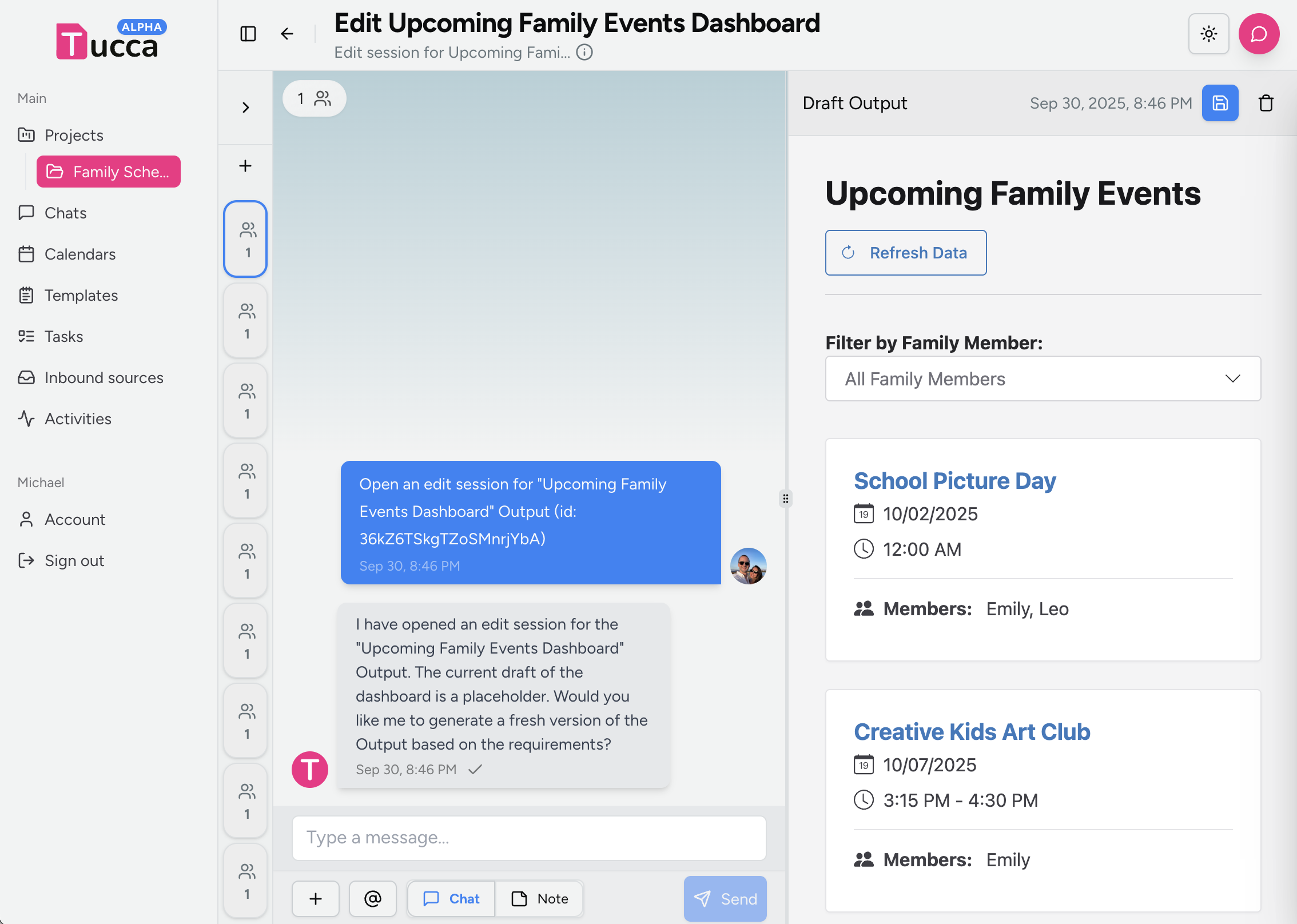
You can edit Outputs via the same forms used to create it or you can use a chat interface to edit them in an interative fashionEdit in chat
- Click or tap the edit button on an output page
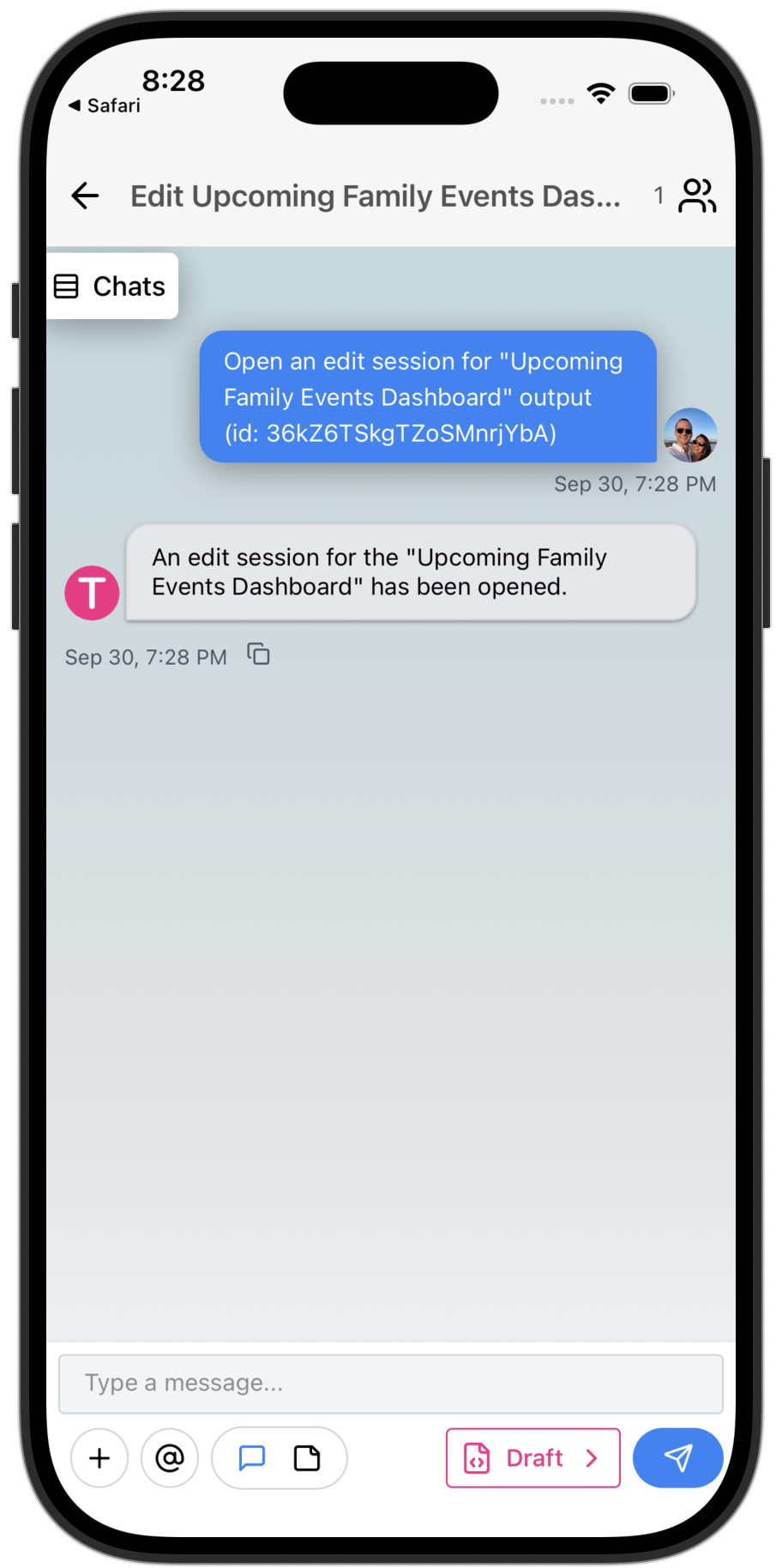
- Click or tap the “Edit in Chat” button. A Chat interface with canvas will open
- Now you can chat with the Tucca project agent to make edits to a draft version of the output
- You can direct the agent to edit whatever you want
- Make the button green
- Add a section with the monthly expense totals rolled up
- Add a section that analyzes the itinerary for any conflicts or missing flights
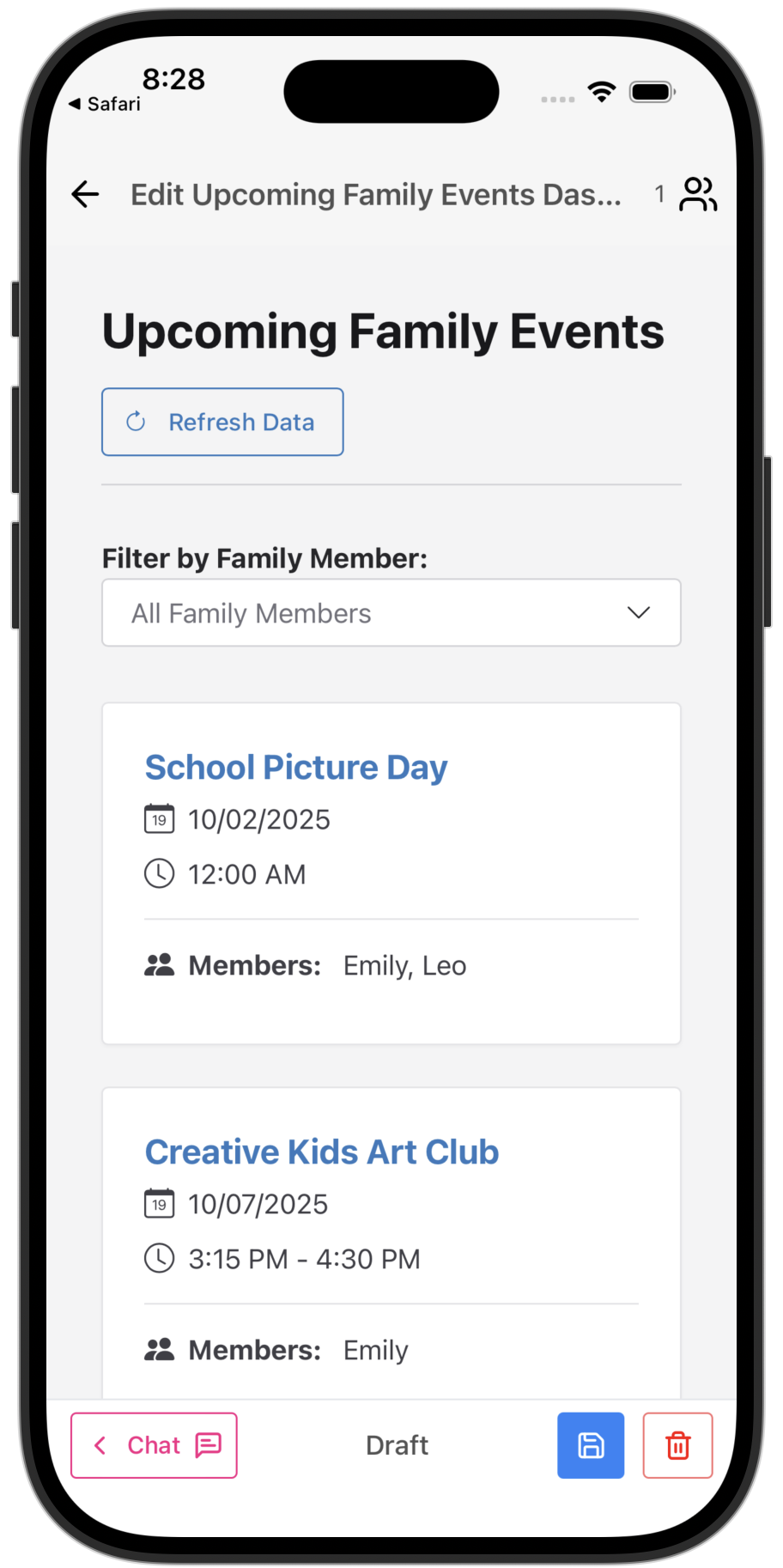
- (Mobile) Swipe left to see the preview and swipe right to go back to the chat
- You can direct the agent to edit whatever you want
- The canvas view will update live as edits are made
- When ready click or tap the save button in the canvas to formally update the output
- 📱 Mobile
- 💻 Web
← Home
Return to the main documentation homepage
← Concepts Overview
Browse all concept documentation