

What are Projects?
Projects are isolated compartments of data in Tucca where you can organize, process, and collaborate on information. Each project has its own data, calendar, and collaboration settings, with granular control over who can access what information. This controlled sharing makes projects perfect for managing different aspects of your life or work while maintaining privacy and security.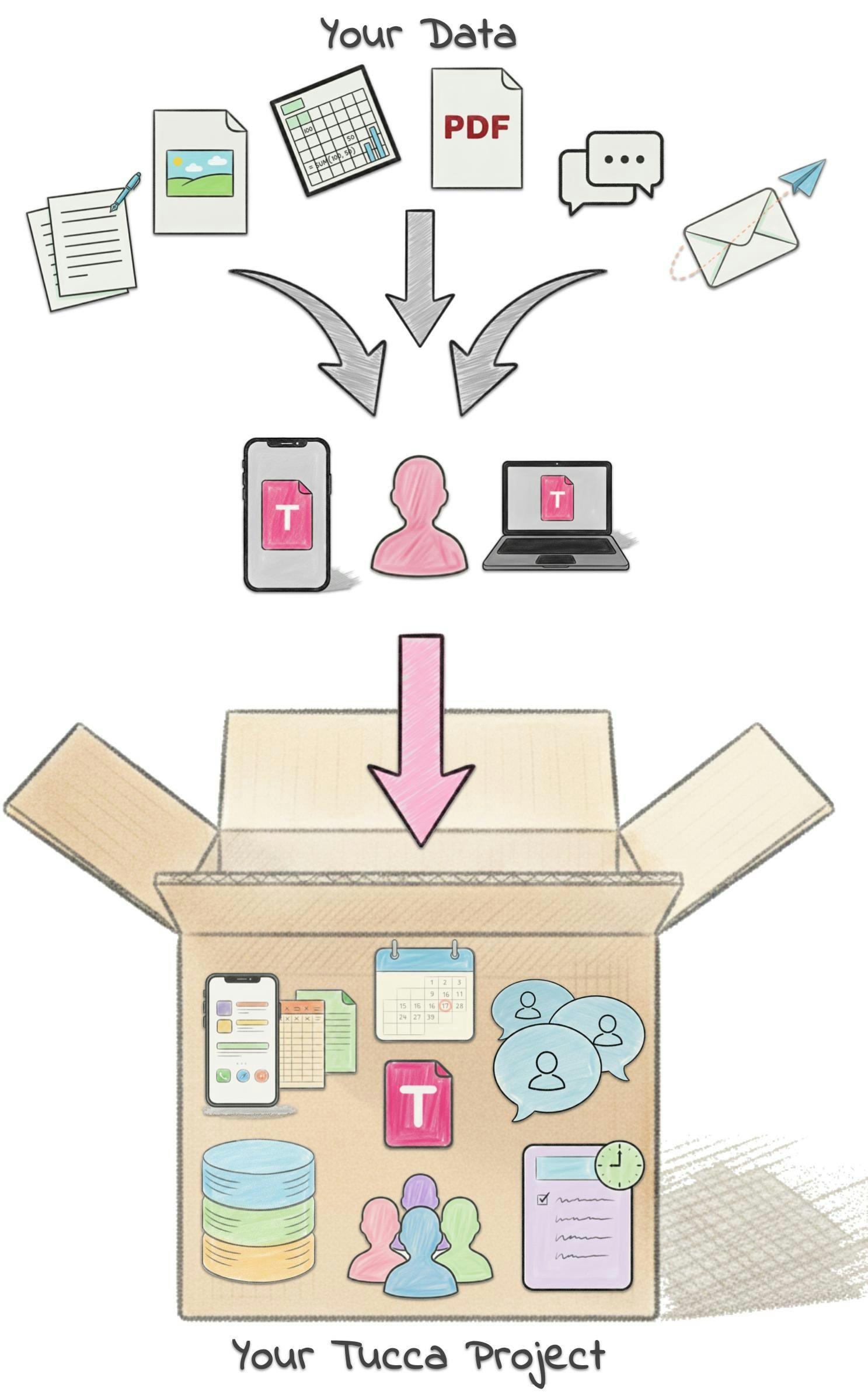
Key Features
Isolated Data
Each project contains its own data that’s separate from other projects,
ensuring privacy, organization, and more accurate AI responses.
Built-in Calendar
Every project has its own calendar that automatically tracks events,
appointments, and reminders.
AI Processing
AI automatically processes and interprets your project data to deliver
useful insights when needed.
Collaboration
Share projects with family, friends, and coworkers to collaborate on
relevant information.
Creating a Project
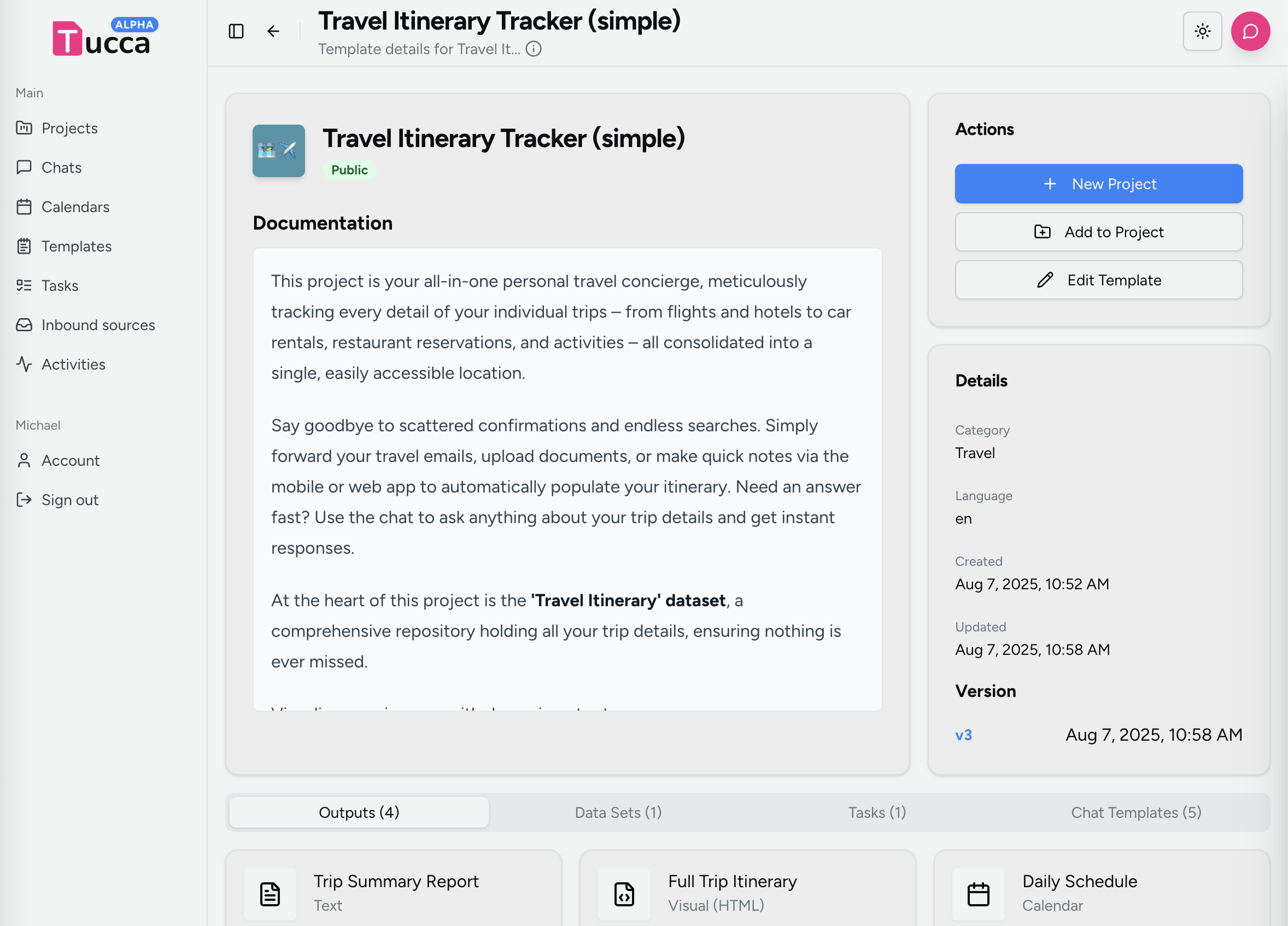
Use an existing Template
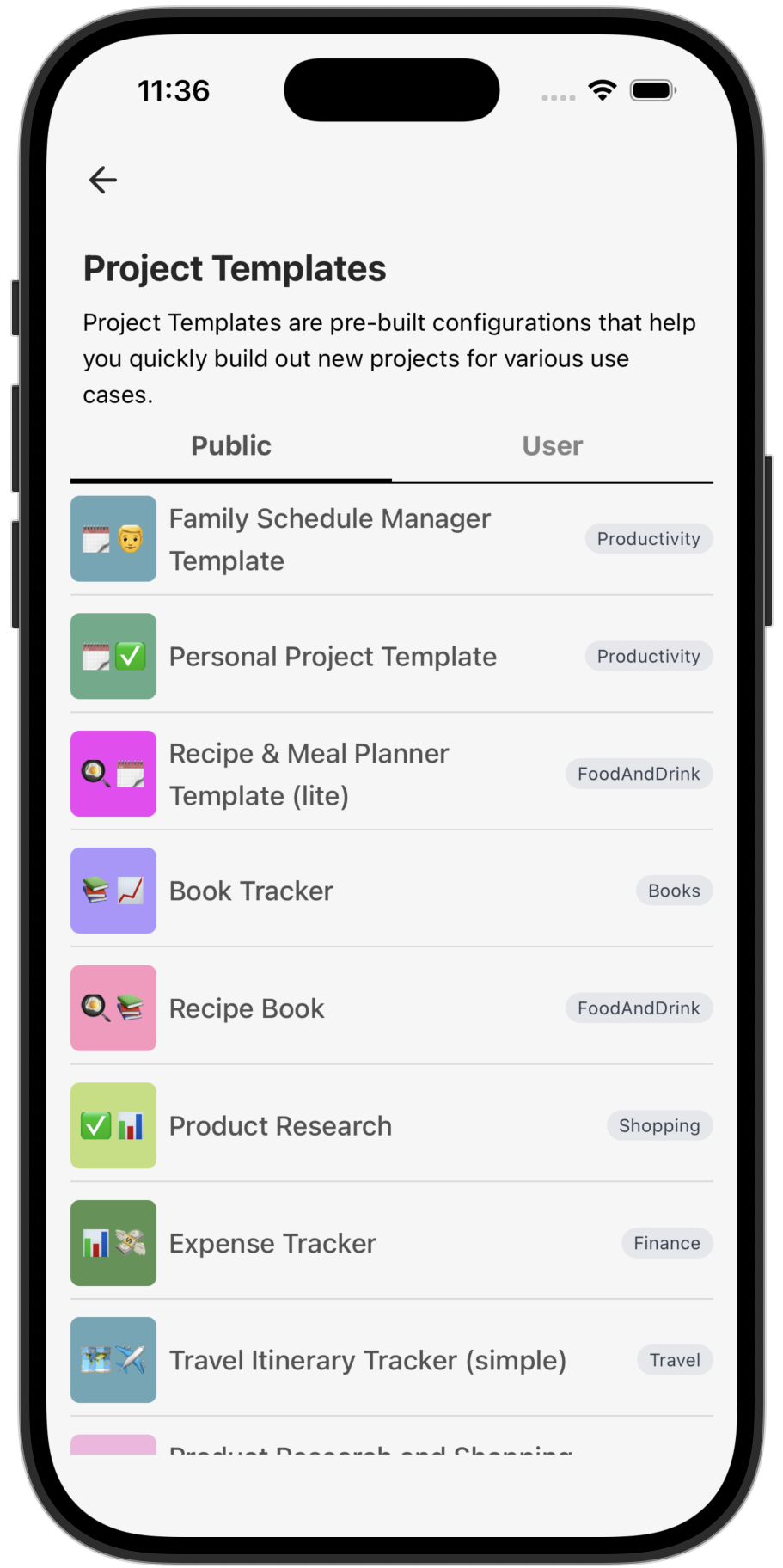
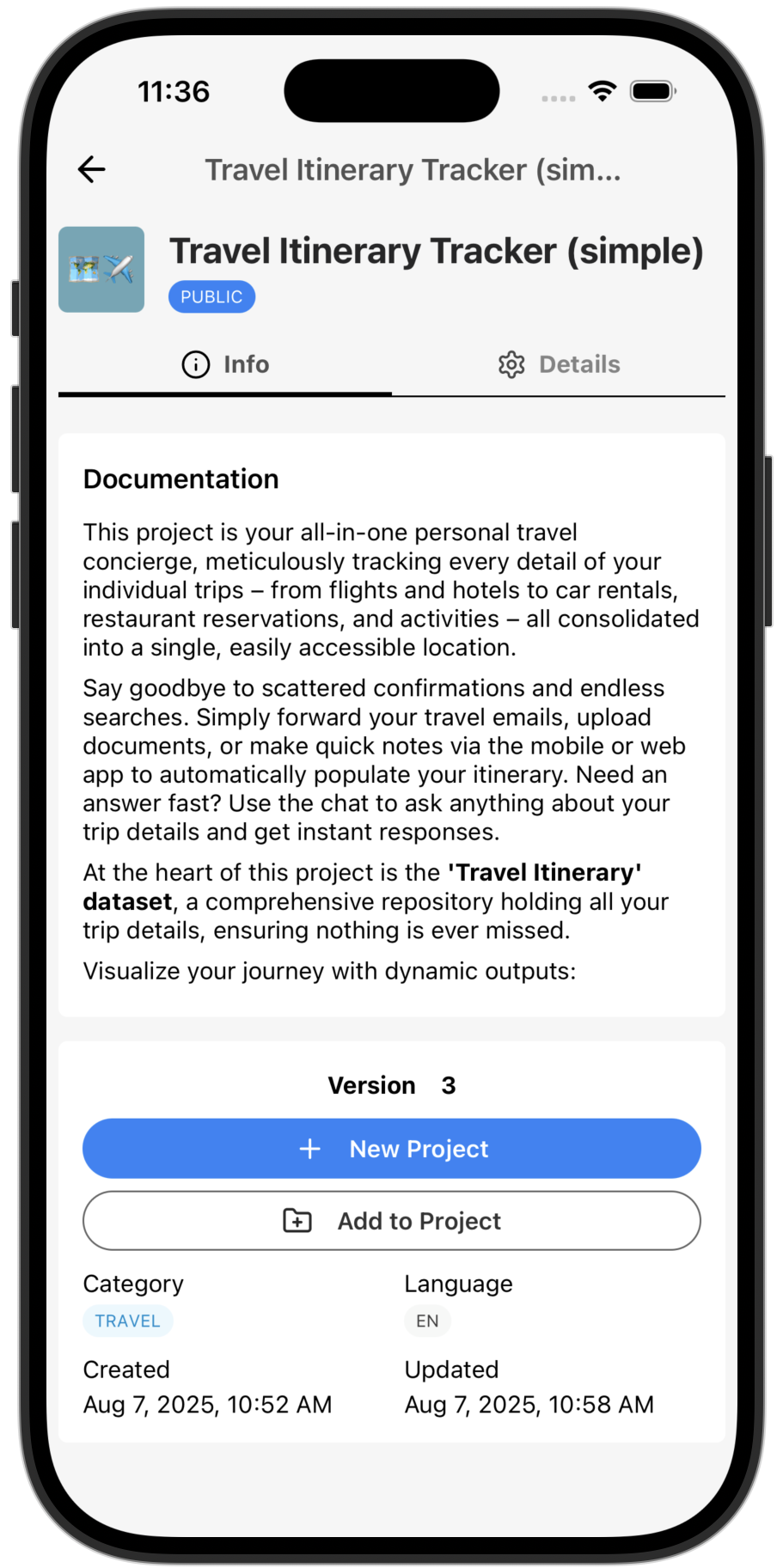
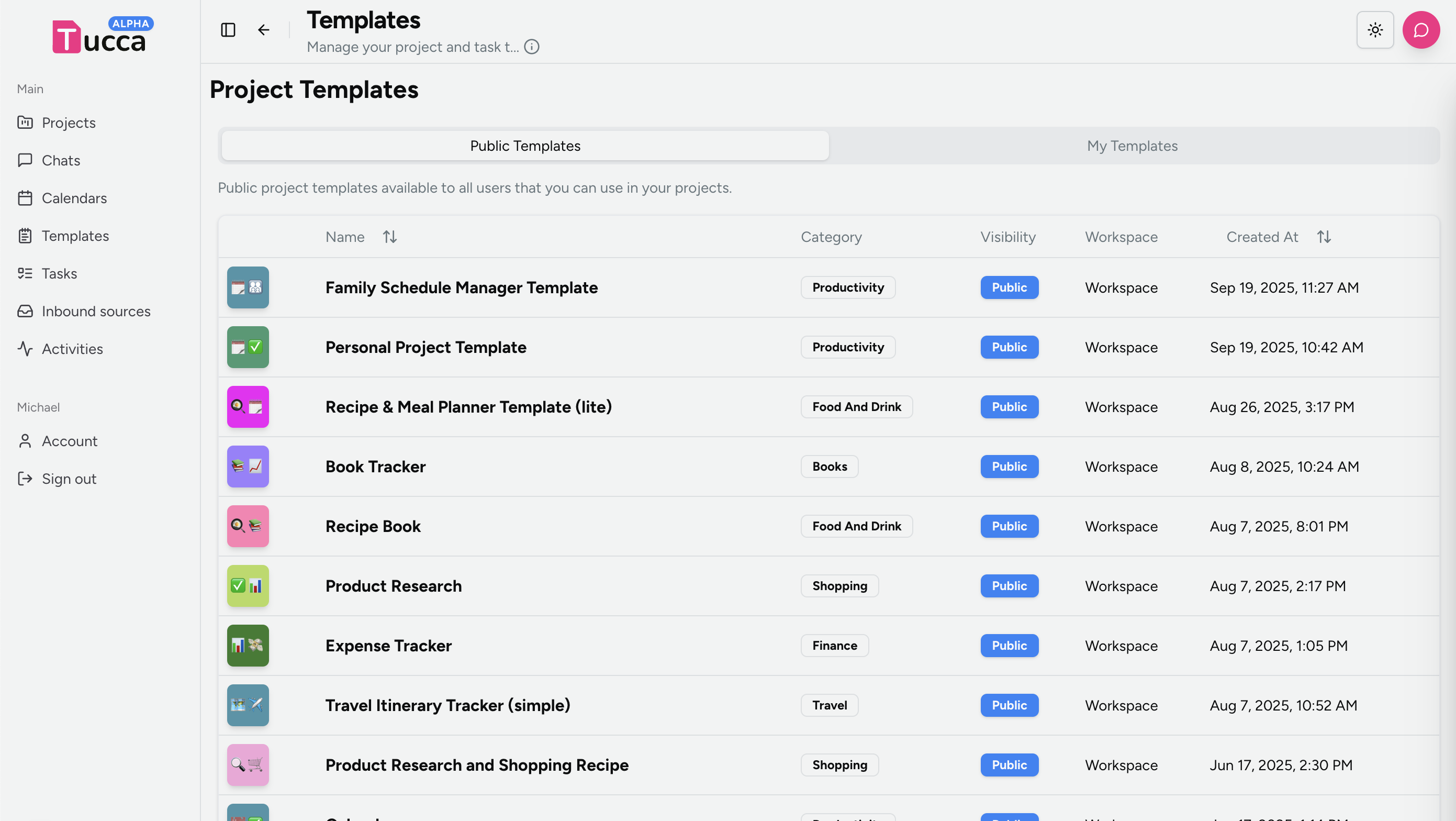
Use an existing Template to build out a project:- Visit the templates page and find a template you like
- From the template details page click the “New Project” button to create a project using that template
- 📱 Mobile
- 💻 Web
Generate a Project
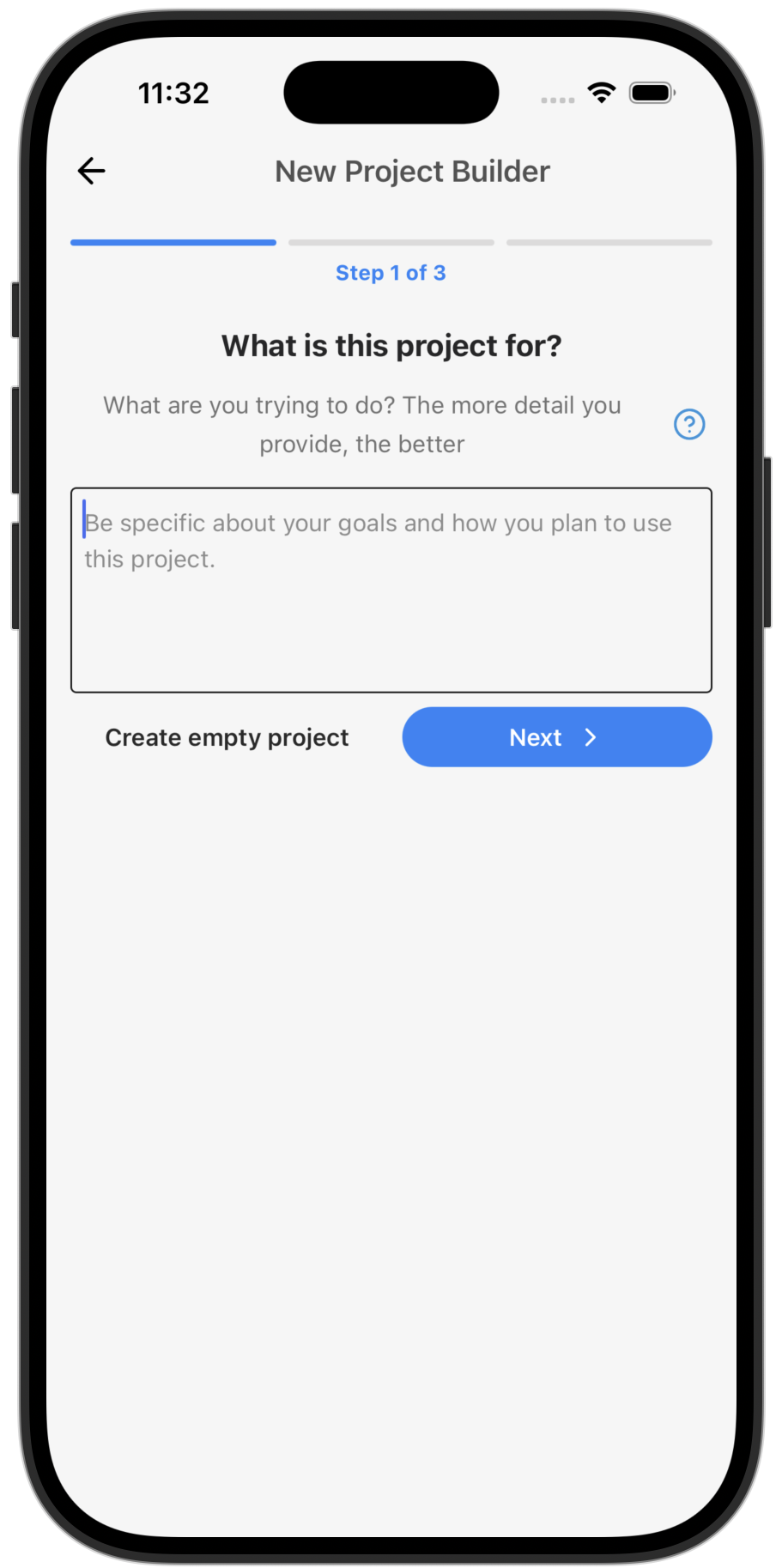
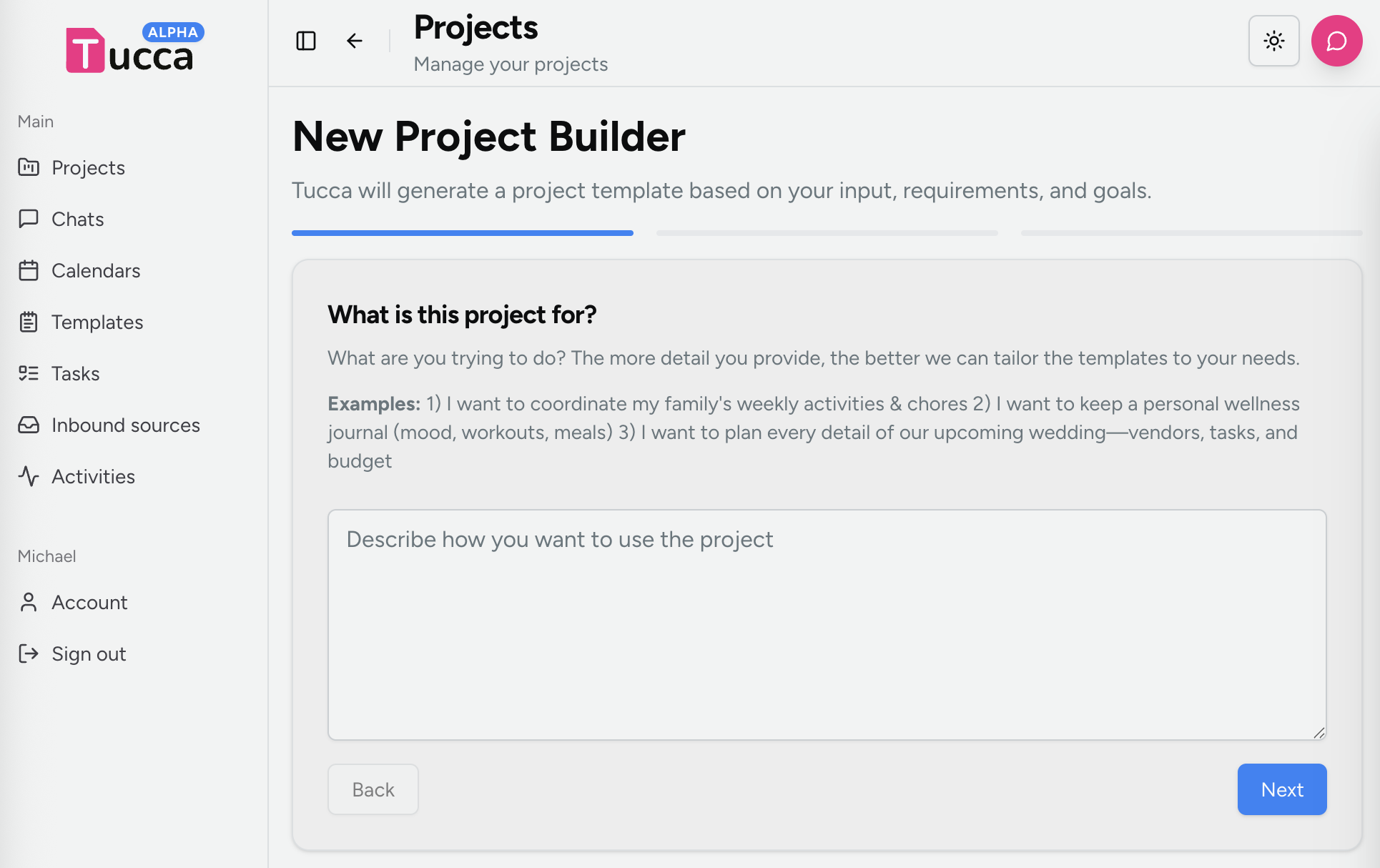
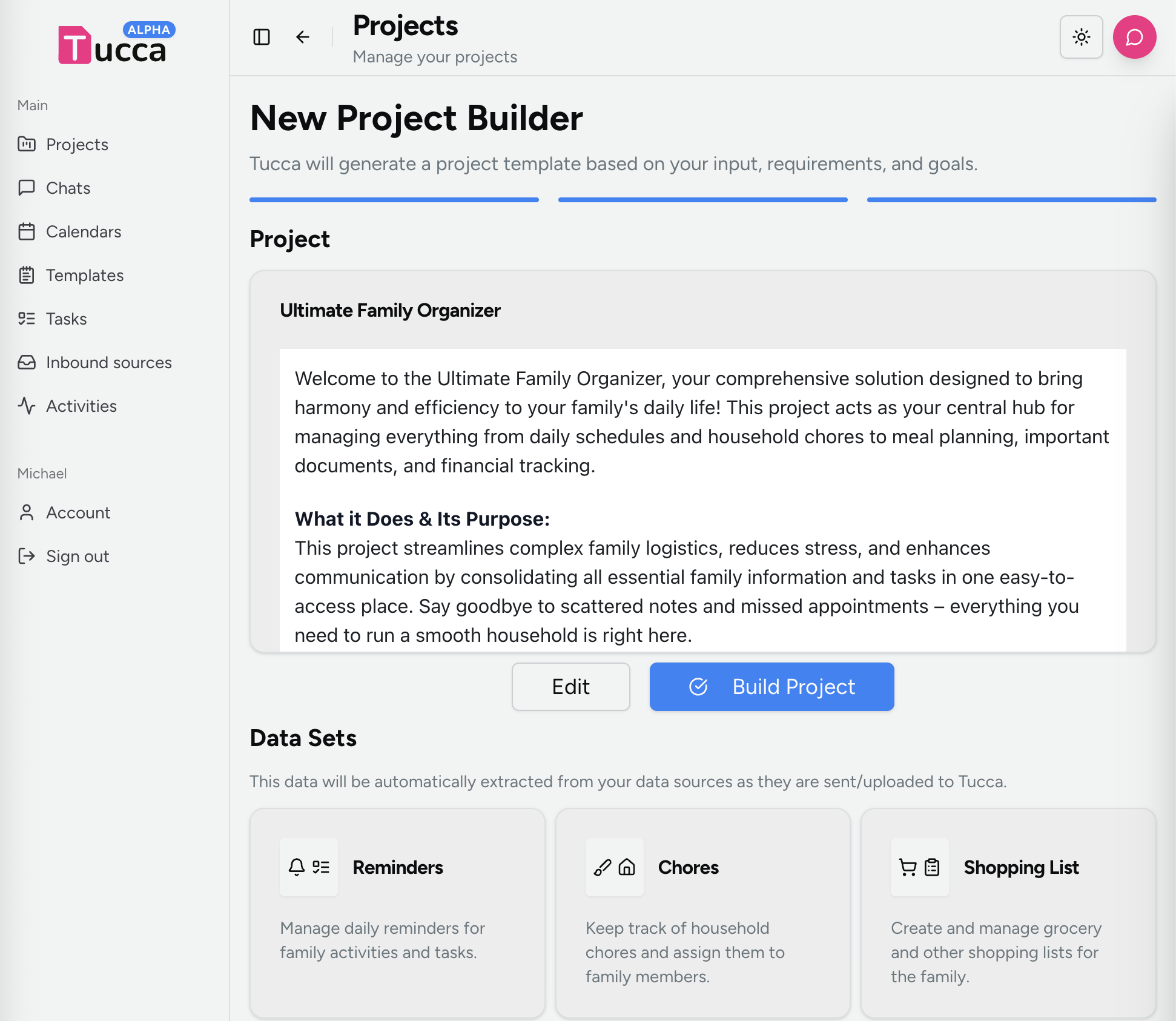
You can have Tucca design and build out an entire project for you- Click or tap the new project button from the projects list page
- You will then need to answer three questions.
- Answer each question in as much detail as you can supply.
- Click or tap the generate button when ready and watch while Tucca builds a project for you. This may take some time depending on the requirements given.
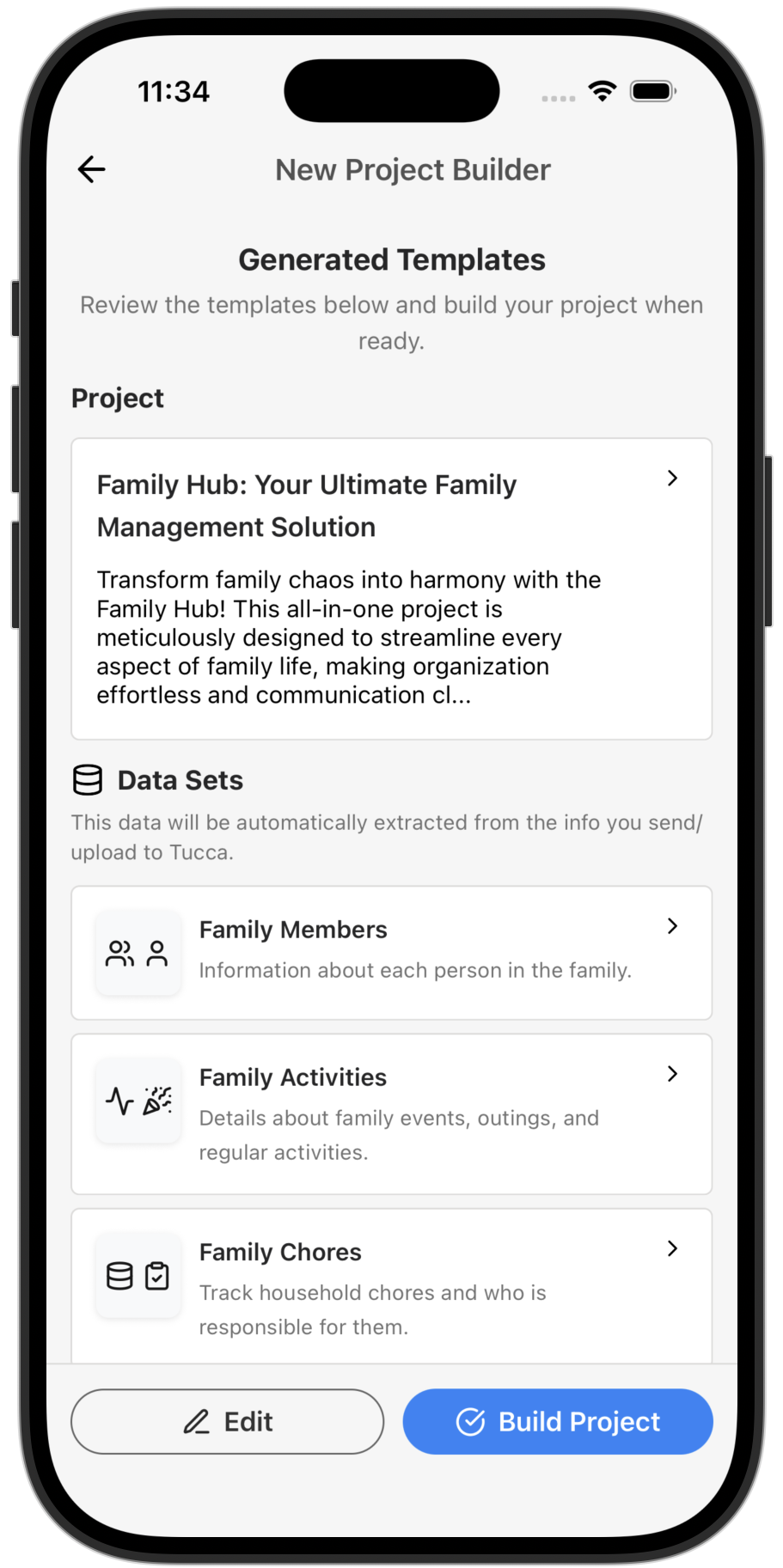
- A plan for all datasets, outputs, tasks, and chat templates will be generated for you.
- The project description will contain instructions on how to use the project
- Review the built project plan and when ready click or tap the “Build Project” button to build the new project
- 📱 Mobile
- 💻 Web
All project functionality will be available instantly except some of the
outputs. It may take a minute to generate the initial version of them.
Basic Setup
When creating a new project, you’ll need to provide:- Click or tap the new project button from the projects list page
- Click or tap the “create empty project” button
- Project Name: A clear, descriptive name for your project
- Description: Detailed description of what the project is for (helps AI route emails correctly)
Adding data to Projects
Adding Data to Projects
Learn how to upload and add data to your projects using various methods
including files, emails, and more.
Project Collaboration
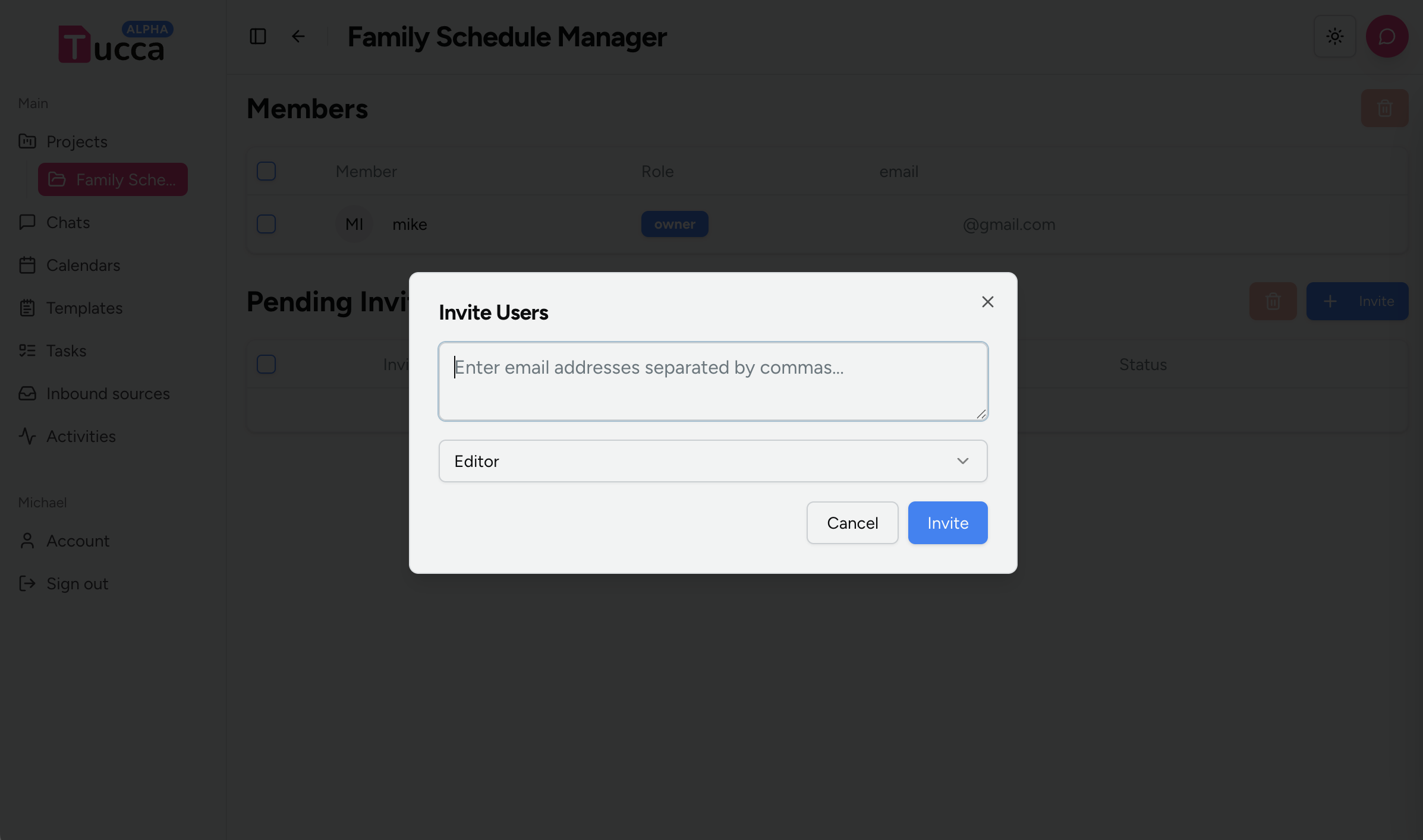
Invite others to your project
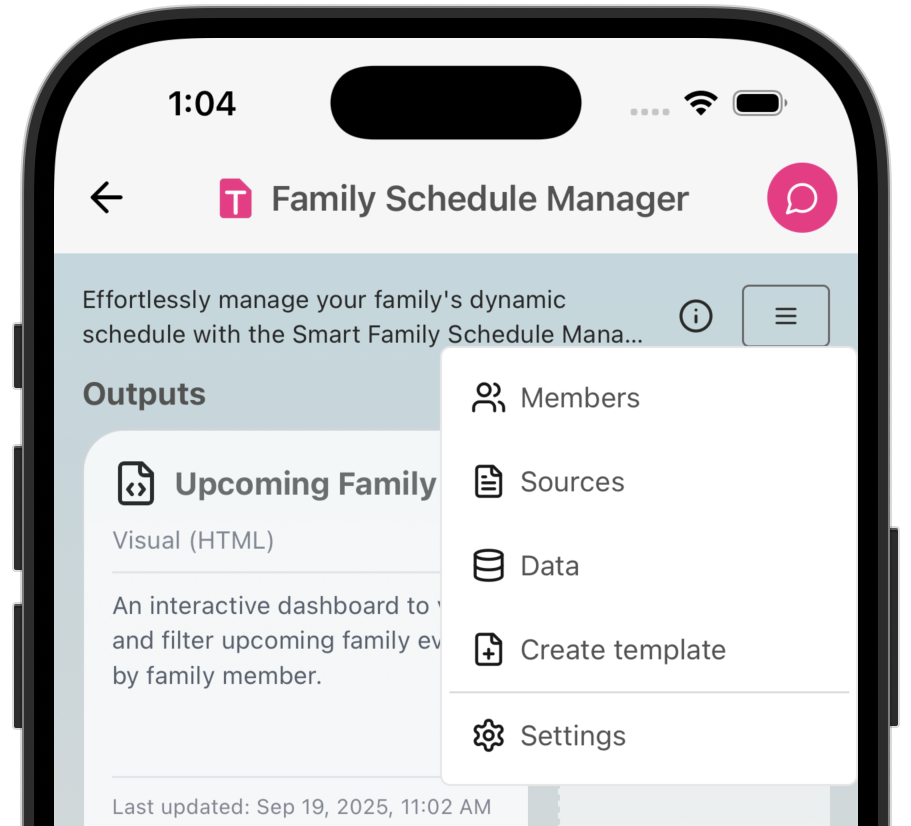
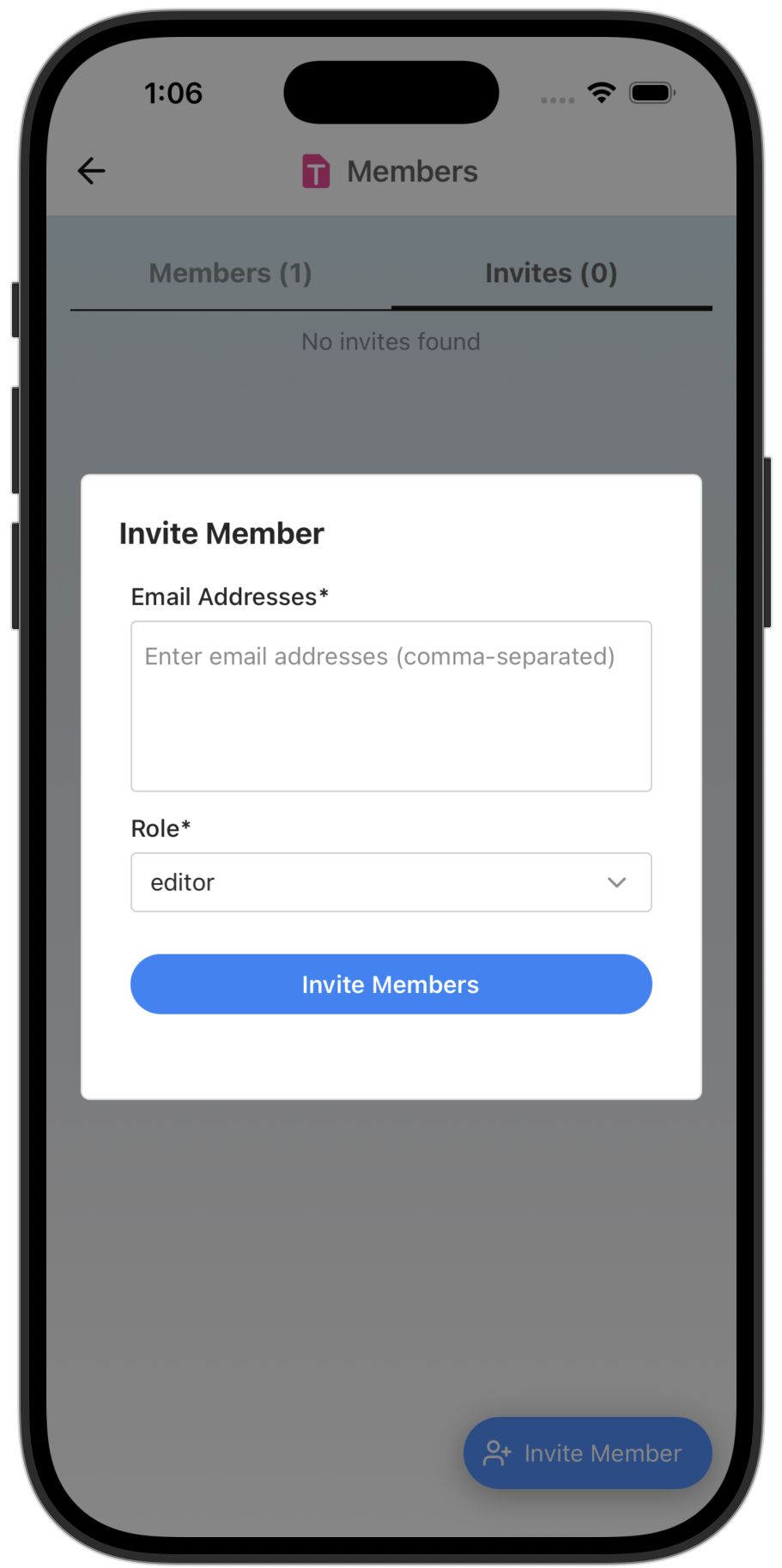
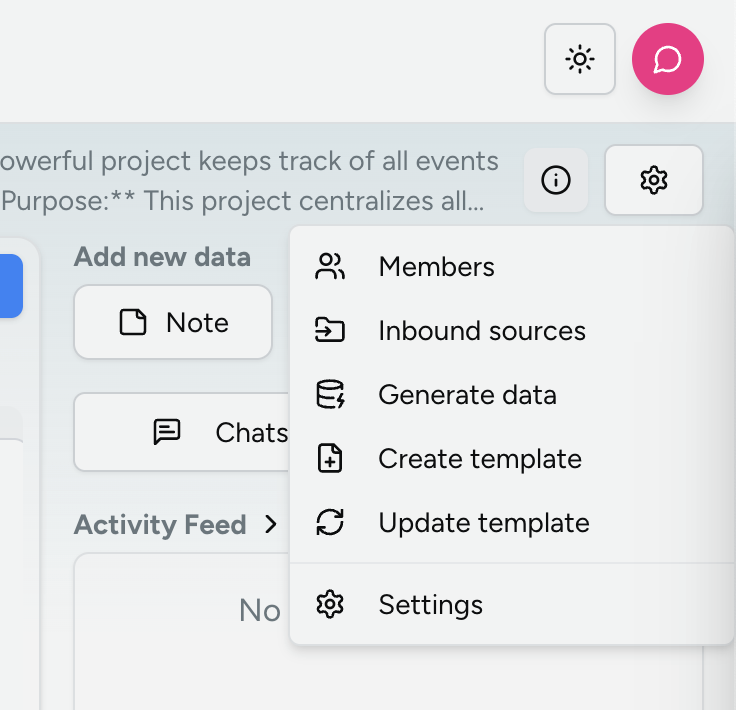
You can invite other users to any project and assign them specific roles for accessing that project- Navigate to a projects dashboard
- Access the project settings menu in the upper right corner
- Click or tap the members menu item
- Click or tap the Invite button
- Enter the email addresses of users you’d like to invite, select a role for them and press invite.
- 📱 Mobile
- 💻 Web
Project Management
Templates
You can create reusable templates from an existing project. These templates are private by default but can be shared to other Tucca users.Creating Project Templates
Once you have a working project configuration you want to reuse:- Navigate to a project dashboard
- Access the project settings menu in the upper right corner
- Click or tap the Create Template button, confirm, and wait a few seconds as Tucca builds a template from your project
- 📱 Mobile
- 💻 Web
You can access all your created templates from the Templates page. They will
be located under the “My Templates” tab.
Project Settings
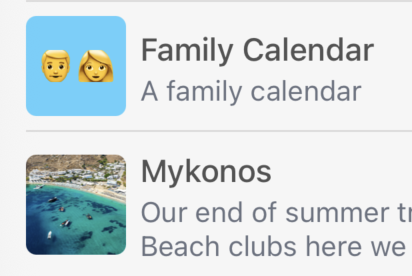
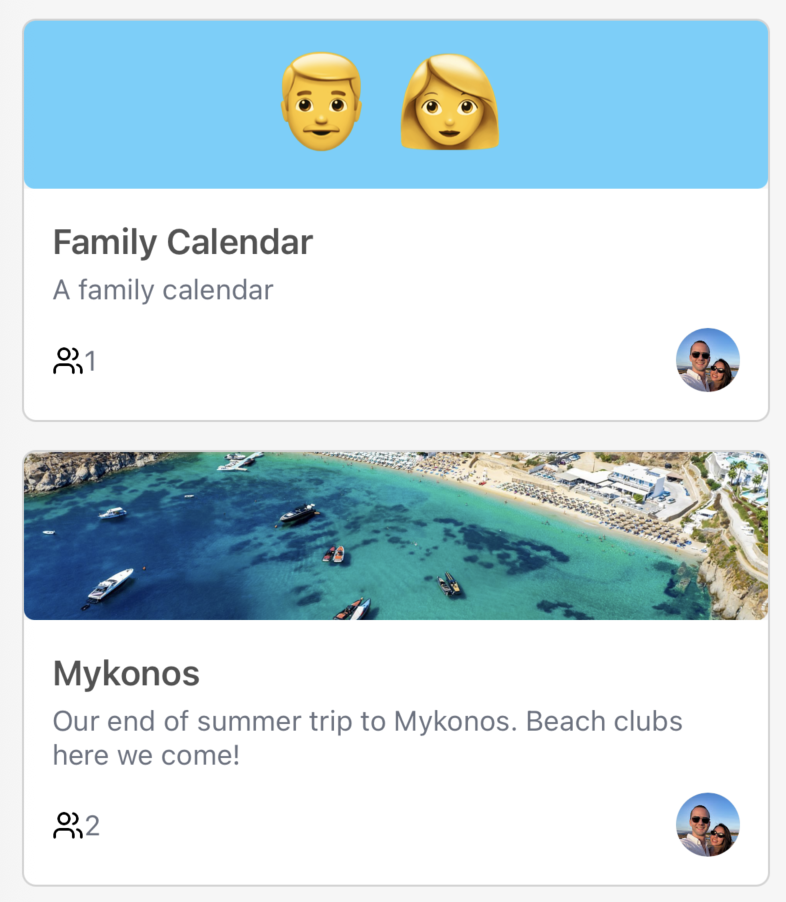
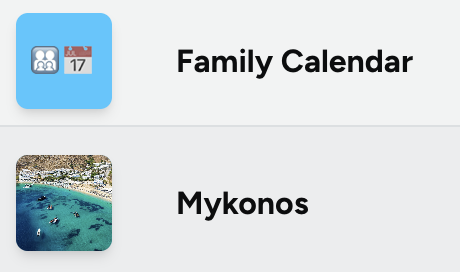
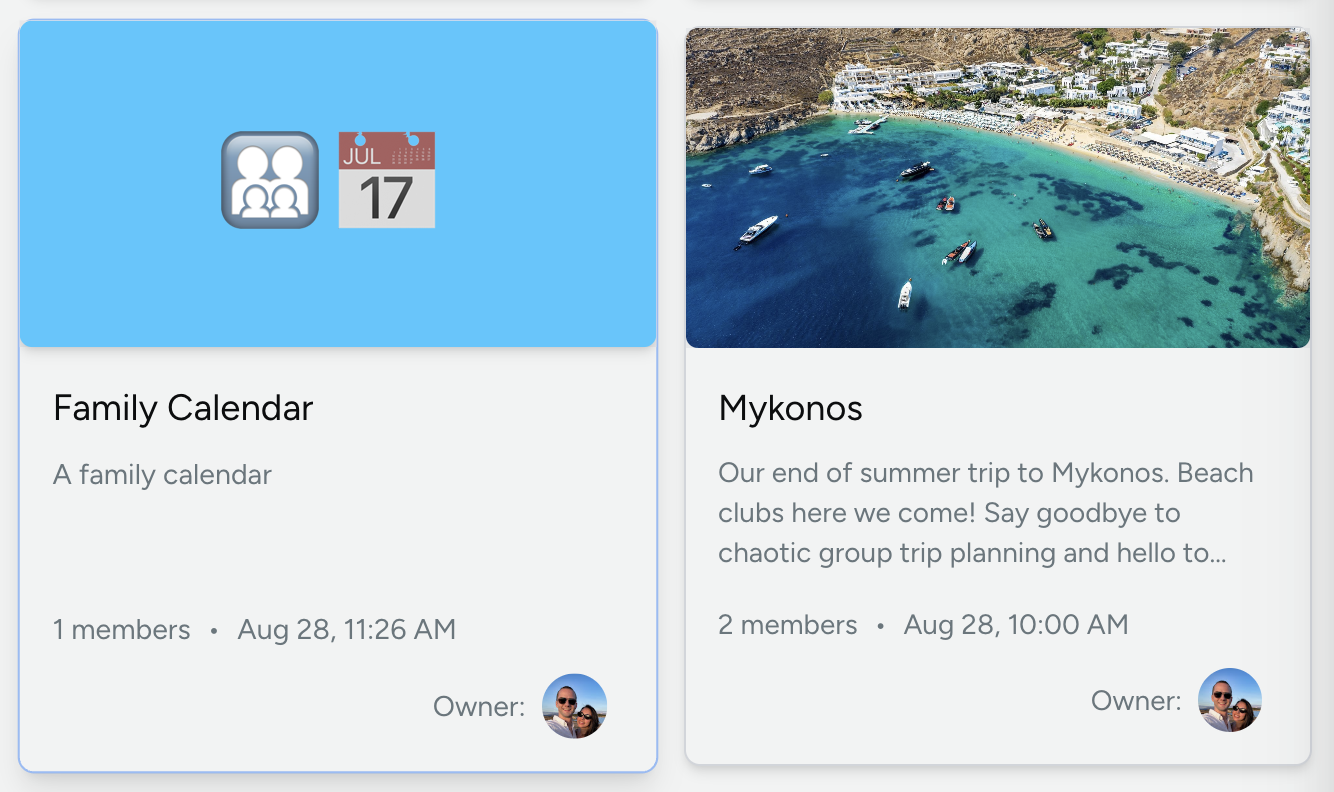
Customize each project:- Name & Description: Configure the name and description of the project.
- Emojis: Set the emojis used to describe the project.
- Project Image: Upload an image that will be used as the icon/background for the project
- 📱 Mobile
- 💻 Web
Best Practices
Project Naming and Description
- Use clear, descriptive names that indicate the project’s purpose
- Write detailed descriptions that help AI understand the project’s scope
- Include relevant keywords that might appear in emails or documents
← Home
Return to the main documentation homepage
← Concepts Overview
Browse all concept documentation