What are Tasks?
Tasks are automated actions that can be scheduled to run at specific times or on a schedule. They operate off of plain text instructions indicating what they should do. They are capable of using project data, tools, and more to perform actions on your behalf like rolling up data, sending emails, notifications,and more.Types of Tasks
Project Tasks
Tasks that run within a specific project and have access to project data and
tools.
User Tasks
Private tasks that run at the user level and can access all your projects
and user account integrations.
General Task Features
- Plain Text Instructions: Tasks are operated off of plain text instructions
- AI-Powered Execution: Tasks use AI to understand and execute your instructions
- Tool Access: Tasks can use various tools to perform actions
- Scheduled Execution: Run on schedules or specific dates and times
- Manual Trigger: Can be manually invoked when needed
Project Tasks
Project tasks are scoped to a specific project and have access to all the data, tools, and resources within that project and that project only.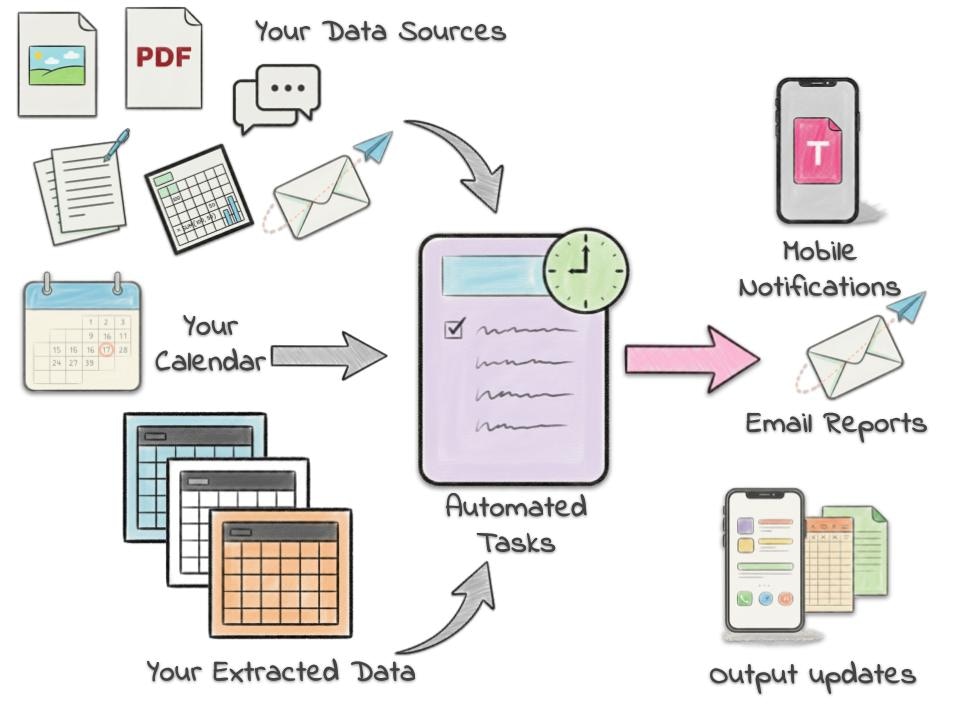
Features
- Project Data Access: Can work with all project data sources, datasets, and outputs
- Project Tools: Can use project-specific tools and perform actions
- Team Collaboration: Can send emails and mobile notifications to project members
- Scheduled Execution: Run on schedules or specific dates and times
- Manual Trigger: Can be manually invoked when needed
Use Cases
- Report Generation: Generate regular reports and summaries for all or some of the poject members. Send via email or mobile notifications.
- Team Communication: Send updates and alerts to team members
- Output Updates: Keep outputs current with new data. Invoke regular updates that rely on external data (news, weather, etc.)
- Workflow Automation: Automate complex project workflows
Creating Project Tasks
- Navigate to the project dashboard
- Locate the tasks button or view
- on mobile tap the tasks button on the dashboard
- on web scroll to the bottom of the dashboard and click the tasks tab to show the list of tasks
- Click or tap the new task button
- Fill out the form.
- For the definition, you can use plain text instructions to describe what the task should do. Be as specific as you can to help tucca better understand what you want to do.
- When done, click the create button to save the task.
Running Project Tasks
If you want to run the task immediately or at any time, you can click the run button from the task details view.- Navigate to the project dashboard
- Locate the tasks button or view
- on mobile tap the tasks button on the dashboard
- on web scroll to the bottom of the dashboard and click the tasks tab to show the list of tasks
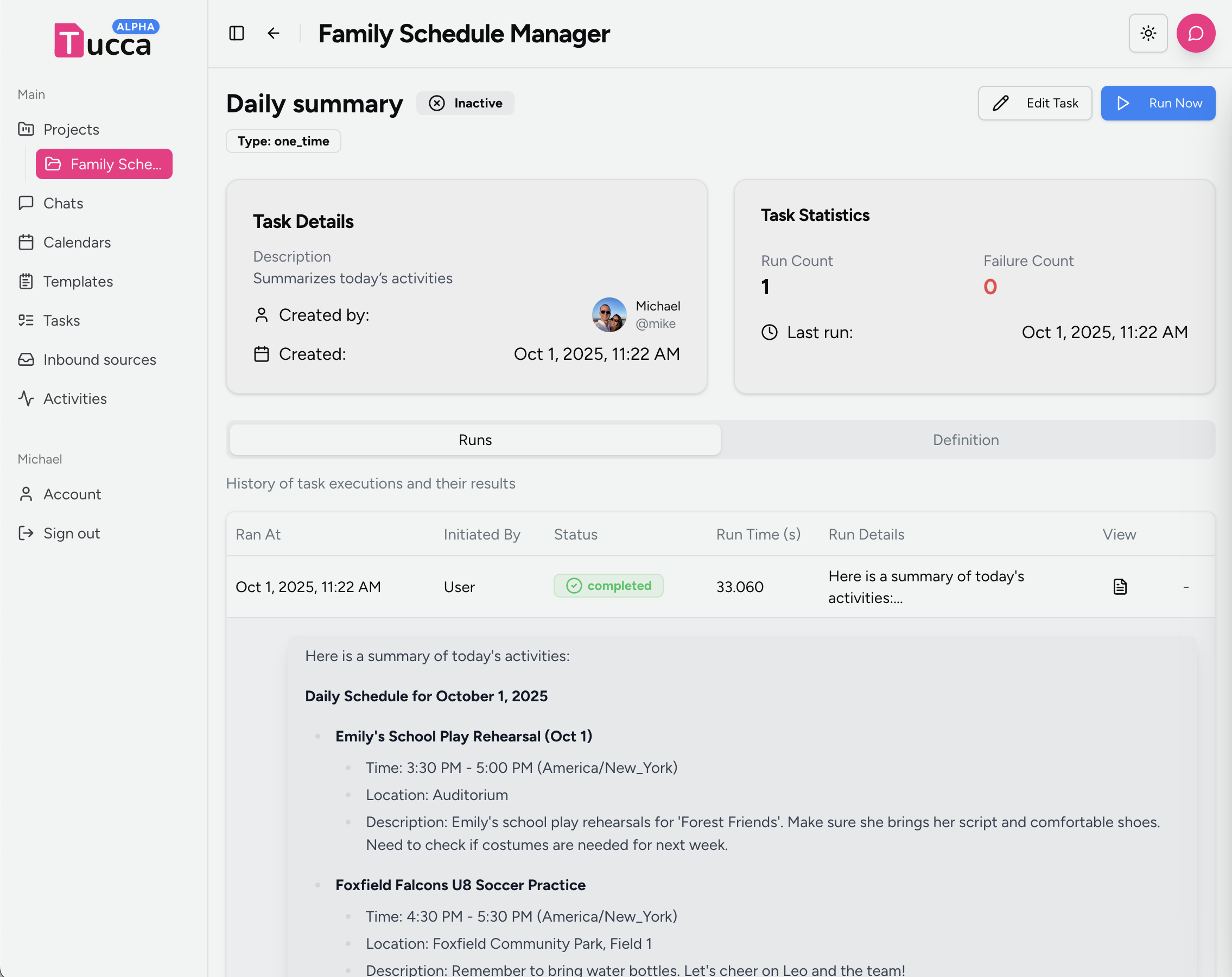
- Click or tap the task you want to run, it will navigate to the task details view
- Click the run button to run the task
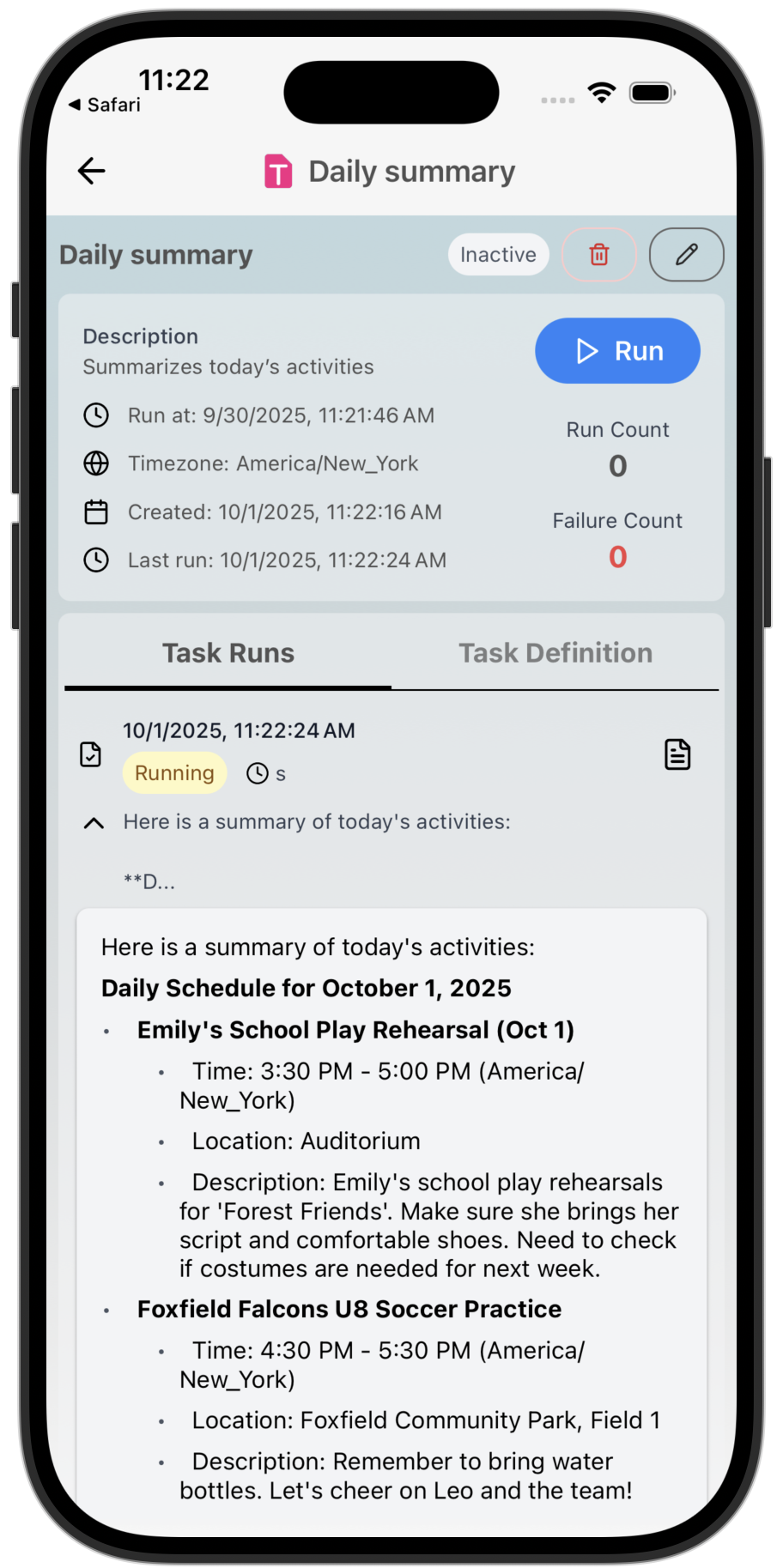
- Task output will livestream to the task details view. The task run will appear and can be expanded to see the output.
- 📱 Mobile
- 💻 Web
User Tasks
User tasks are personal to you and can access all your projects, OAuth accounts, and other user data. They are perfect for personal automation and cross-project work.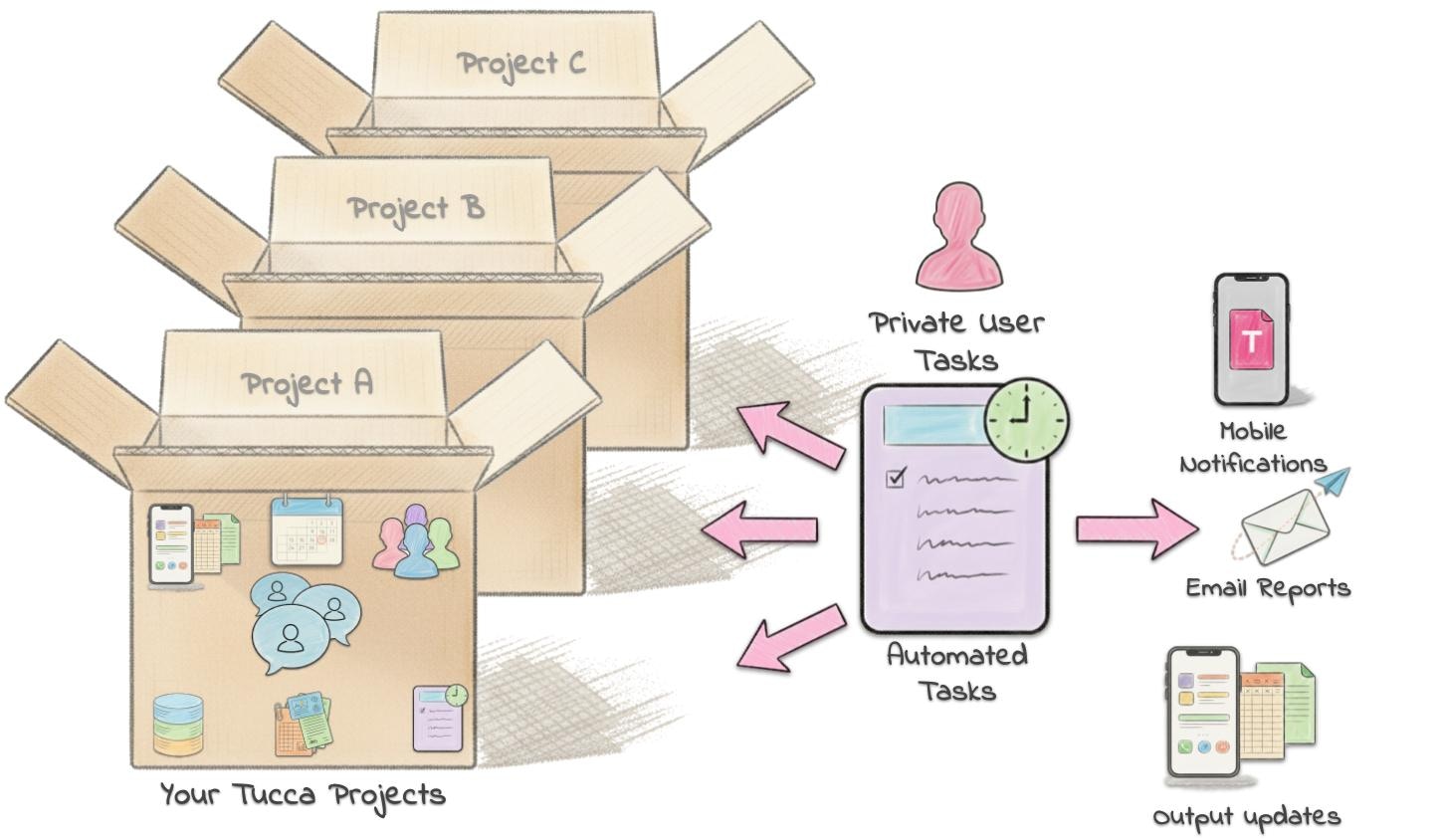
Features
- Cross-project Access: Can work with data from all your projects
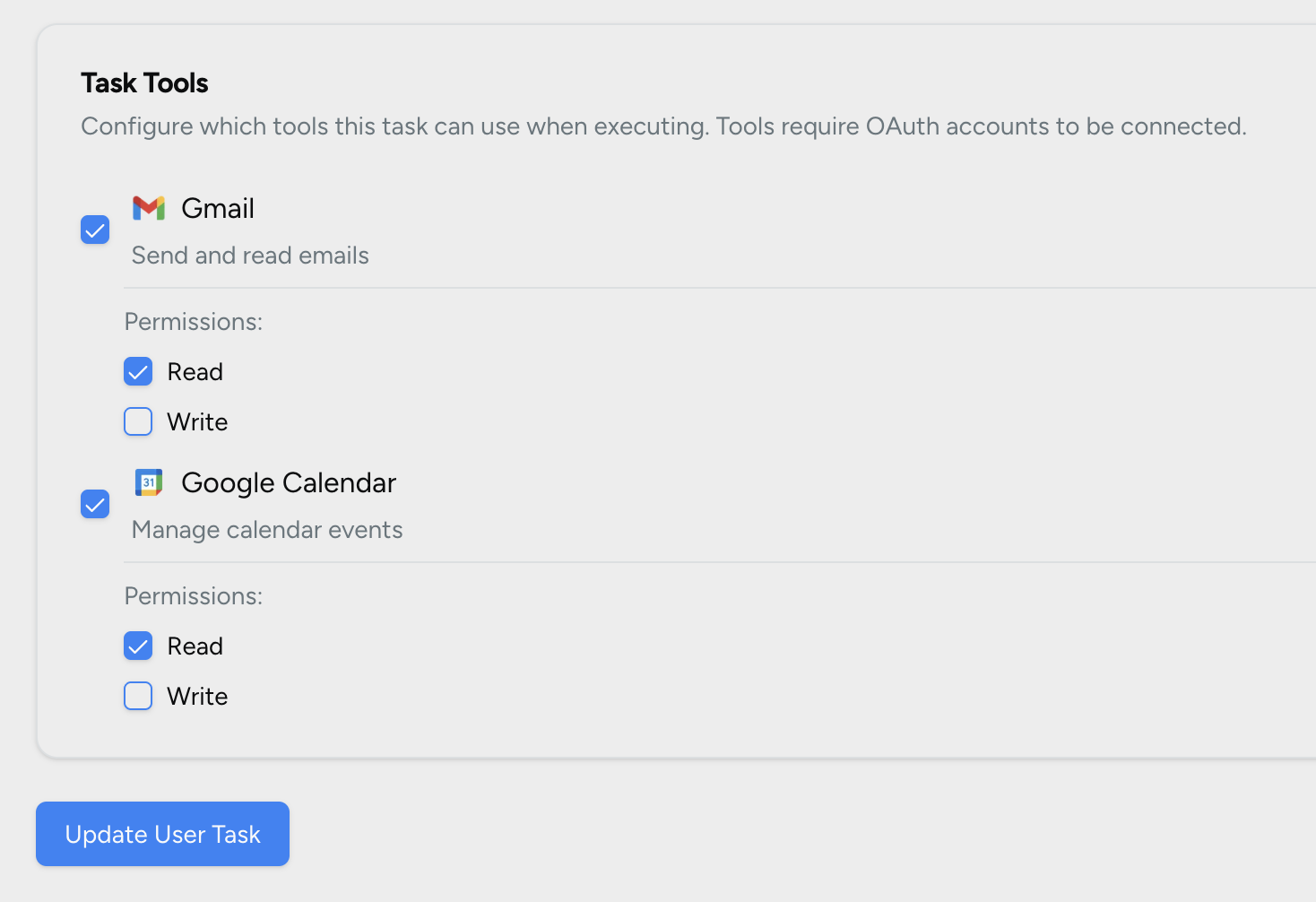
- Personal Tools: Access to your personal OAuth accounts and resources to check/sync emails, calendar events, and more
- Private Execution: Only you can see and manage these tasks
- Personal Automation: Perfect for personal workflows and automations
Creating User Tasks
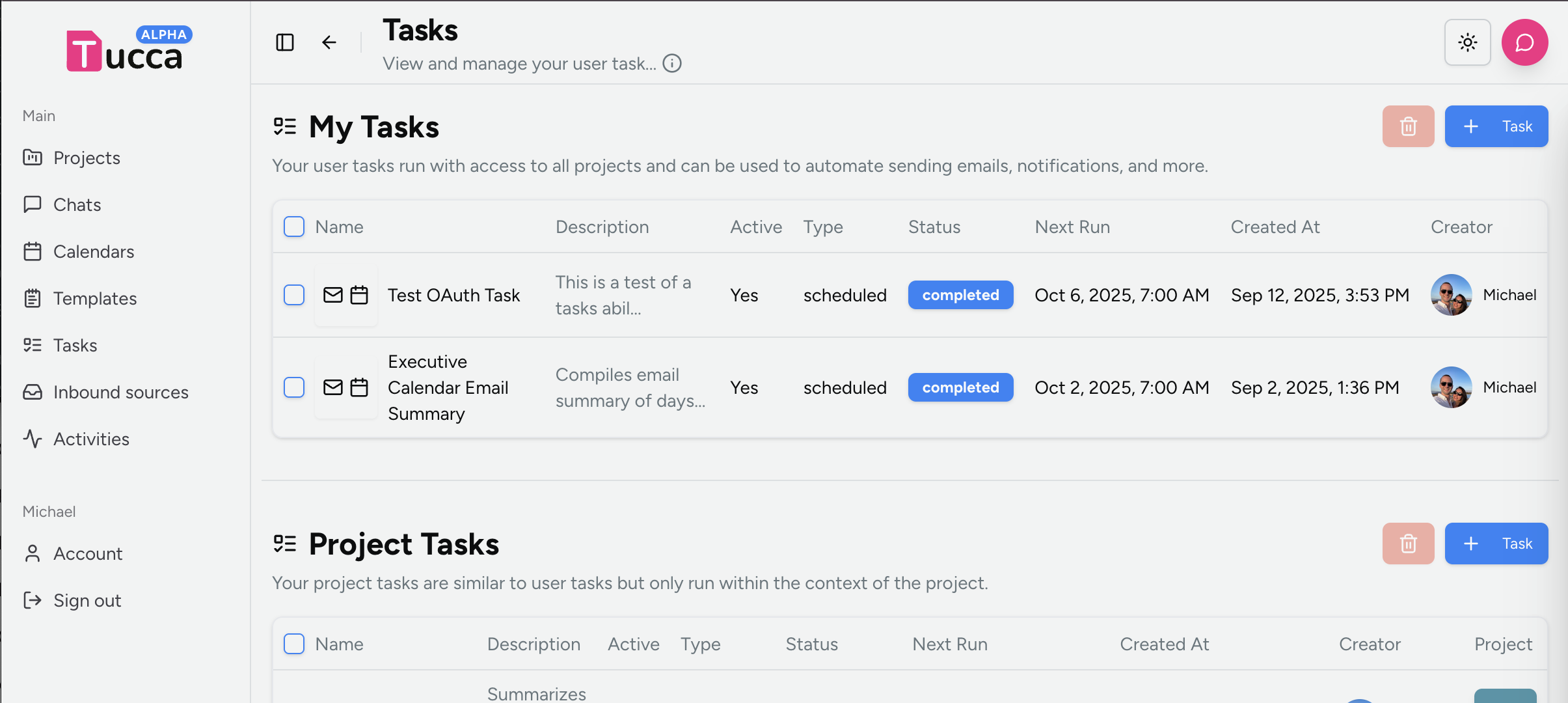
- Navigate to the tasks page from the main dashboard or navigation bar
- on mobile there is a task button in the bottom navigation bar
- on web there is a tasks tab in the left navigation bar
- Click or tap the new task button under the My Tasks header
- Fill out the form.
- For the definition, you can use plain text instructions to describe what the task should do. Be as specific as you can to help tucca better understand what you want to do.
- If you want the task to use external accounts like email, calendar, etc. then be sure to enable the tools under the Tools section.
- When done, click the create button to save the task.
- 📱 Mobile
- 💻 Web
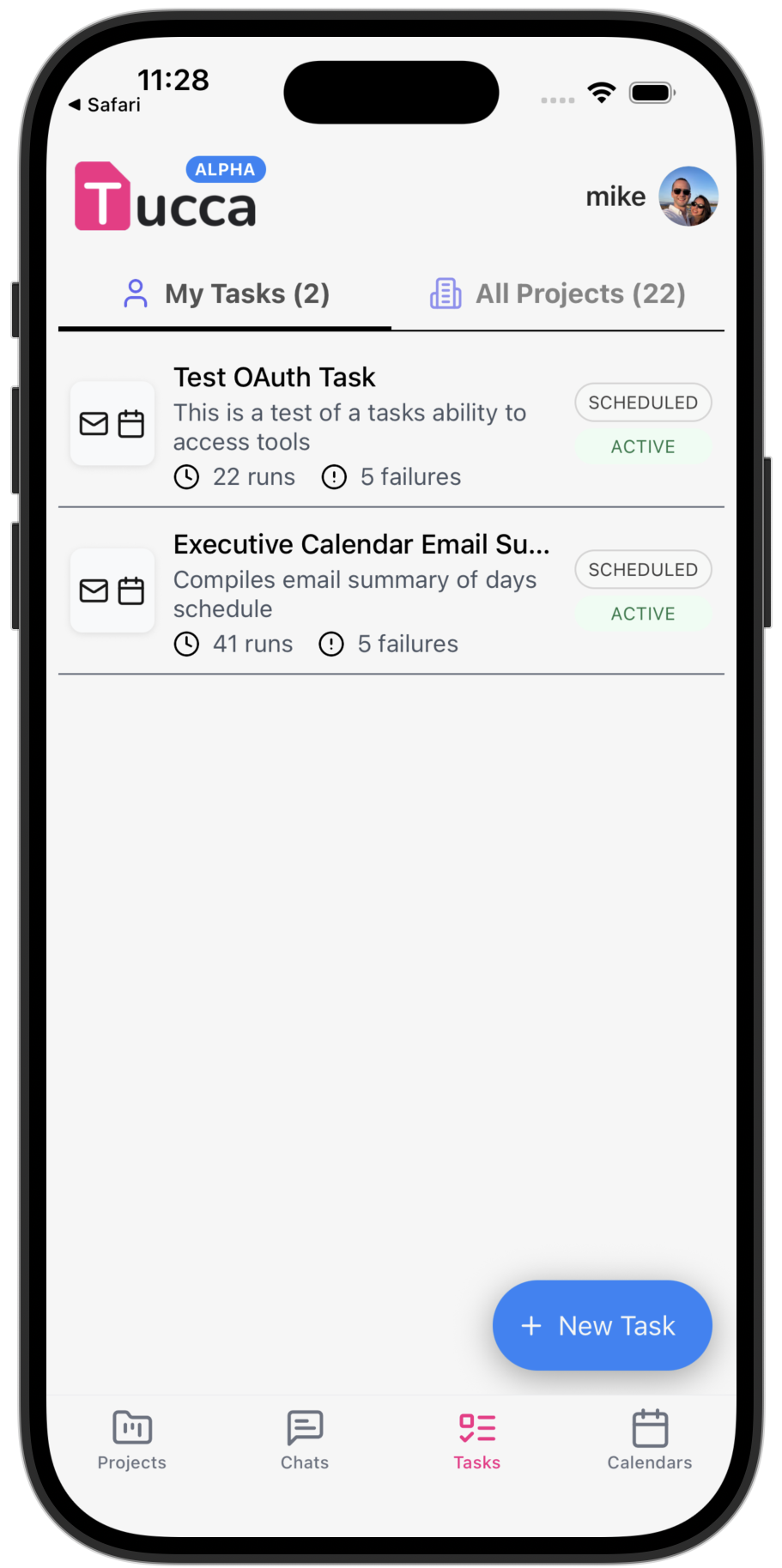
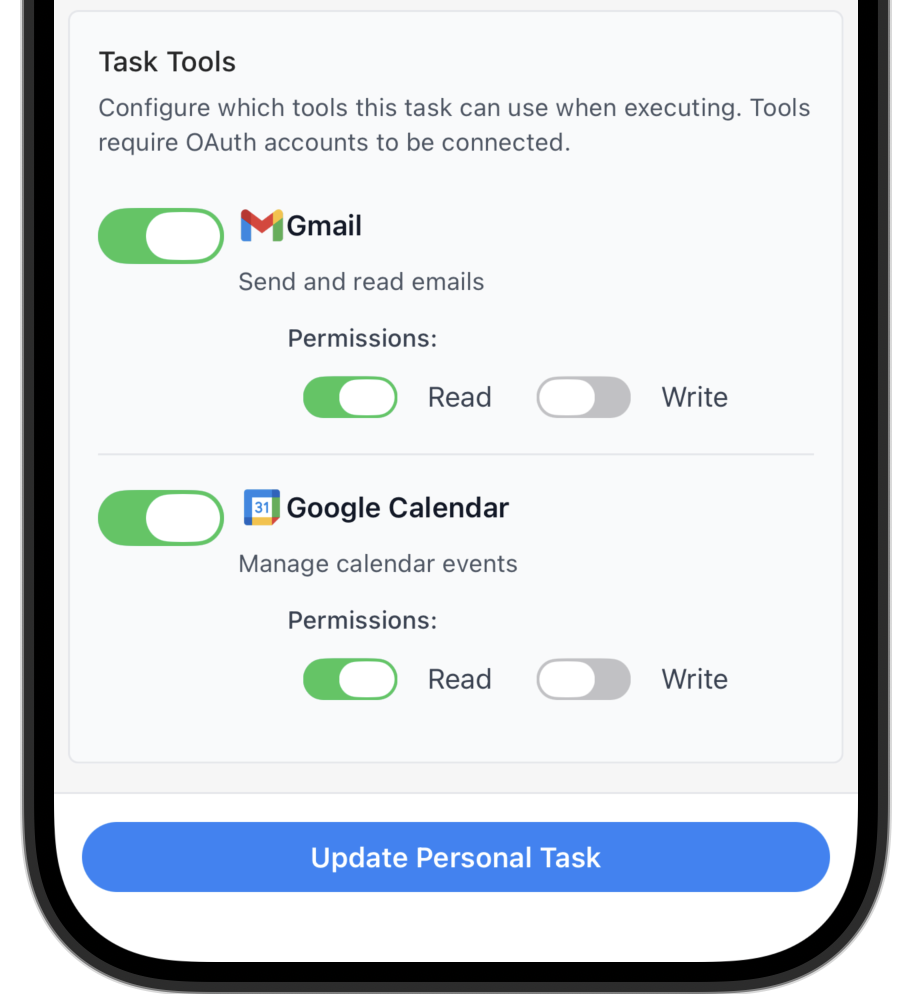
Mobile Tasks Global View & User Tools
Running User Tasks
- Navigate to the tasks page from the main dashboard or navigation bar
- on mobile there is a task button in the bottom navigation bar
- on web there is a tasks tab in the left navigation bar
- Click or tap the task you want to run, it will navigate to the task details view
- Click the run button to run the task
- Task output will livestream to the task details view. The task run will appear and can be expanded to see the output.
Task Execution Features
AI-Powered Execution
Tasks use AI to understand and execute your instructions:- Natural Language: Describe tasks in plain English
- Context Understanding: AI understands the task’s purpose and context
- Adaptive Execution: Tasks can adapt to changing conditions
- Error Handling: AI can handle errors and unexpected situations
Tool Access
Tasks can use various tools to perform actions:- Data Analysis: Analyze project datasources and datasets
- Email Sending: Send emails to project members
- Mobile Notifications: Send mobile notifications to project members
- Integration: Connect with external tools and services
Best Practices
Use Cases
Data Processing
Send yourself an executive summary email each morning with a summary of the
day’s events, weather, and more.
Report Generation
Generate regular reports and summaries from your project data.
Team Communication
Send updates and notifications to team members automatically.
Data Sync
Regularly check your email, calendar, and other integrations to keep your
data up to date or automate actions.
← Home
Return to the main documentation homepage
← Concepts Overview
Browse all concept documentation