What are Integrated Accounts?
Integrated Accounts allow you to connect various third-party services at the account level to enhance the capabilities of your global user chat and task assistant. These integrations provide seamless access to your personal data sources like email, calendar, and other productivity tools in a secure and private way.Key Features
Secure Connections
Connect with external services and personal data sources like email,
calendar, and more using industry-standard OAuth 2.0 protocols.
Chat Tools
Configure your global user chat to use tools from your integrated accounts
when desired.
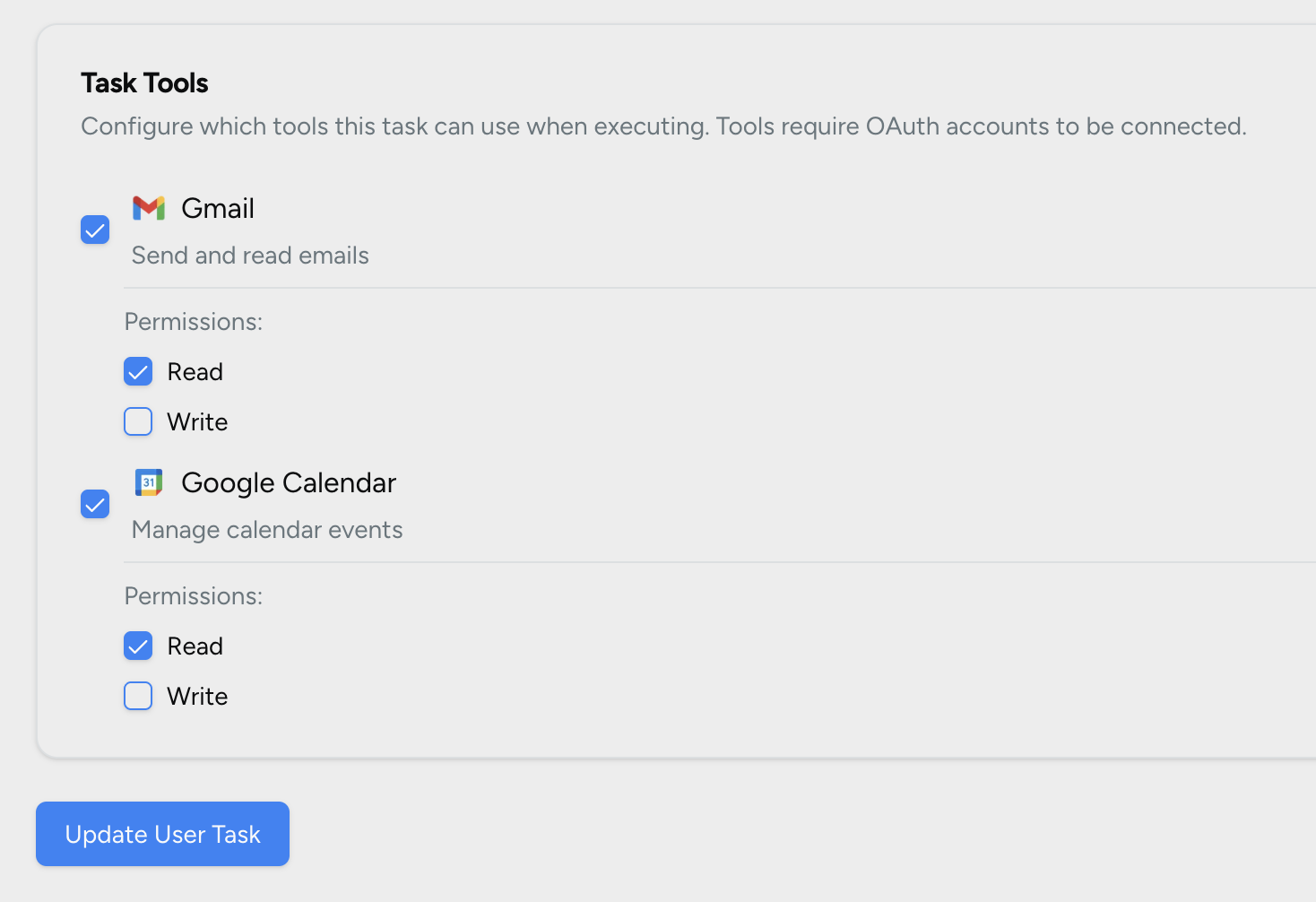
User Task Tools
Configure your private user tasks to use tools from your integrated accounts
to automate getting important information like emails, calendar events, and
more.
Connected Accounts
Link your personal accounts for enhanced functionality:Connect your Google account to access Gmail and Google Calendar for seamless
integration with your user level tasks and chats as tools.
Additional Integrations
Coming Soon: Microsoft 365, Atlassian, Notion, and other popular
services for enhanced productivity and project management.
Viewing Connected Accounts
- Navigate to the account settings
- On mobile this will be in the top right of the main screens where your username is
- On web this will be in the left navigation bar
- Locate the Integrated Accounts section
- on mobile there is an OAuth Accounts button
- on web you’ll need to scroll to the appropriate section
- Click or tap an account to view the details
- 📱 Mobile
- 💻 Web
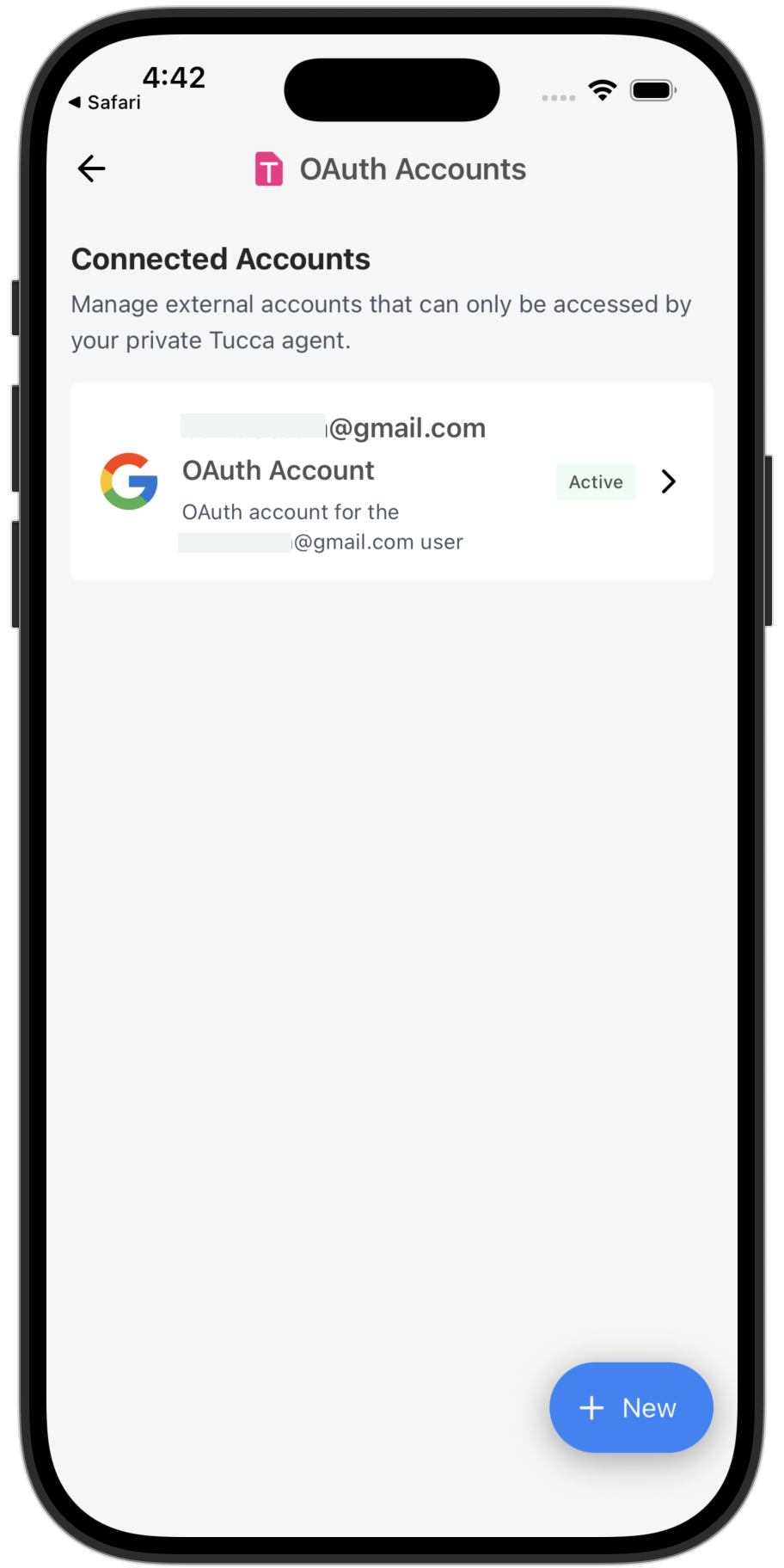
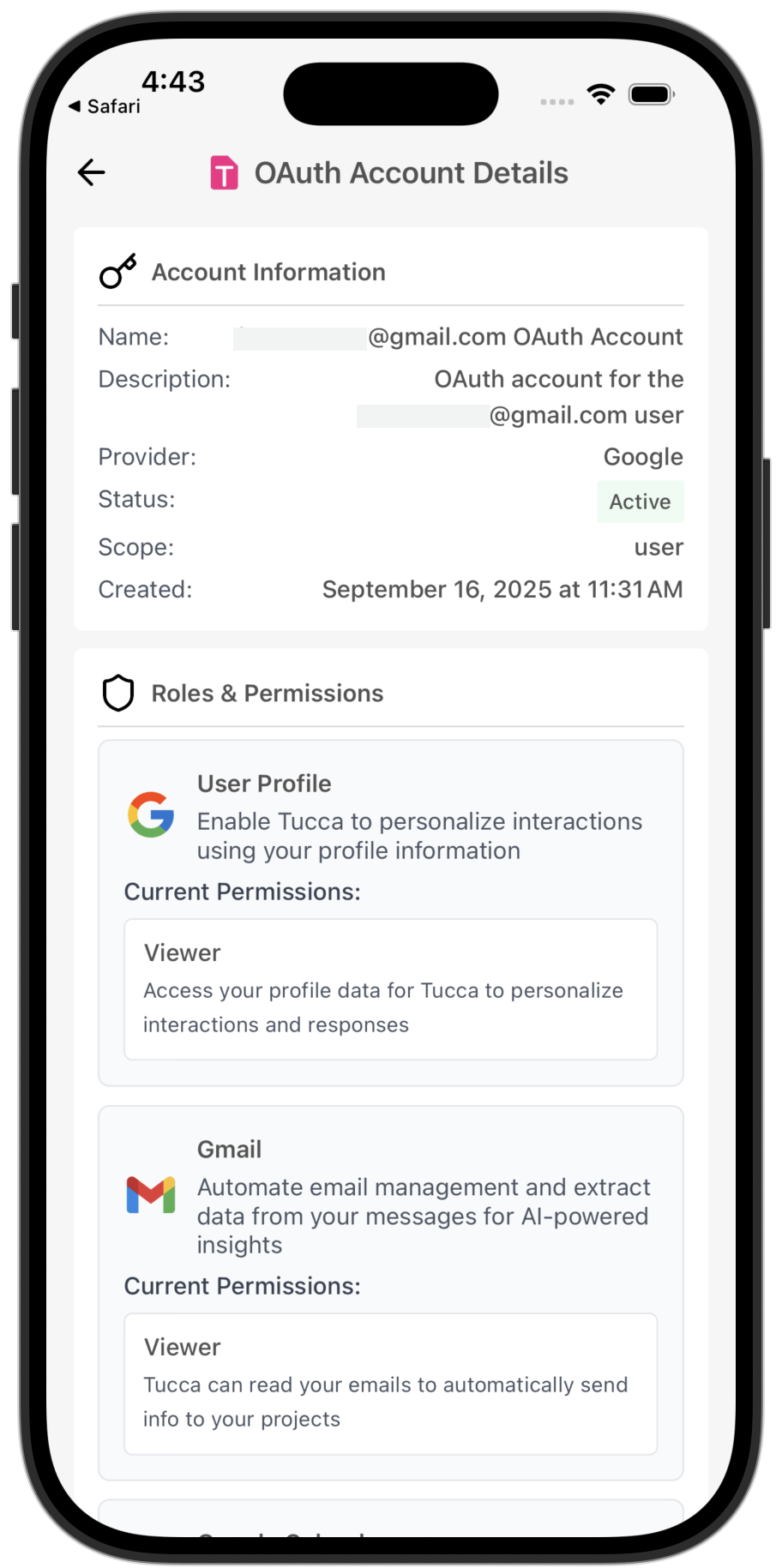
Mobile OAuth Account List & Details
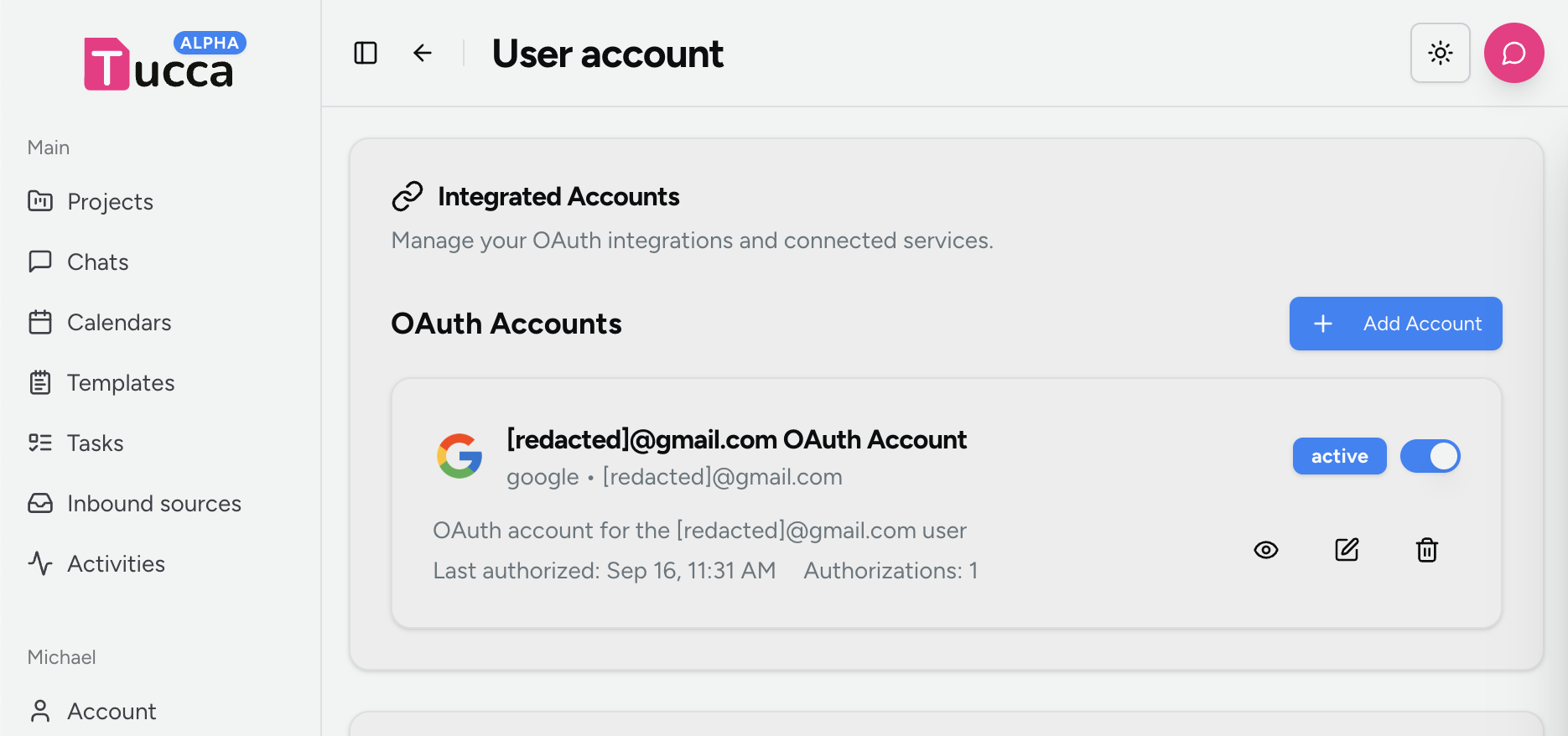
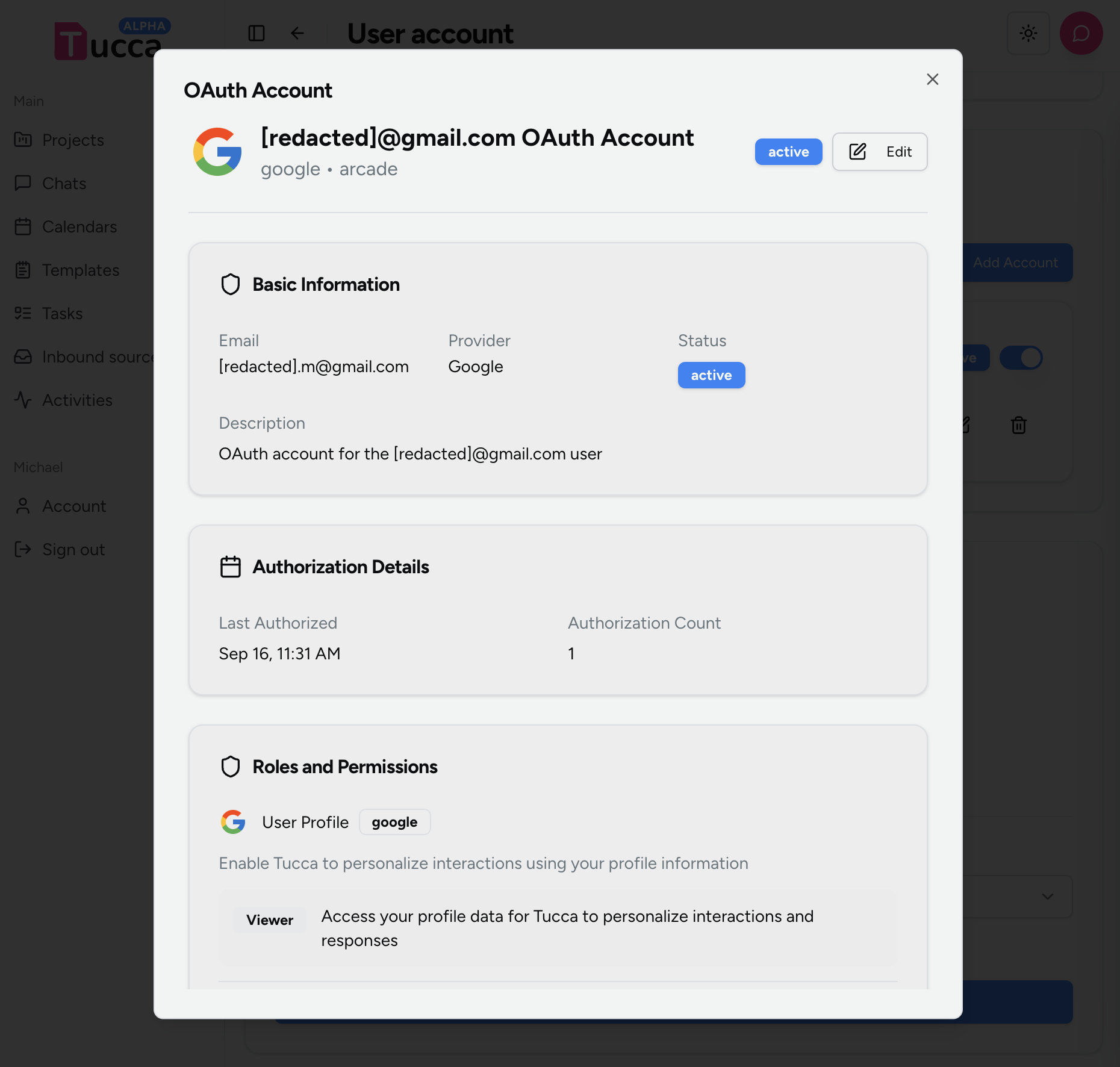
Connecting an Account
- From the connected account list (see above) click or tap the new button
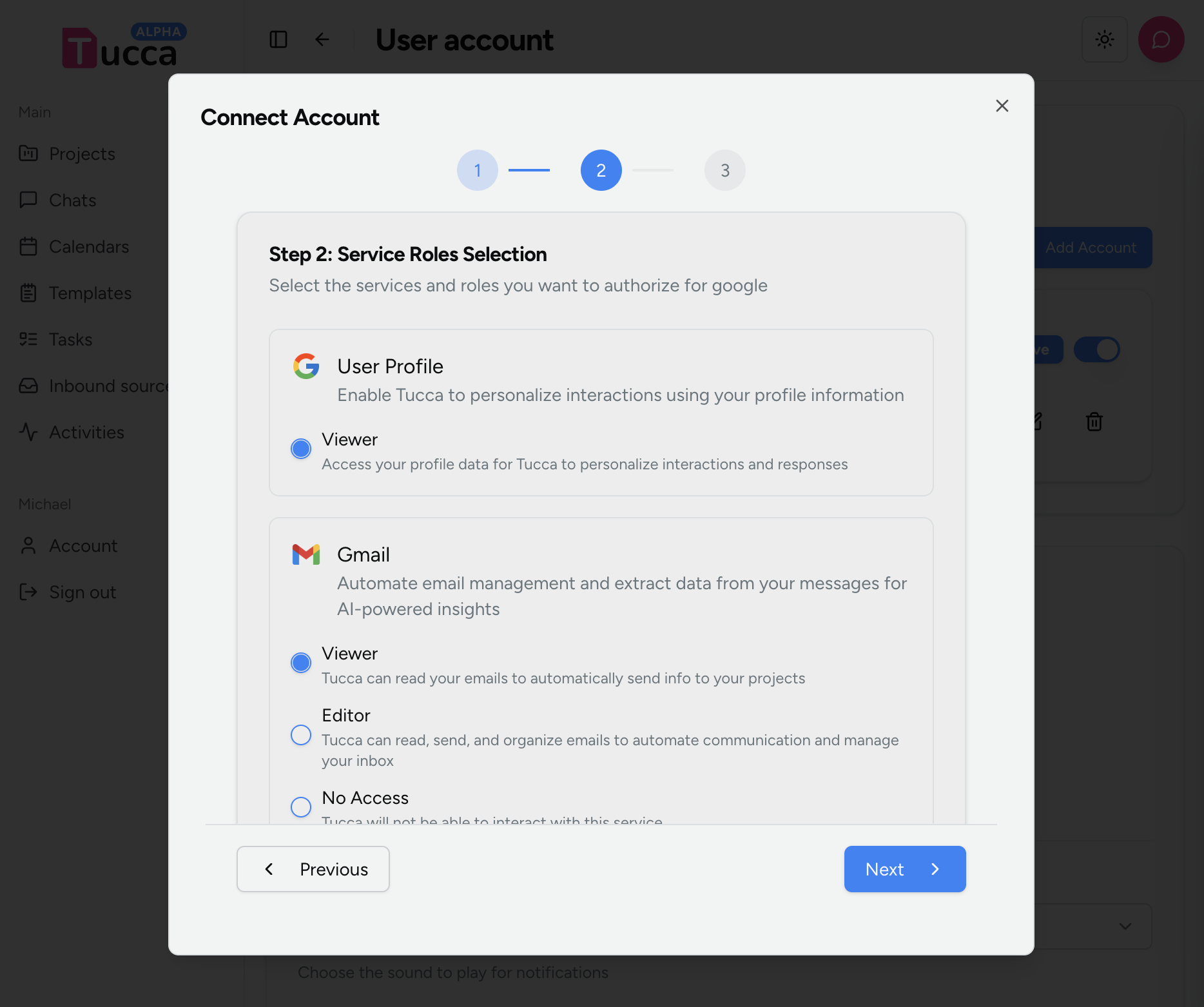
- Follow the configuration steps for the desired account
- Choose the service you want to connect an account for
- Choose the permissions you want to grant to Tucca when using the tool
- If you ever want Tucca to create emails, events, etc. then you’ll need to grant write permissions.
- You will be able to limit private chat and task tools from running with write permissions when needed even if you grant write permissions here.
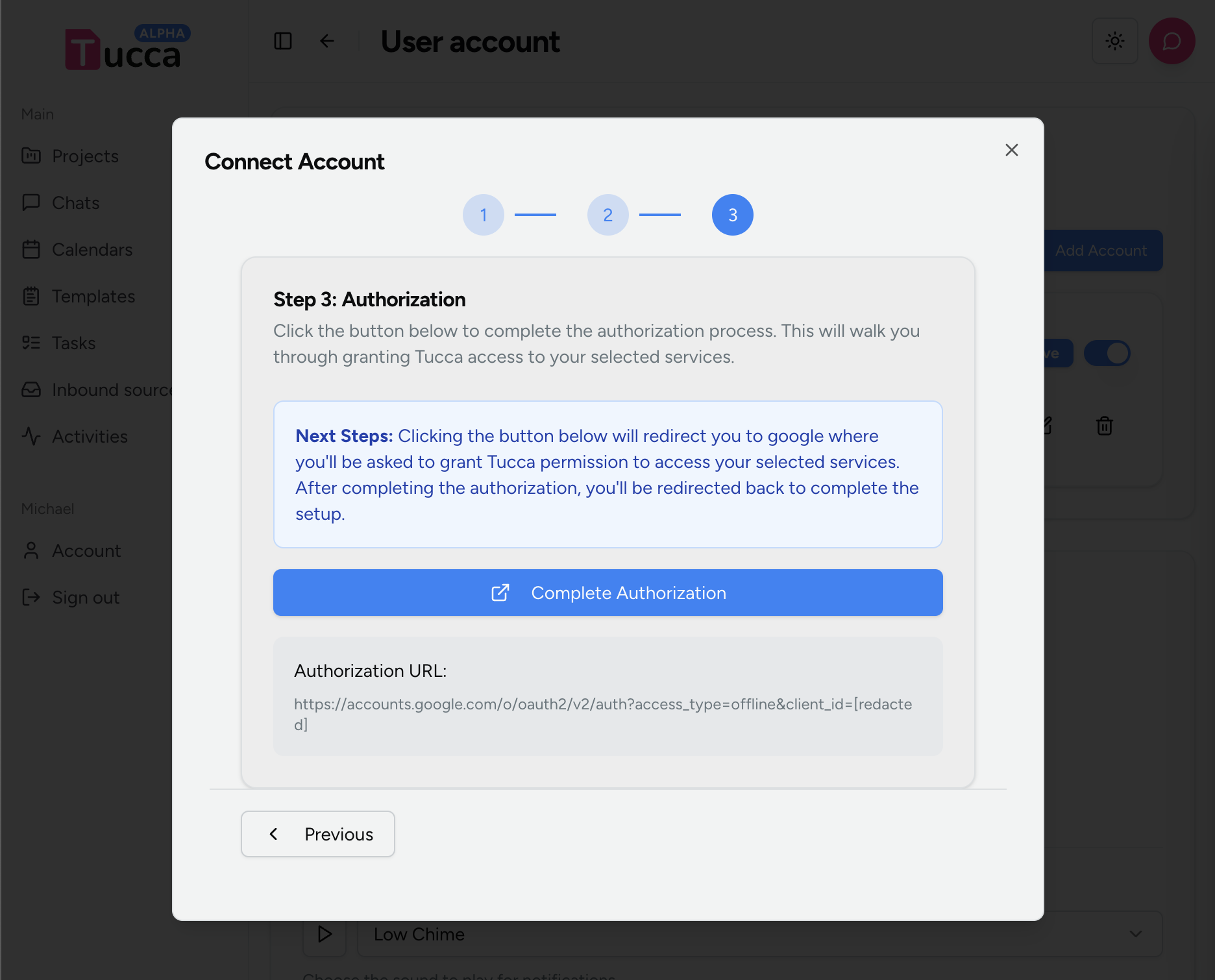
- Click the authorize button to begin the OAuth authorization flow.
- You will be redirected to the service provider to grant Tucca access to your account.
- Upon completion you will be redirect back to the Tucca app to finalize the integration.
- 📱 Mobile
- 💻 Web
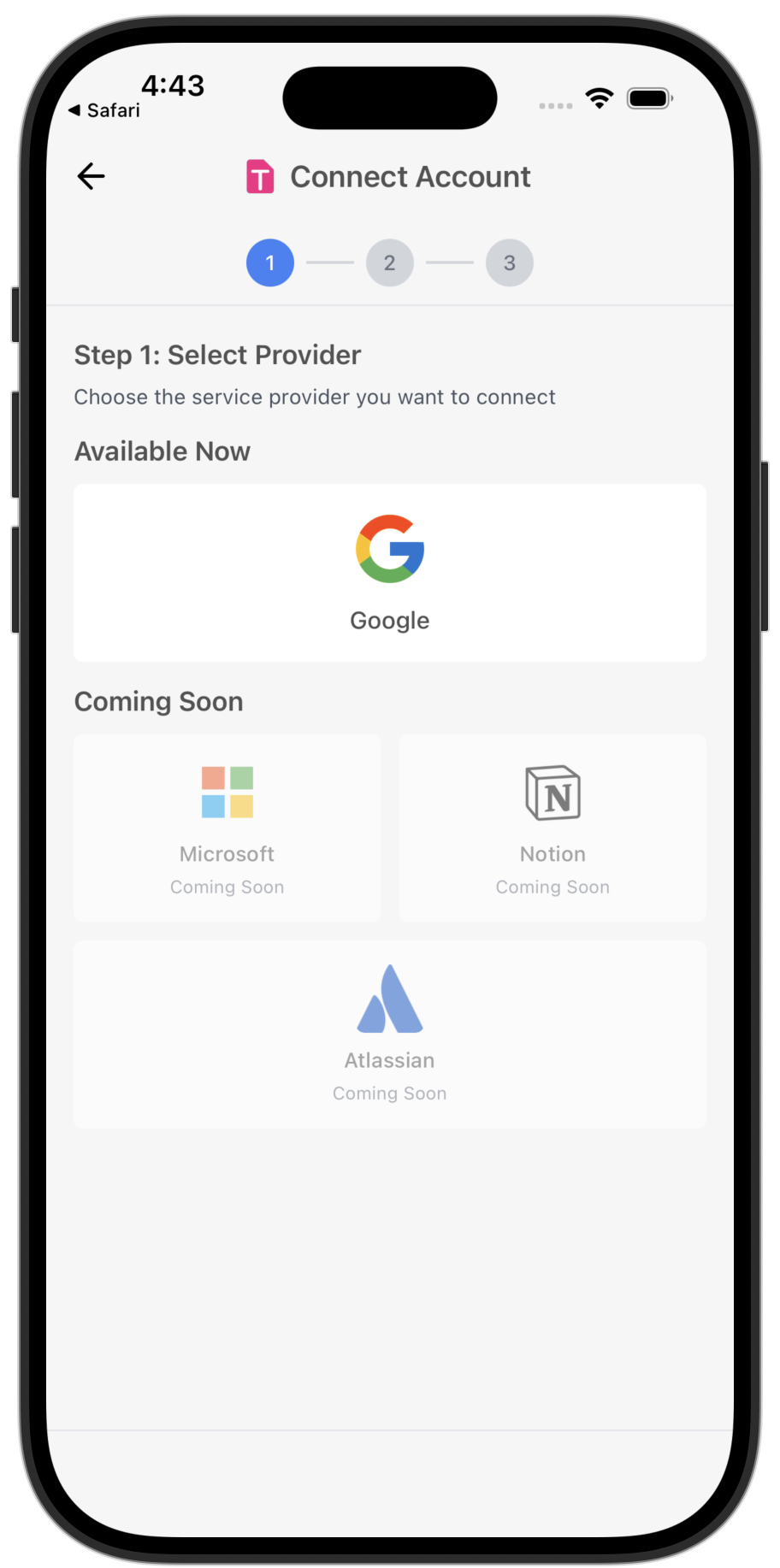
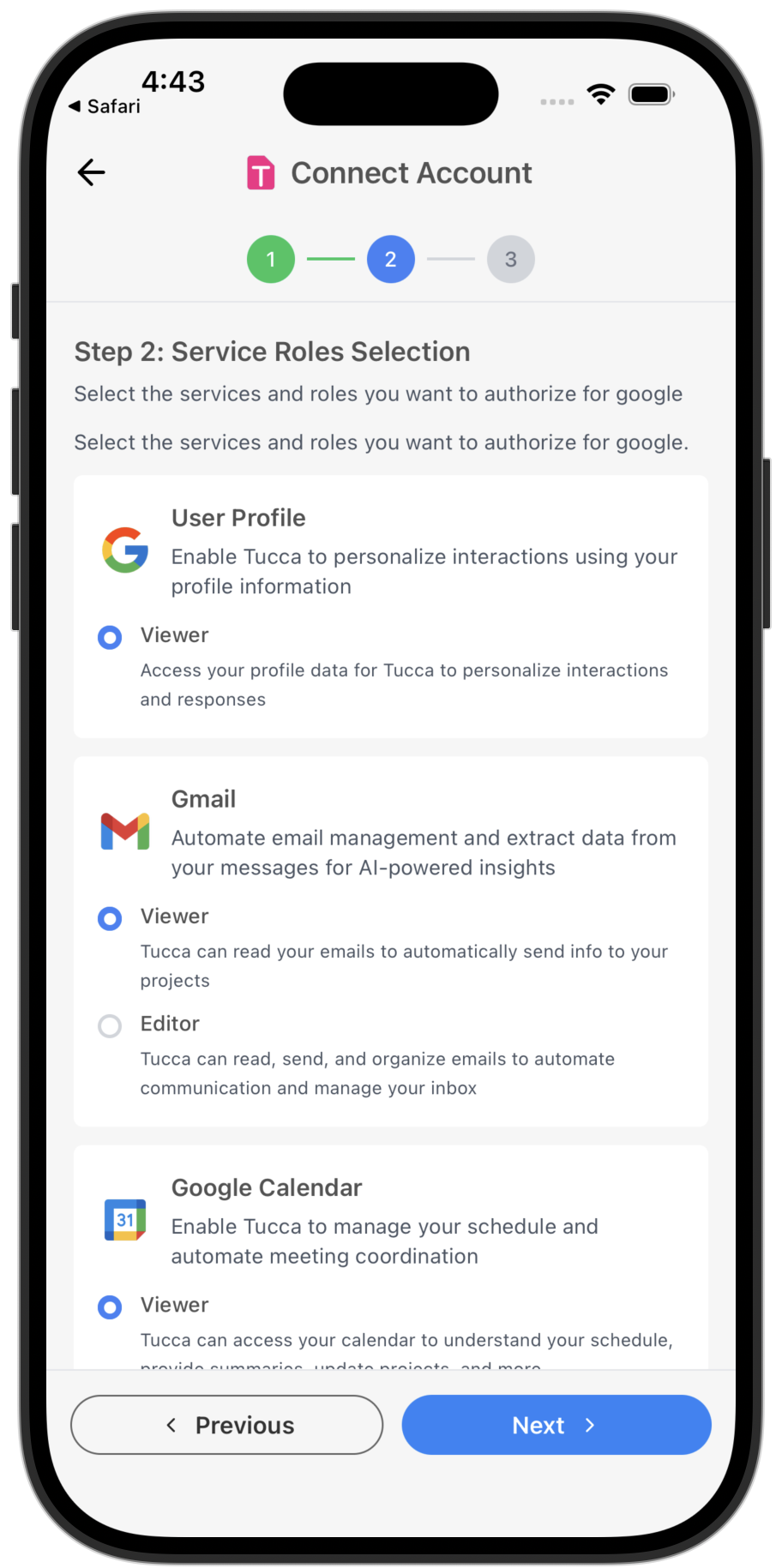
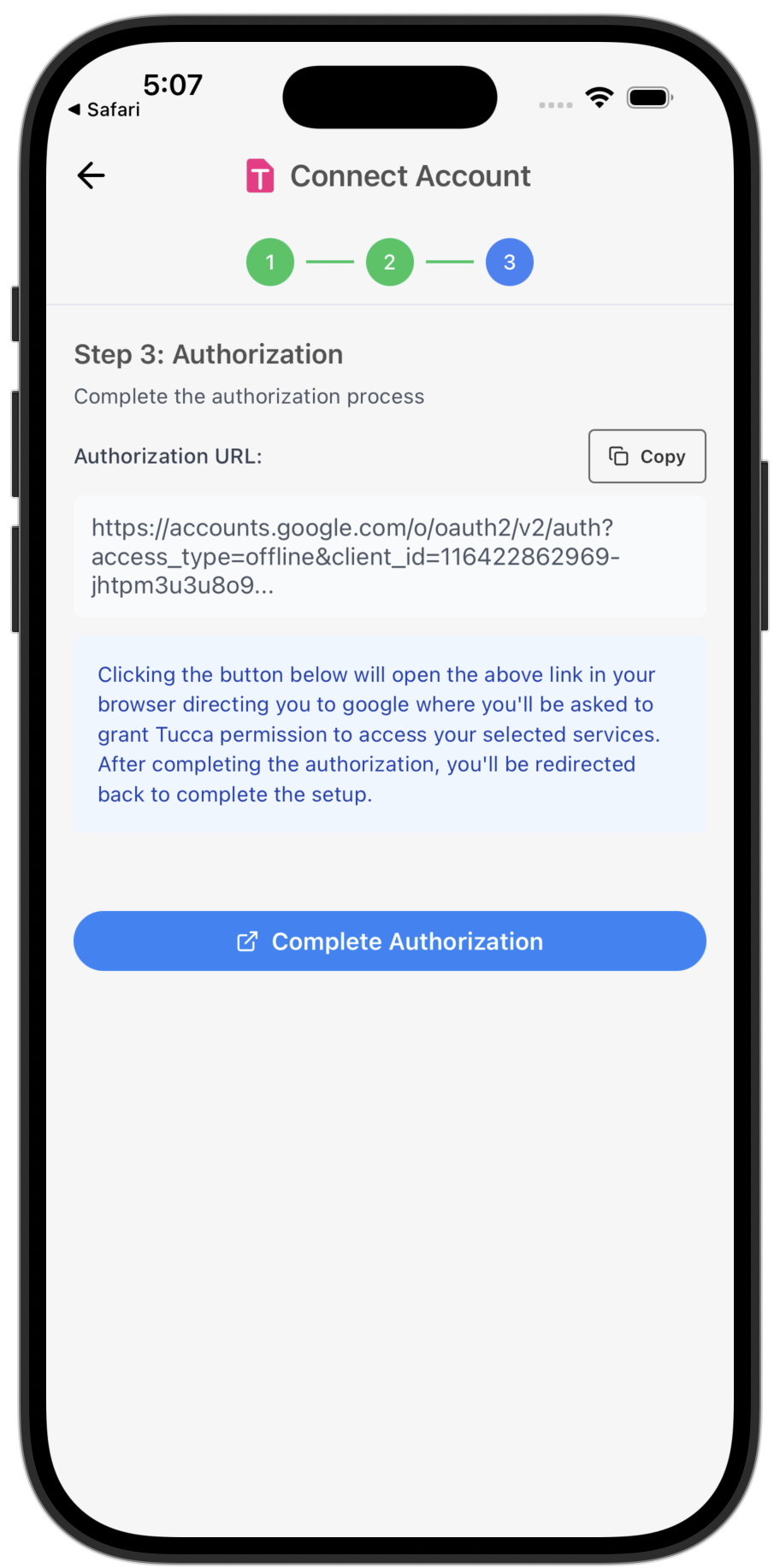
Mobile OAuth account connect flow
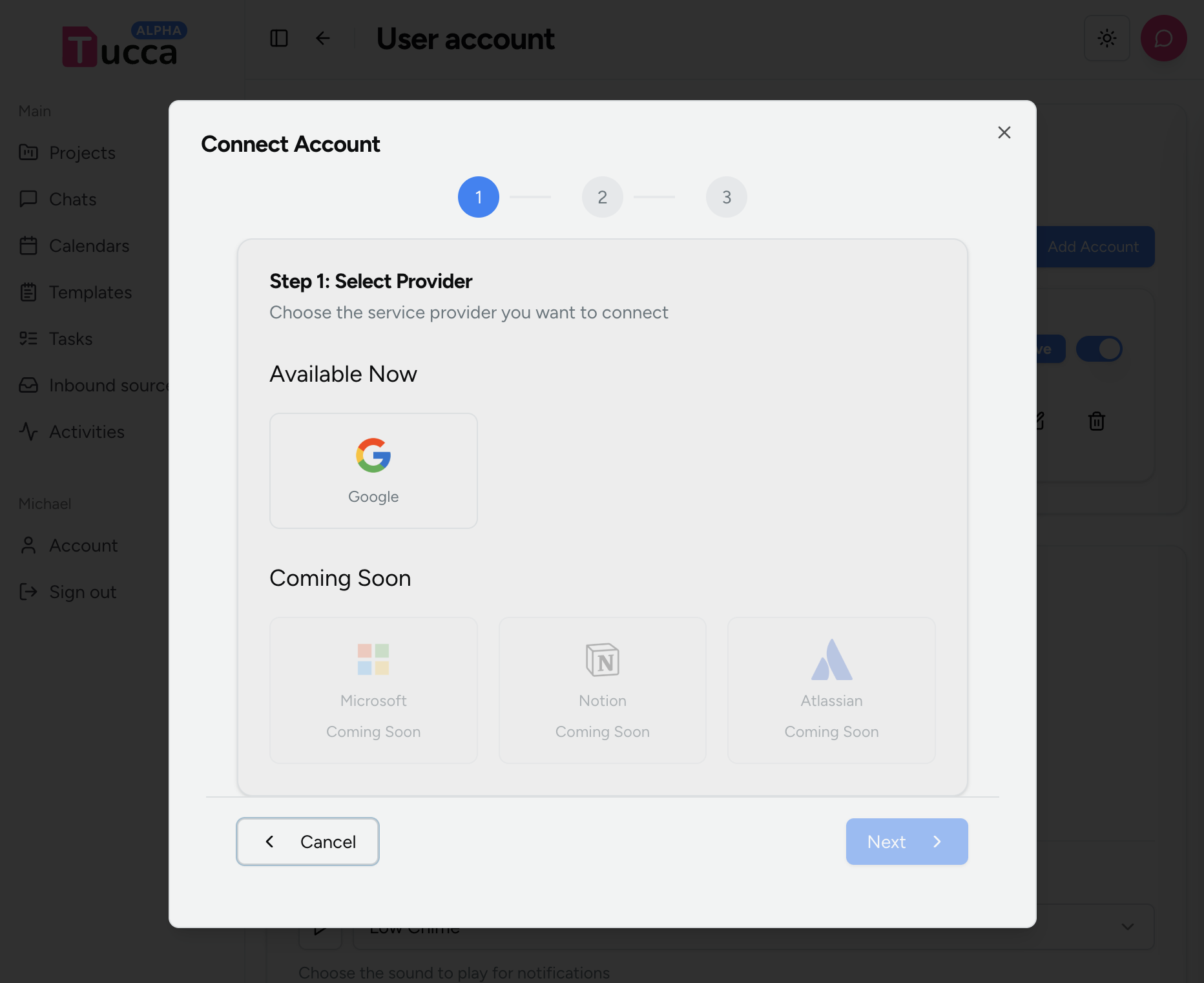
Using Connected Accounts
Connected accounts can be used in both global chats and user tasks which are both private to you.Global Chats
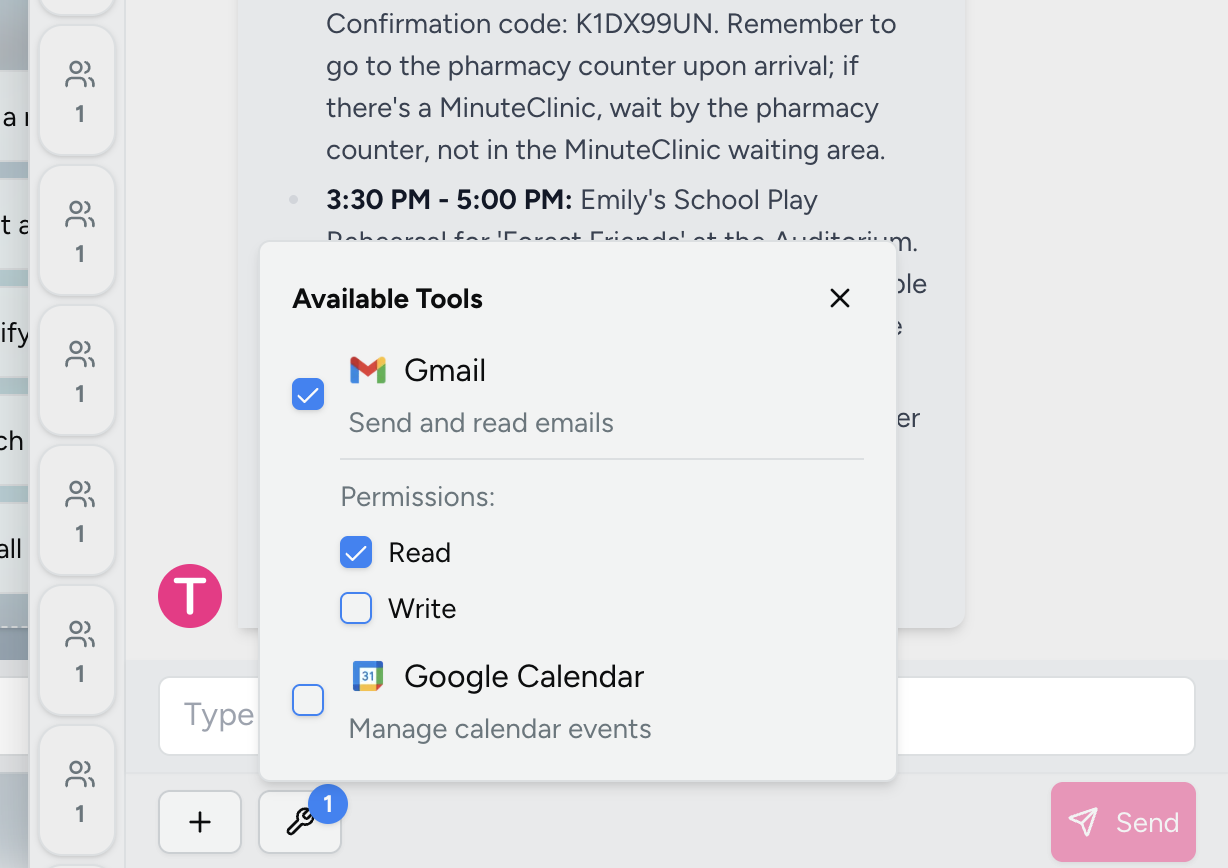
Global chats can access any OAuth accounts configured for your user account. When in a global chat look for the wrench icon to activate tools from your connected accounts.- 📱 Mobile
- 💻 Web
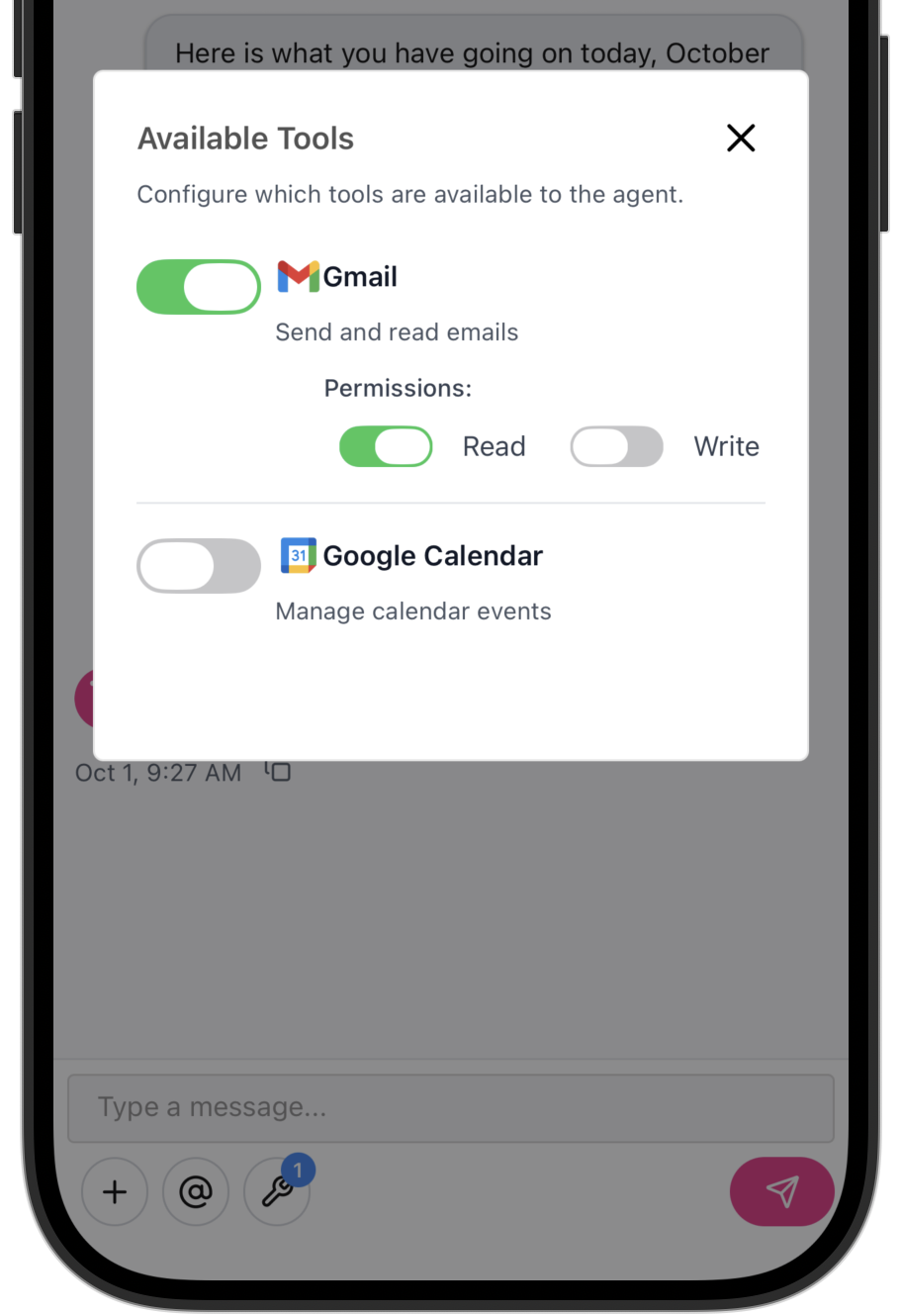
Mobile Global User Tools
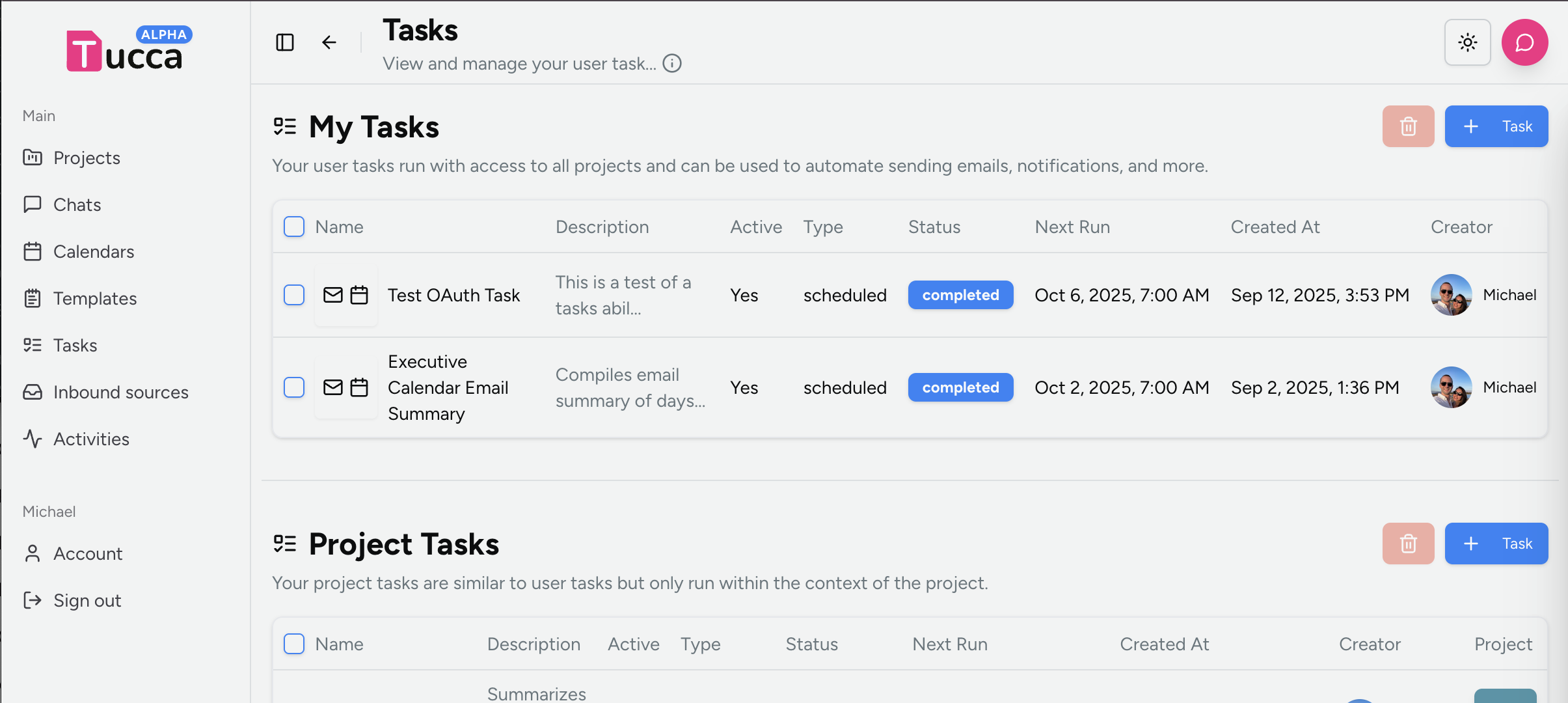
User Tasks
When creating or editing a user task you can configure the tools that the task will have access to.- 📱 Mobile
- 💻 Web
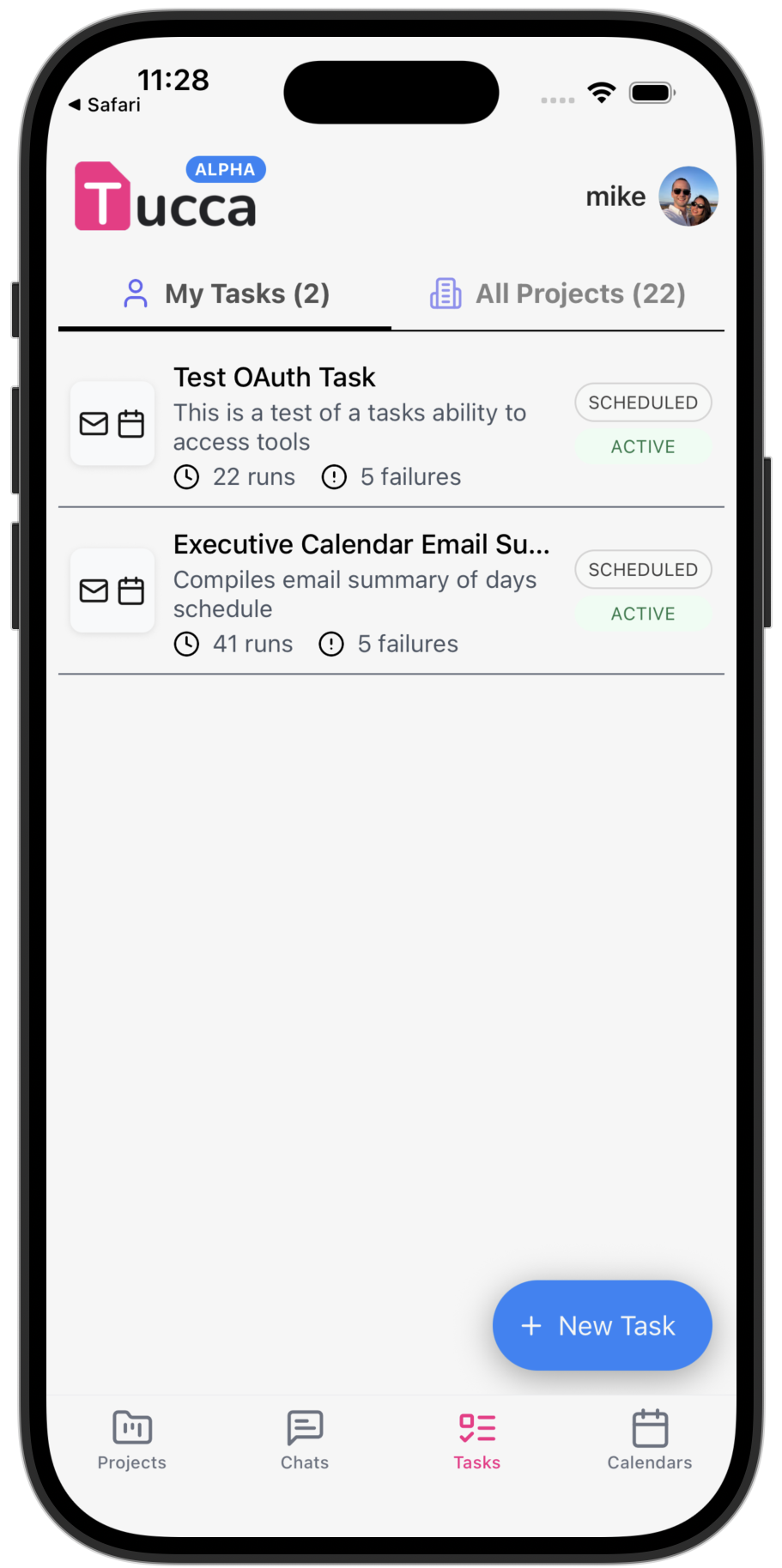
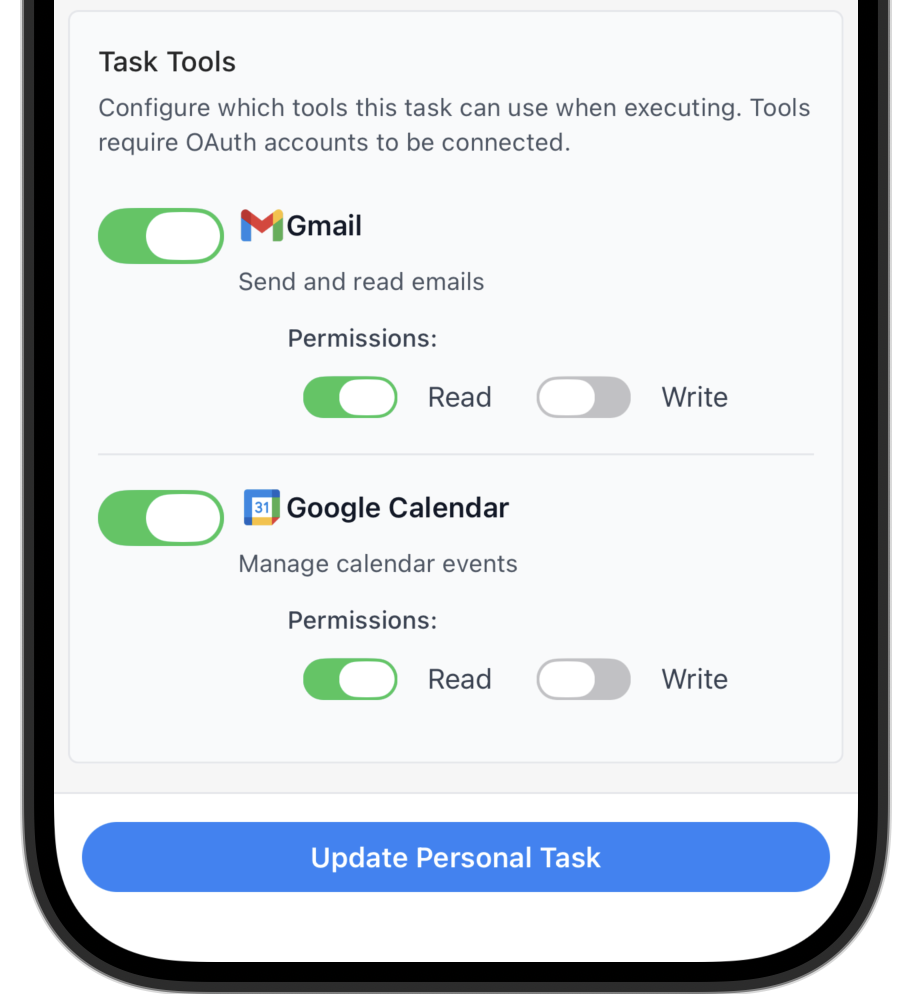
Mobile Tasks Global View & User Tools