

What is the Project Calendar?
Each project in Tucca has its own built-in calendar that automatically tracks events, appointments, and reminders for all information added to the project. The calendar is populated by an AI agent that analyzes your project data as it comes in helping you stay organized and never miss important dates.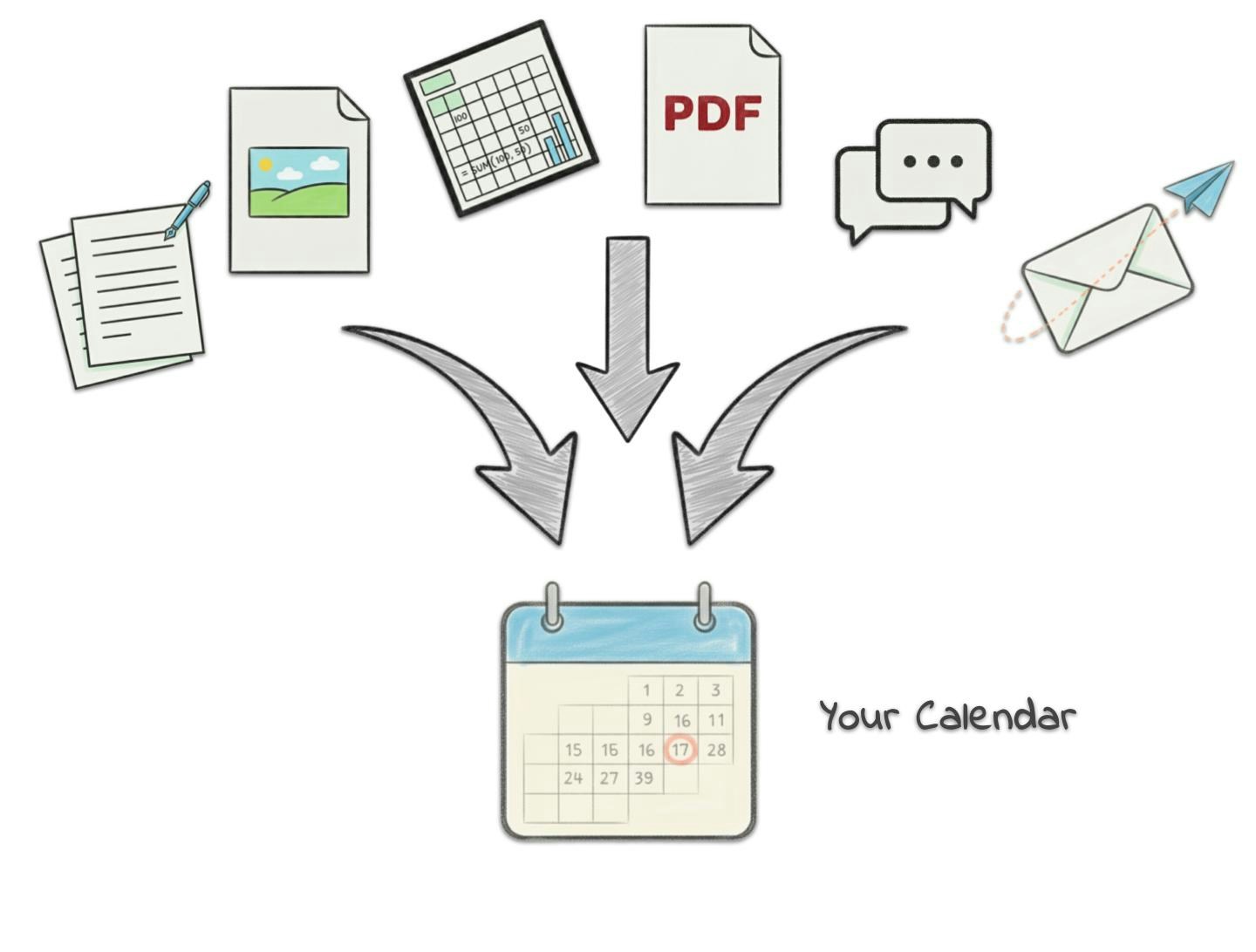
Key Features
Automatic Event Creation
AI automatically creates calendar events from your project data.
Manual Event Management
You can still create, update, and delete calendar events manually.
Public Sharing
Generate public URLs for sharing calendars with external applications. iCal
format, Google Calendar, Outlook, and more.
Cross Project View
View all your calendar events from all your projects in one place.
Automatic Event Creation
AI Calendar Agent
Tucca’s calendar agent automatically:- Analyzes Project Data: Reviews all data sources added to your project
- Identifies Events: Finds appointments, meetings, deadlines, and important dates
- Creates Events: Automatically generates calendar events from the data
- Updates Events: Modifies existing events when new information is available
- Removes Outdated Events: Deletes events that are no longer relevant
Data Sources for Events
The calendar agent creates events from various data sources:- Emails: Meeting invitations, appointment confirmations, deadline notifications
- Documents: Contracts with important dates, project timelines, schedules
- Images: School flyers, sports schedules, and more
- Screenshots: Text messages with important dates, app notifications, and more
- Notes: Quick notes with important dates, reminders, and more
Calendar Management
Combined View of all Project Calendars
You can view all your project calendars at once in the global calendar view. This is useful for getting an overview of all the events happening across all your projects. This is availble on mobile via the Calendar button in the bottom navigation bar and on web via the Calendar tab in the left navigation bar.- 📱 Mobile
- 💻 Web
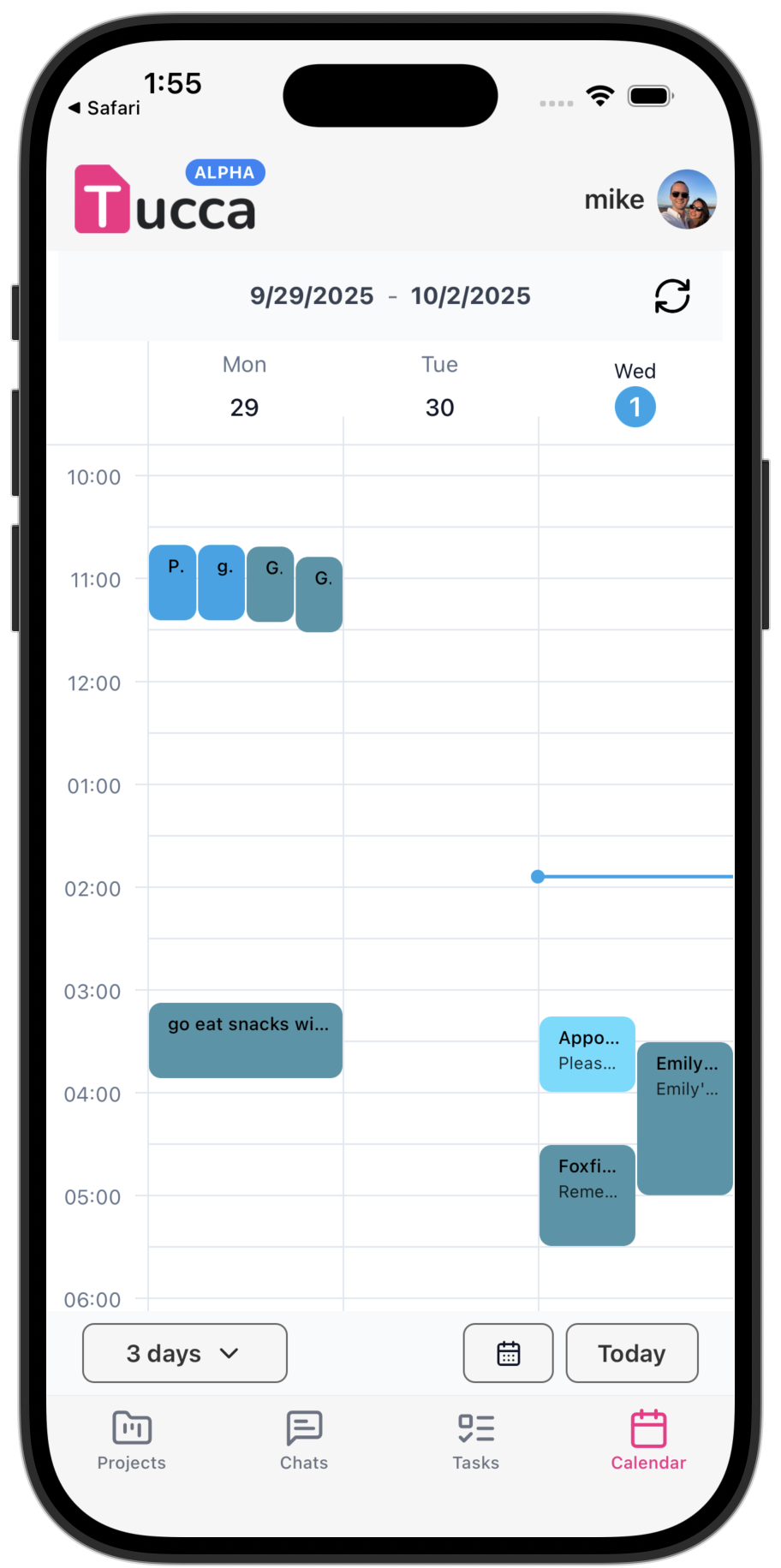
View all your project calendars at once on mobile devices
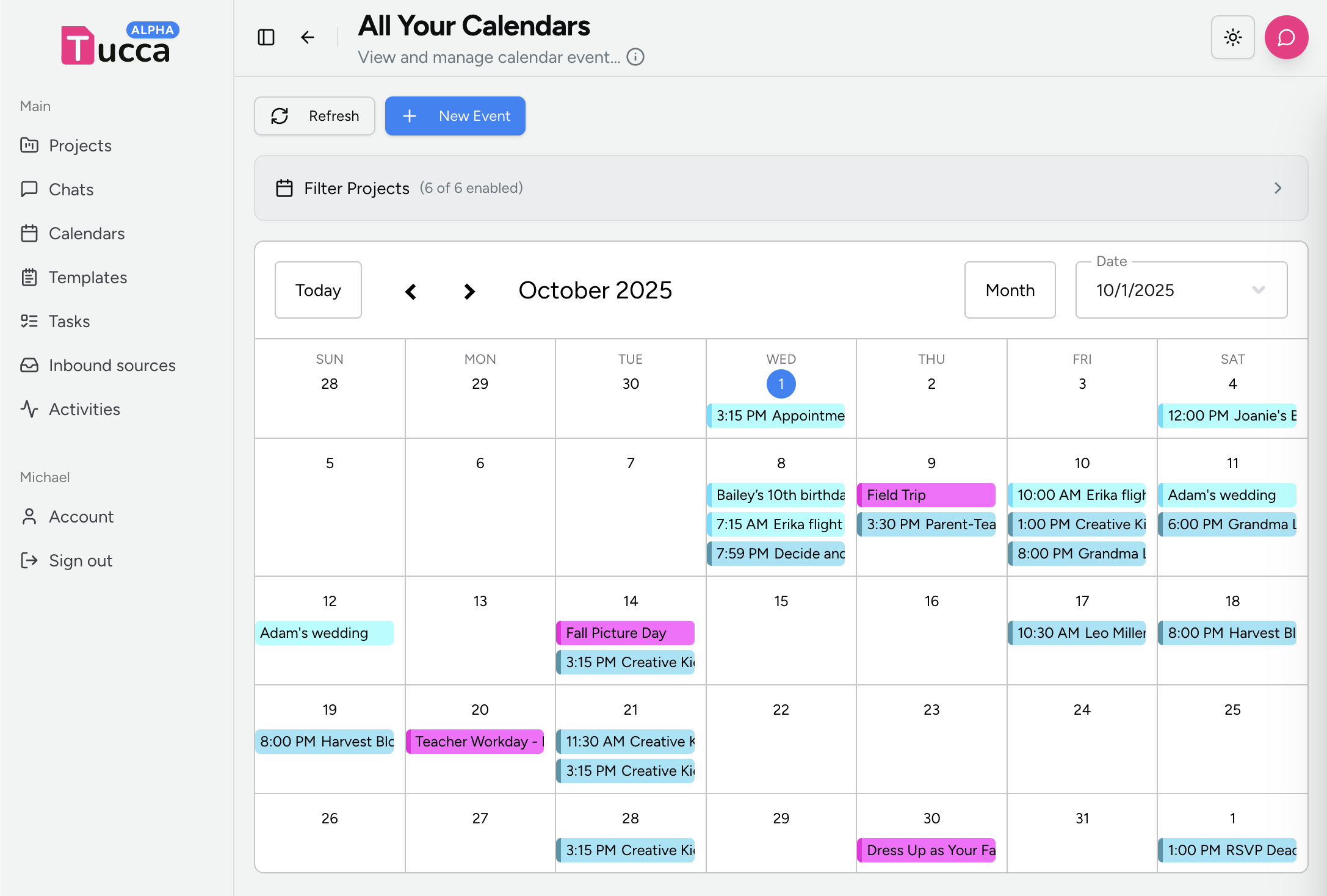
Calendar Data Rules
Users can optionally set plaintext rules for the calendar agent to follow when analyzing incoming data for calendar events. These optional settings can be used to fine tune how your calendar events are created, updated, and deleted inside a project.Configuring Calendar Data Rules
- Navigate to the project dashboard
- Go to the calendar section
- on mobile you’ll need to press the calendar button
- on web you’ll need to scroll to the calendar on the dashboard
- Locate the “Rules” button under the calendar section and click it
- Here you’ll see any existing rules. Make any changes you need to and press save when complete.
Public Calendar URLs
Users can generate a public URL for their calendar that can be used to share with others or. This URL can be used to import the calendar into other calendar applications like Google Calendar, Outlook, and more.- 📱 Mobile
- 💻 Web
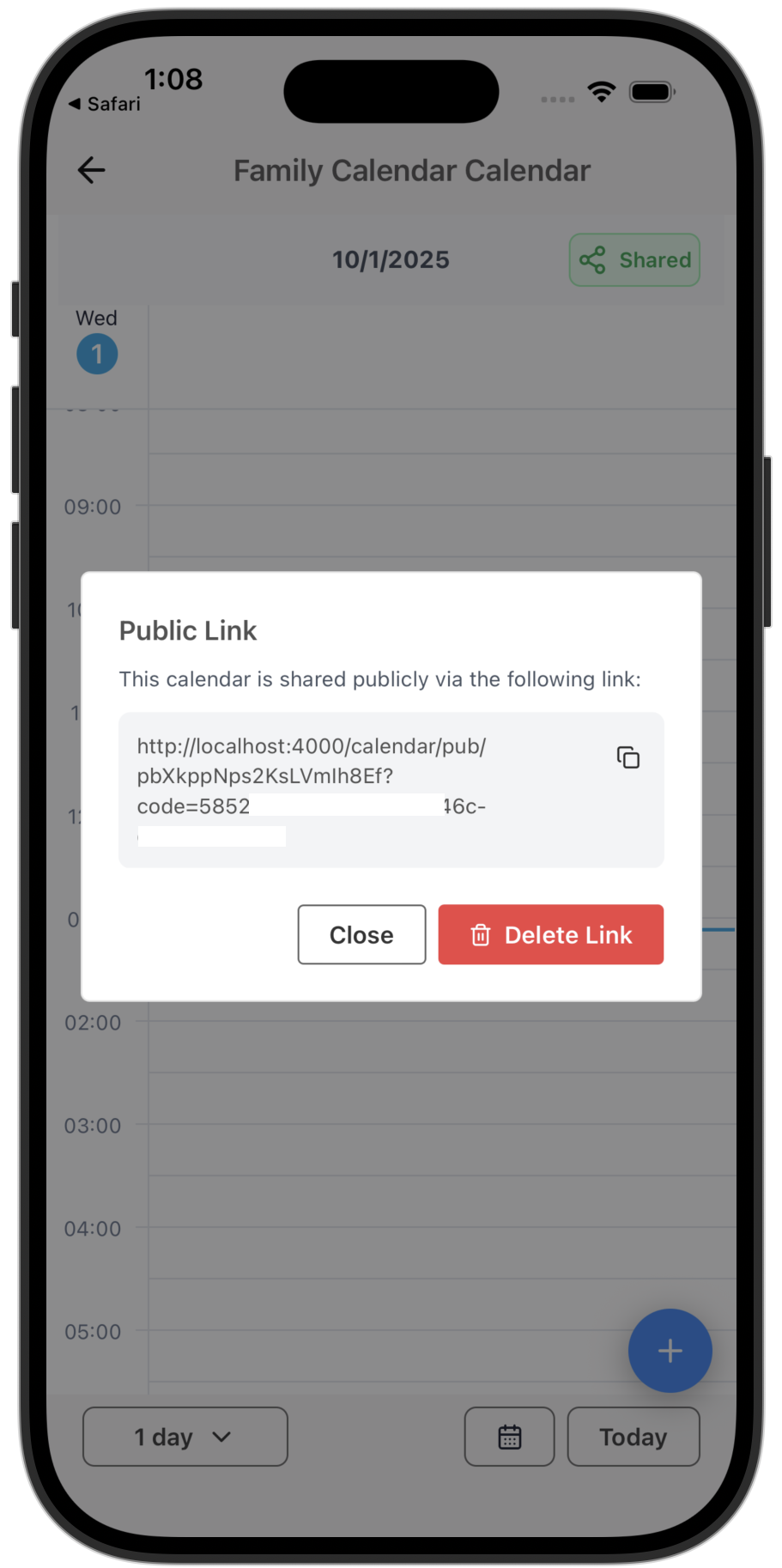
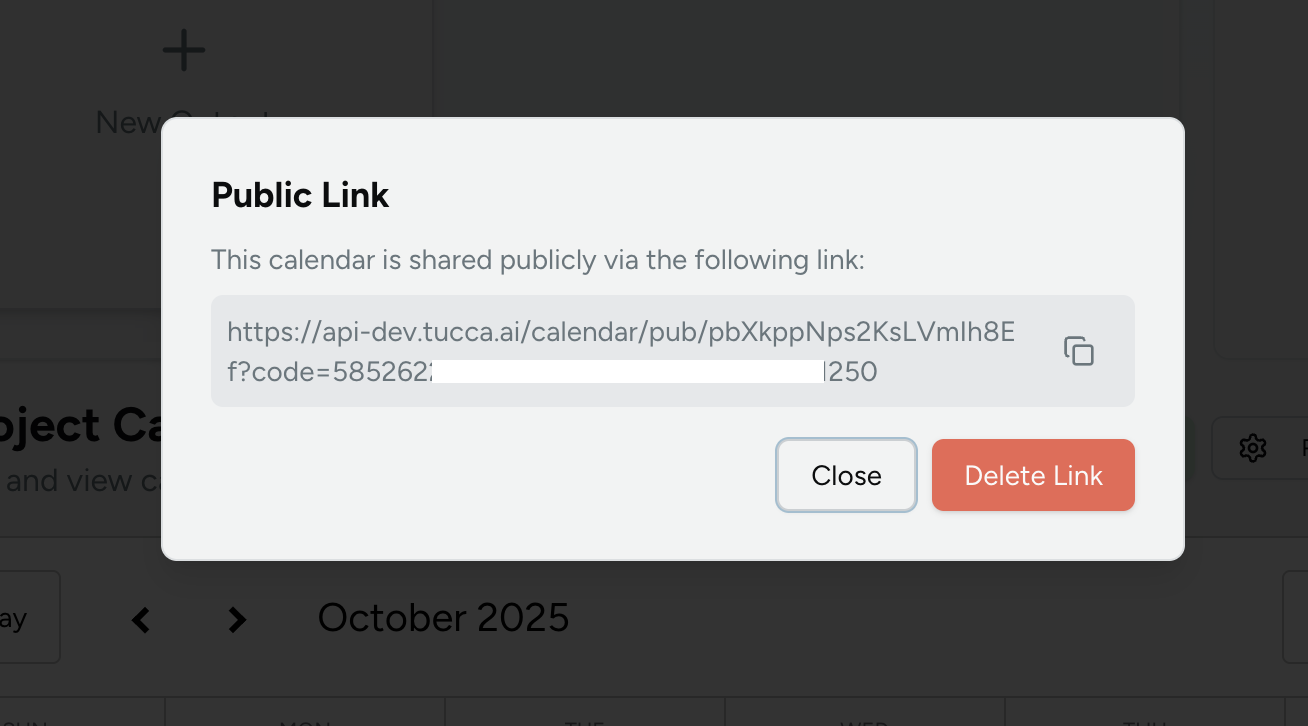
Generating a Public Calendar URL
- Navigate to the project dashboard
- Go to the calendar section
- on mobile you’ll need to press the calendar button
- on web you’ll need to scroll to the calendar on the dashboard
- Locate the “share” button under the calendar section and click it
- Here you’ll see the public URL for the calendar. You can copy it and share it with others.
Collaboration
- Share Calendars: Share relevant calendars with team members
- Update Regularly: Keep shared calendars current
- Communicate Changes: Notify team members of important changes
- Respect Privacy: Only share what’s necessary
Use Cases
Project Management
Track project deadlines, milestones, and team meetings.
Personal Organization
Manage personal appointments, reminders, and important dates.
Team Coordination
Share calendars with team members for better coordination.
Event Planning
Plan and track events, parties, and special occasions.
Troubleshooting
Common Issues
Events Not Appearing- Check that your data sources contain date information
- Verify that the AI agent is processing your data correctly
- Ensure that the calendar is properly configured
- Try manually creating events to test the calendar functionality
- Review your data sources for duplicate information
- Check that the AI agent isn’t creating multiple events from the same data
- Use the calendar interface to merge or delete duplicate events
- Adjust AI settings to reduce duplicate event creation
- Ensure that your data sources contain clear date information
- Check that the AI agent is configured to create events from your data types
- Verify that the calendar is set to display the correct date range
- Try manually adding events to test the calendar functionality
Next Steps
Now that you understand the calendar, explore these related concepts:Projects
Learn how to set up projects with effective calendar management.
Data Sources
Understand how to add data that creates useful calendar events.
AI Chat
Learn how to use AI chat to manage your calendar events.
Automation
Set up automated workflows to keep your calendar updated.
← Home
Return to the main documentation homepage
← Concepts Overview
Browse all concept documentation